Quick answer: Add a custom source such as META
Custom sources are account-level values that Admin users can add to Brokerkit:
- Click your name in the top-right corner and open Account Settings.
- Select the Sources tab.
- Enter the new source name, such as META, in Type a Source Name.
- Click Create New Source.
The new value will then appear in the Source dropdown for Recruiting and Retention contacts and can be used during imports.
Staff users cannot access Account Settings or manage custom sources. Ask an account Admin to add the source for your team.
Brokerkit is great for tracking and communicating with leads, but it only works if you keep feeding it new prospects and keep them up to date.
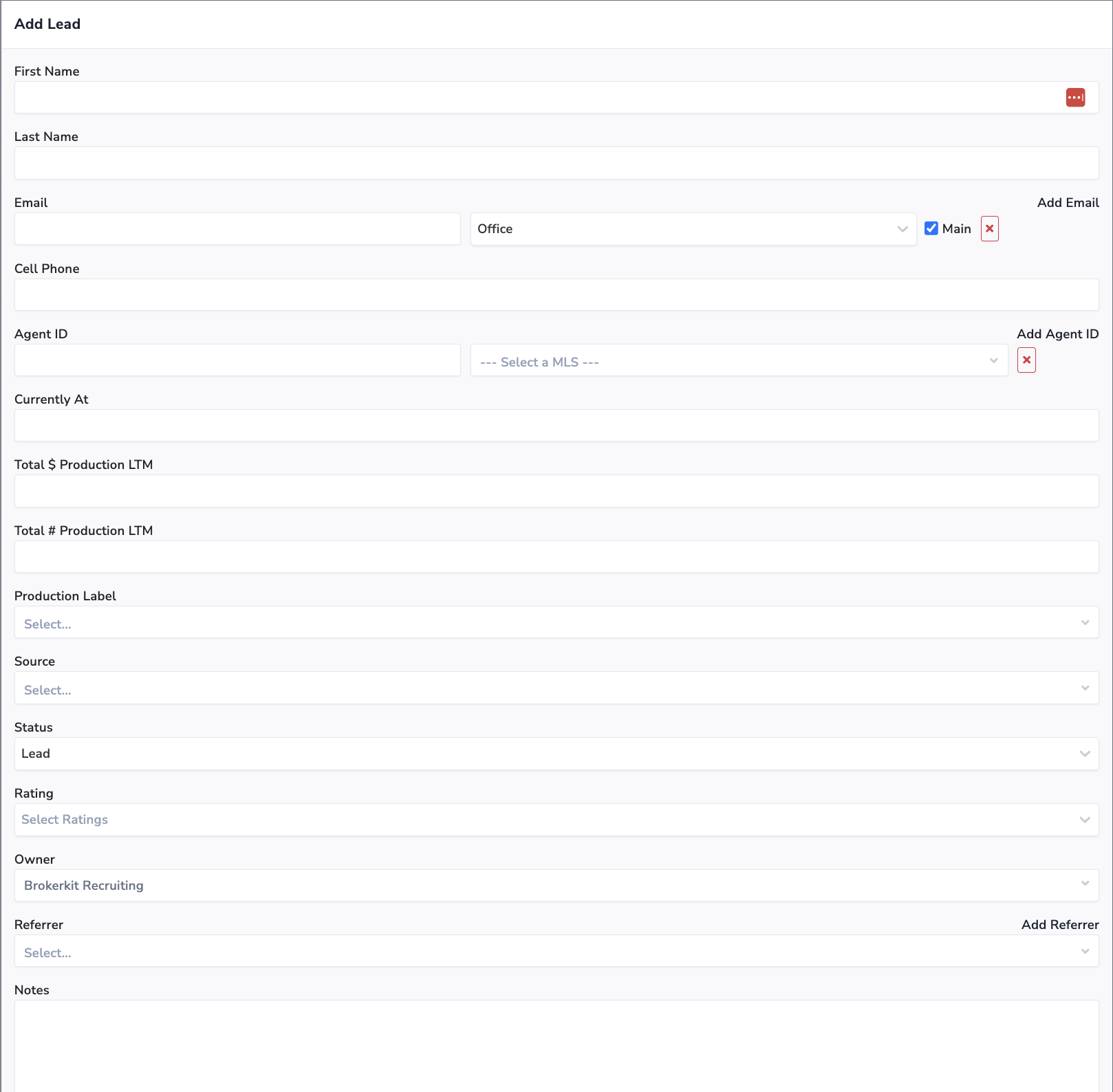
From anywhere on the Recruiter screen, click Add Lead in the upper right corner.

Every lead requires a First Name, Last Name, and a unique Email address. You can add multiple email addresses, and you can either set the type to office, personal or other emails and set one as the "Main" email, which is the one that outbound emails will be sent to.
Other fields are extremely helpful and recommended but optional. Here, you can also mark the Owner - who is in charge of following up with the lead - and a Referrer if applicable. You can also add your leads' cell phone number, agent ID, "Currently at" is for the current company they are at, Total $ Production LTM, Total # Production LTM, and your lead's Production Label, Source, Status, and even your lead's rating. Add any information you have on the lead's Production, Current Company, or Notes, then click Save.
For custom segmentation beyond these standard fields, you can use Labels - a flexible way to tag and group your leads. Labels allow you to create custom categories like 'High Priority', 'Warm Lead', or any other custom grouping you need. Learn more about using labels to group your contacts.
📝 Note: If you regularly import and update your leads using BrokerMetrics, search for the lead's name or email before adding a new lead - they may already be in your system, and you'll avoid creating a duplicate.
Click here to learn more about importing and updating with BrokerMetrics.
Once you've saved the lead, Brokerkit will automatically take you to the lead's profile. Any notes you've included will appear under Referrer Notes.
In the upper-right of the lead's profile, we can move the lead between Normal and Archived states and we can also adjust the lead's Status, which is crucial for keeping leads organized**.** The default status are:
- Lead
- Contact Attempt
- Contact Made
- Appt Set
- Needs Evaluated
- Offer Sent
- Onboarding
- Active
💡 You can also add your owner custom status, follow this guide to learn how.
Click here to learn more about Using Today, Leads, and Tasks.
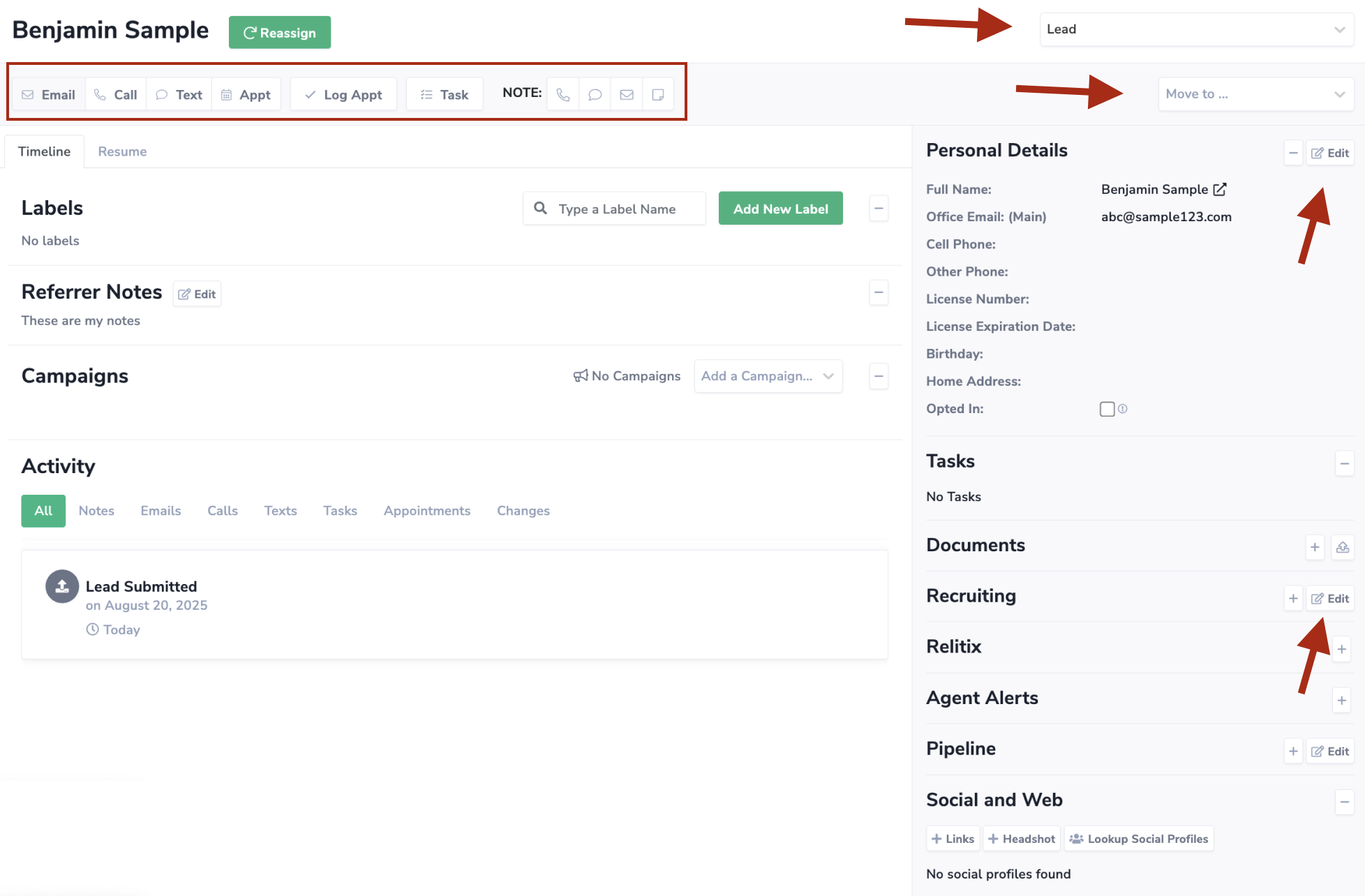
From here, we can also modify anything about a lead. Click Edit under the Personal Details, Recruiting, or Pipeline sections on the right-hand side to make any changes. When you're finished, click Save to continue.
The more up-to-date information you include on a lead, the more context you and your recruiters have when trying to bring them aboard.
Viewing Your Newly Added Leads
After adding a lead to your recruiting roster, you may need to adjust your view settings to see them:
My vs. All Filter
The Recruiting screen includes a "My" vs. "All" filter that controls which contacts are visible:
- "My" - Shows only agents assigned to you
- "All" - Shows all contacts in your account
If you don't see a newly added lead:
- Check that you're viewing "All" contacts (not just "My" contacts)
- Verify the agent was saved successfully
- Refresh your browser
- Check if the agent is in Retention instead of Recruiting
Label Filtering
You can also filter contacts by labels:
- Select a label from the filter dropdown
- Only contacts with that label will appear
- Clear the label filter to see all contacts again
Note: Label filters work in combination with the My/All filter. If viewing "My" contacts with a label filter, you'll only see your assigned contacts that have that label.
Changing Contact Ownership
Every contact in BrokerKit has an Owner field that determines who is responsible for that contact. The owner receives notifications and sees the contact in their "My Contacts" view.
To change ownership for a single contact:
-
Find the contact
- Use the search bar to search by name, email, or phone
- Or browse your contacts list to locate them
-
Open the contact profile
- Click the contact's name to view their full profile
-
Edit the Owner field
- Click the Edit button on the right-hand side of the profile
- Locate the Owner field in the contact details
- Select the new owner from the dropdown menu
- Choose yourself to take ownership, or select another team member
-
Save your changes
- Click Save to apply the change
- The contact now appears in the new owner's "My" view
Editing a Contact's Source
The Source field tracks where a lead came from, helping you measure the effectiveness of your recruiting channels.
To change the source on an existing contact:
-
Navigate to the contact's profile
- Search for the contact or browse your contacts list
- Click their name to open their profile
-
Find the Recruiting section
- On the right side of the profile, locate the Recruiting section
-
Click Edit
- Click the Edit button in the Recruiting section
-
Update the Source field
- Find the Source dropdown
- Select the appropriate source value
-
Save your changes
- Click Save to apply the change
Available Source Options
Brokerkit includes default sources like:
- Landing Page
- Referral
- Manual Entry
- Import
You can also create custom sources at Account Settings > Sources to match your lead generation channels (e.g., "Career Night", "MLS Report", "Wright Brothers").
Reassigning Leads to Team Members
"Assigning" and "reassigning" a lead both mean updating the Owner field — the team member responsible for follow-up. The new owner will see the lead in their "My" view and receive notifications for it.
Reassign a Single Lead
Use the Changing Contact Ownership steps above. In the Owner dropdown, pick the team member you want to reassign the lead to, then Save.
Bulk Reassign Multiple Leads
When you need to transfer a batch of leads between team members (e.g., an agent leaving your team, or rebalancing territories):
- Go to Recruiting or Retention.
- Use the checkbox at the top of the leads list to select the leads you want to reassign — or tick individual rows.
- Click the Bulk Actions menu above the list.
- Choose Change Owner (or Reassign).
- Pick the new owner from the dropdown, then confirm.
The leads are reassigned immediately, appear in the new owner's "My" view, and the new owner starts receiving notifications for them.
Reassign vs. Transfer Between Accounts
This article covers reassignment within your team. If you need to move leads between separate organization accounts (different BrokerKit teams in the same org), see Transferring leads and team members between accounts in an organization.
How do I change the source of a lead or agent?
Open the contact profile from Recruiting or Retention. In the details panel on the right side, find the Recruiting or contact-details section and click Edit. Update the Source field, then save the profile.
If your team uses custom sources, Admin users can also manage the available source names from the lead source settings. Renaming a source updates contacts that already use that source name, and deleting a source removes it from contacts that used it.