Hello and welcome to this Brokerkit tutorial. Today, we'll walk you through two time-saving updates to Jobs - the new Clone Job feature and improved zip code lookup.
1. Access Jobs Section
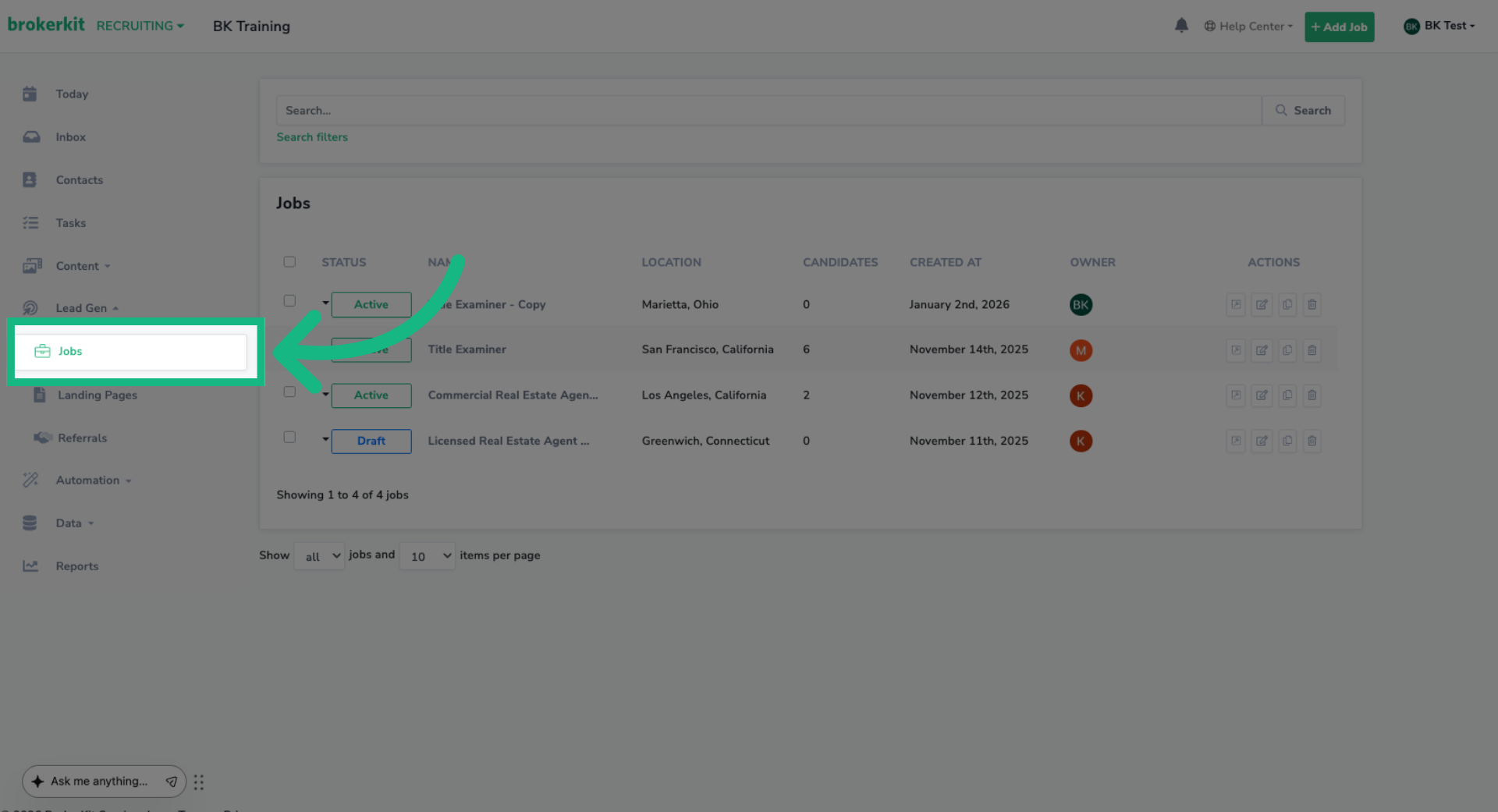
Let's start with the Clone Job feature. Navigate to your Jobs section from the left menu.
2. Clone Button
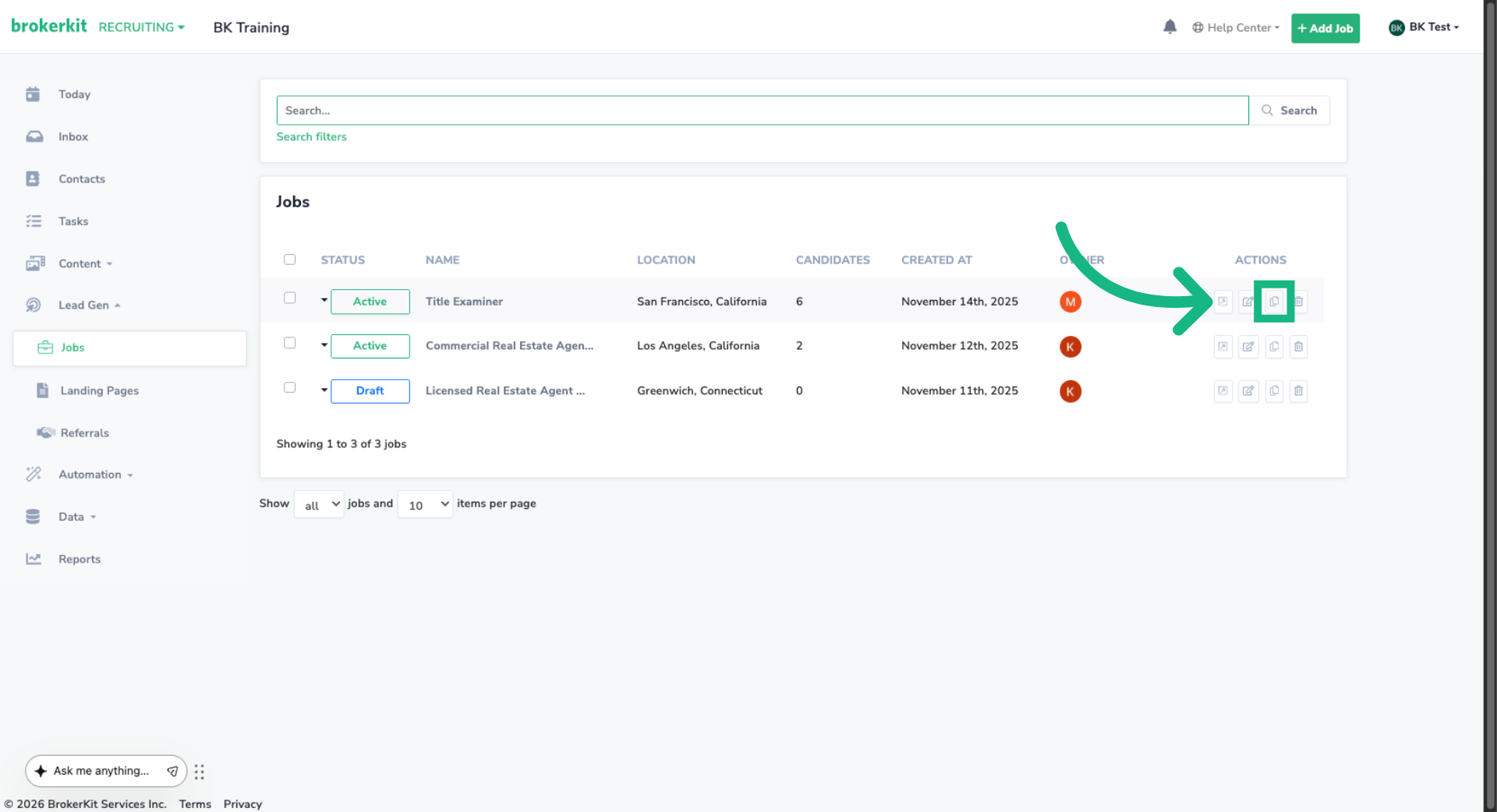
You'll see a new Clone Job button - this is your one-click shortcut to creating similar positions. Click the Clone Job button.
3. Choose Job To Clone
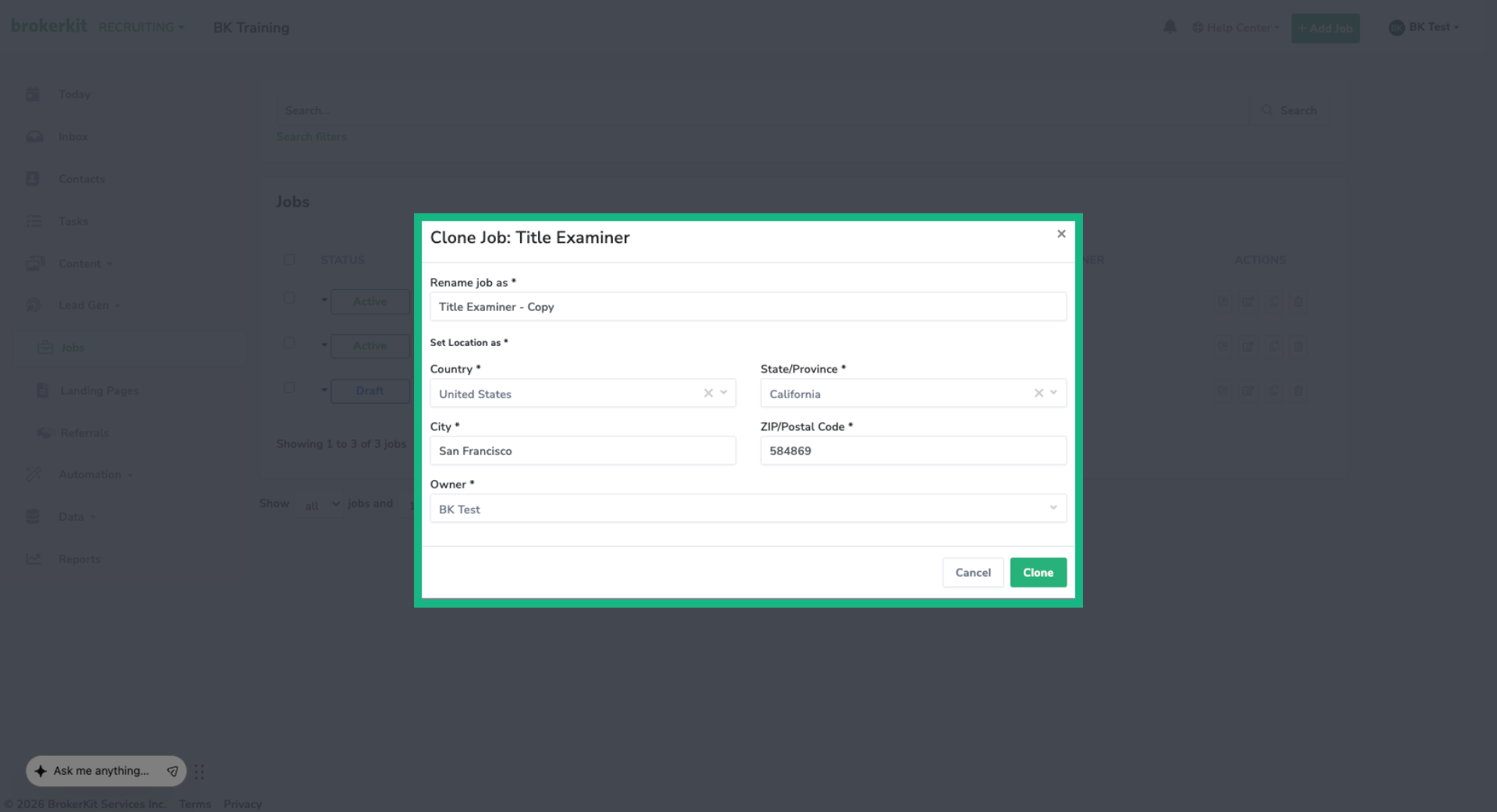
A modal will appear with all the job details pre-filled from your original posting. Just update what's different: maybe a new job title, different location, or different owner.
4. Save the Cloned Job
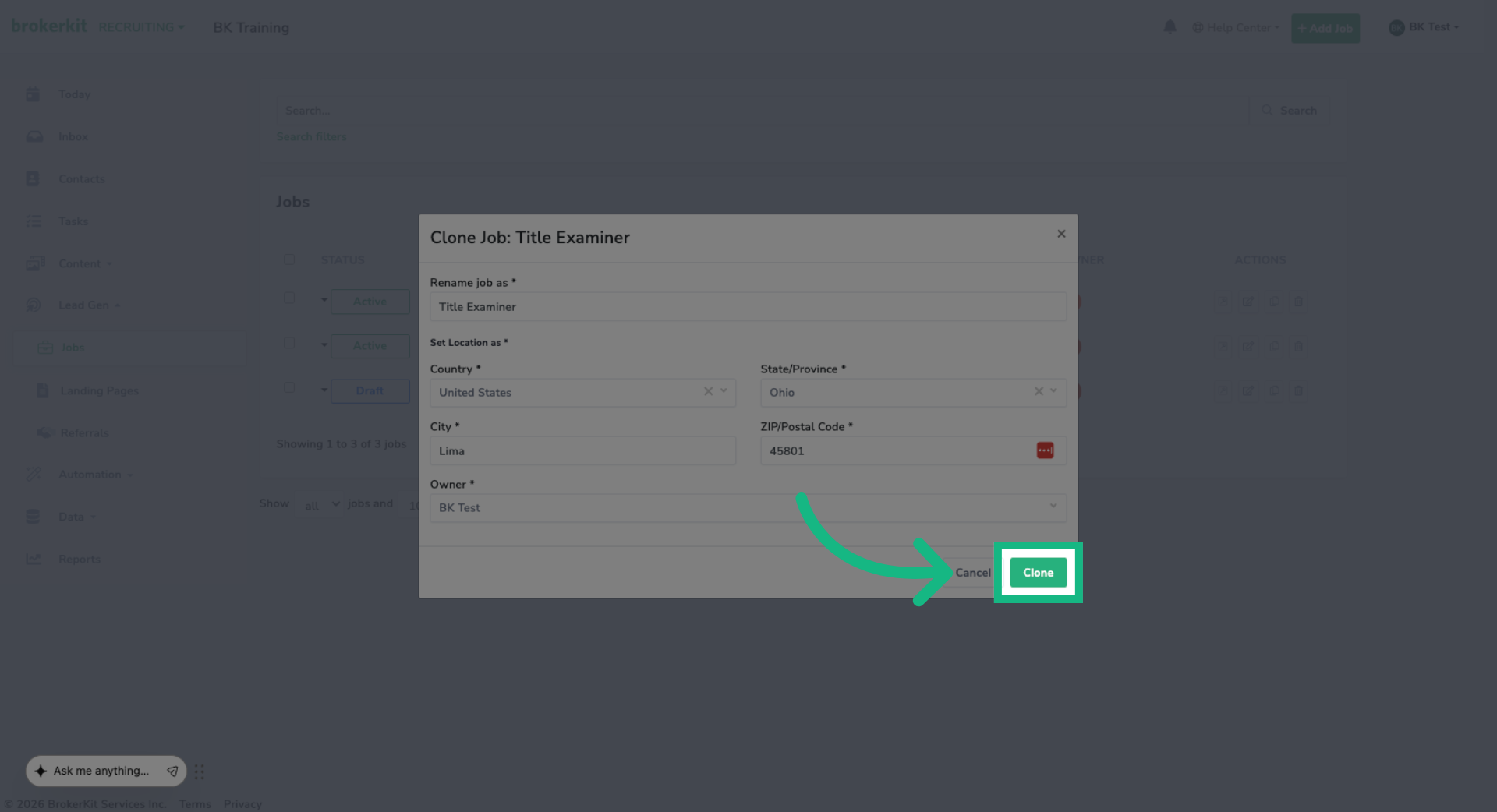
Click clone, and your new job is created instantly. What used to take several minutes of copy-pasting now takes seconds.
5. Confirm Clone Action
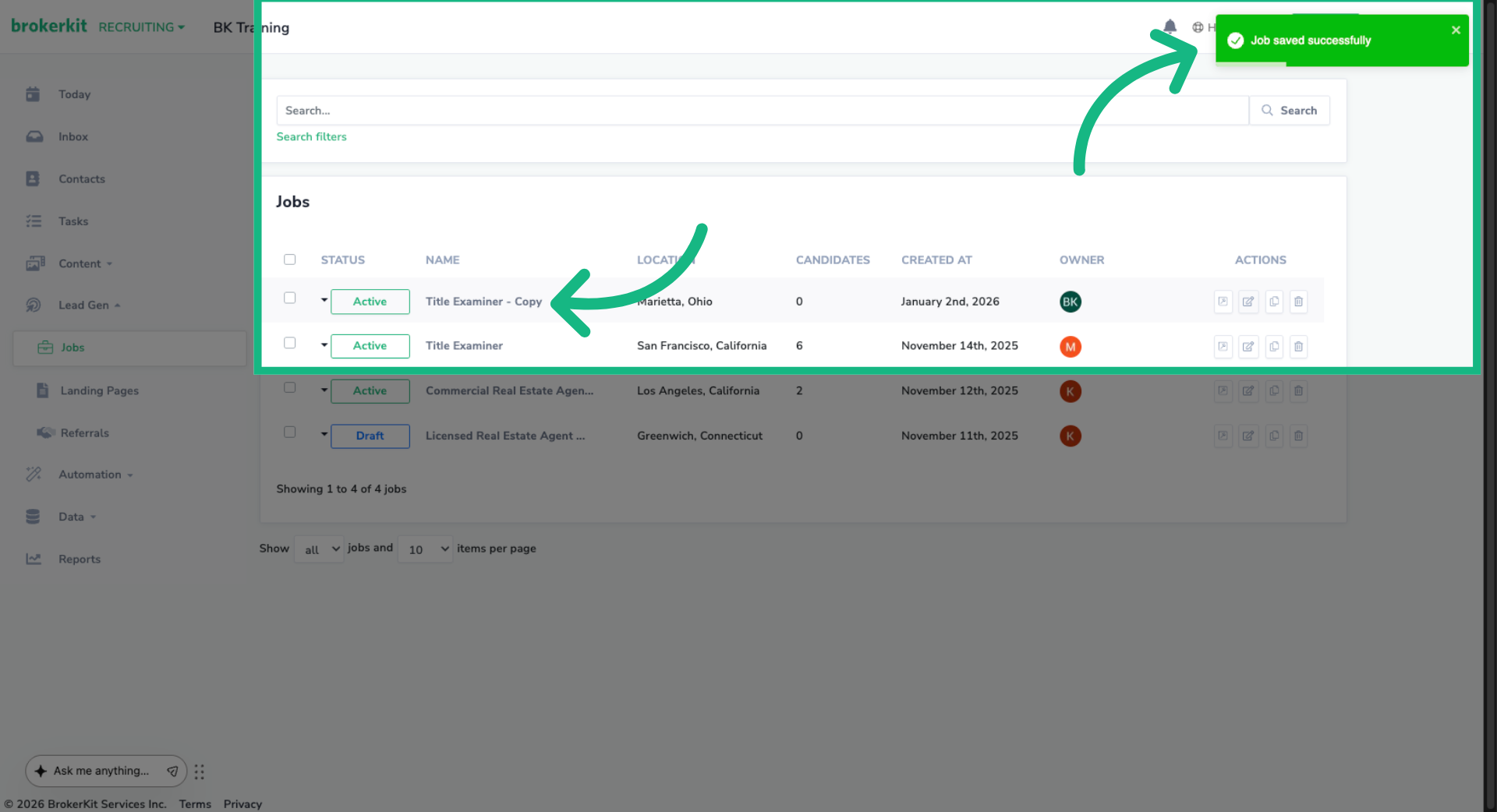
Confirm the Job was cloned. From here you can update the status or make any changes you want to the newly cloned job. For help on that. Please visit the Jobs for Jobs Posting video.
6. Create/Edit/Clone a job
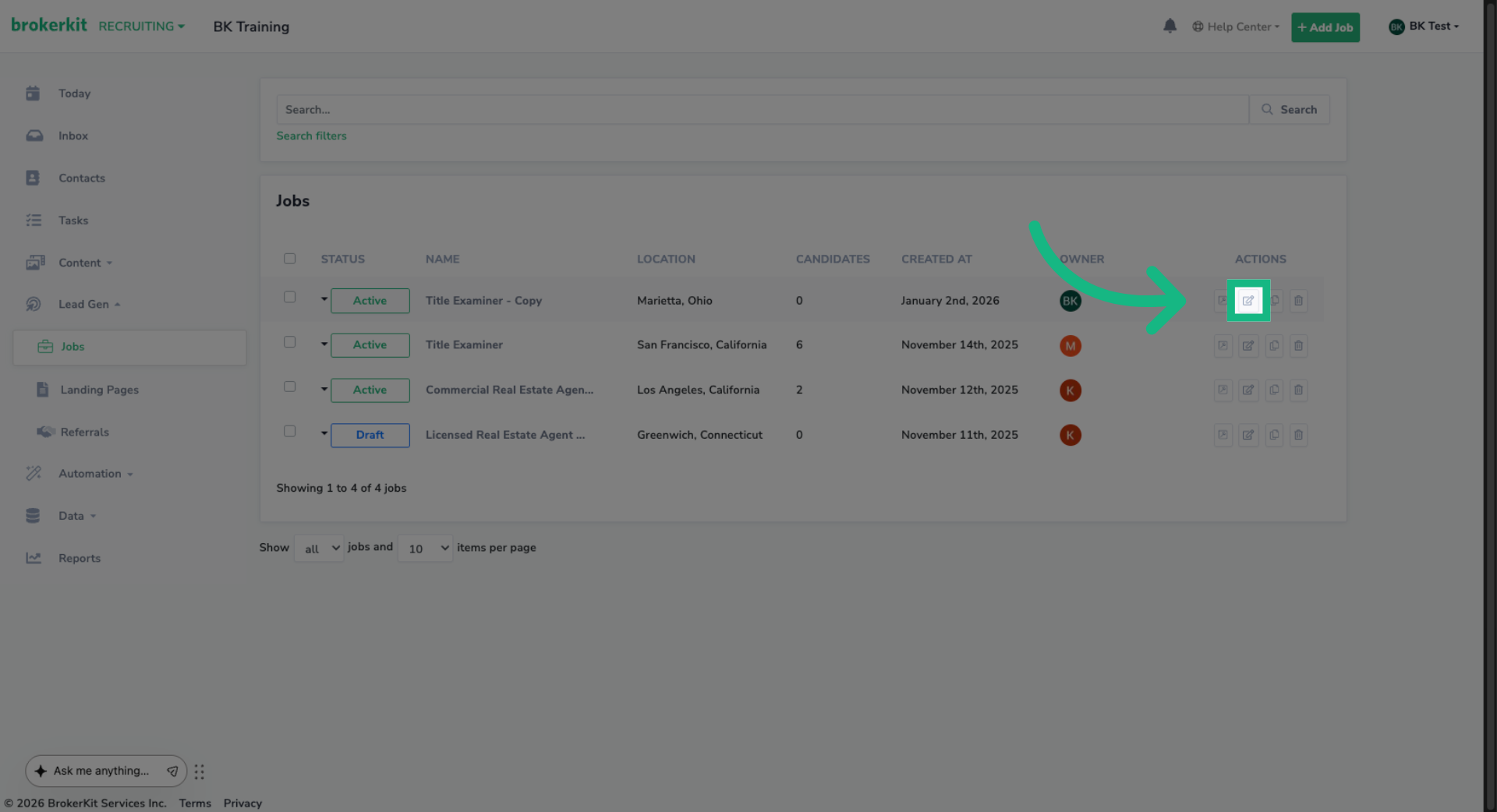
We've also made it easier to set job locations. Open the Job Details tab to access and edit information related to the job listing.
7. Zip Code Lookup
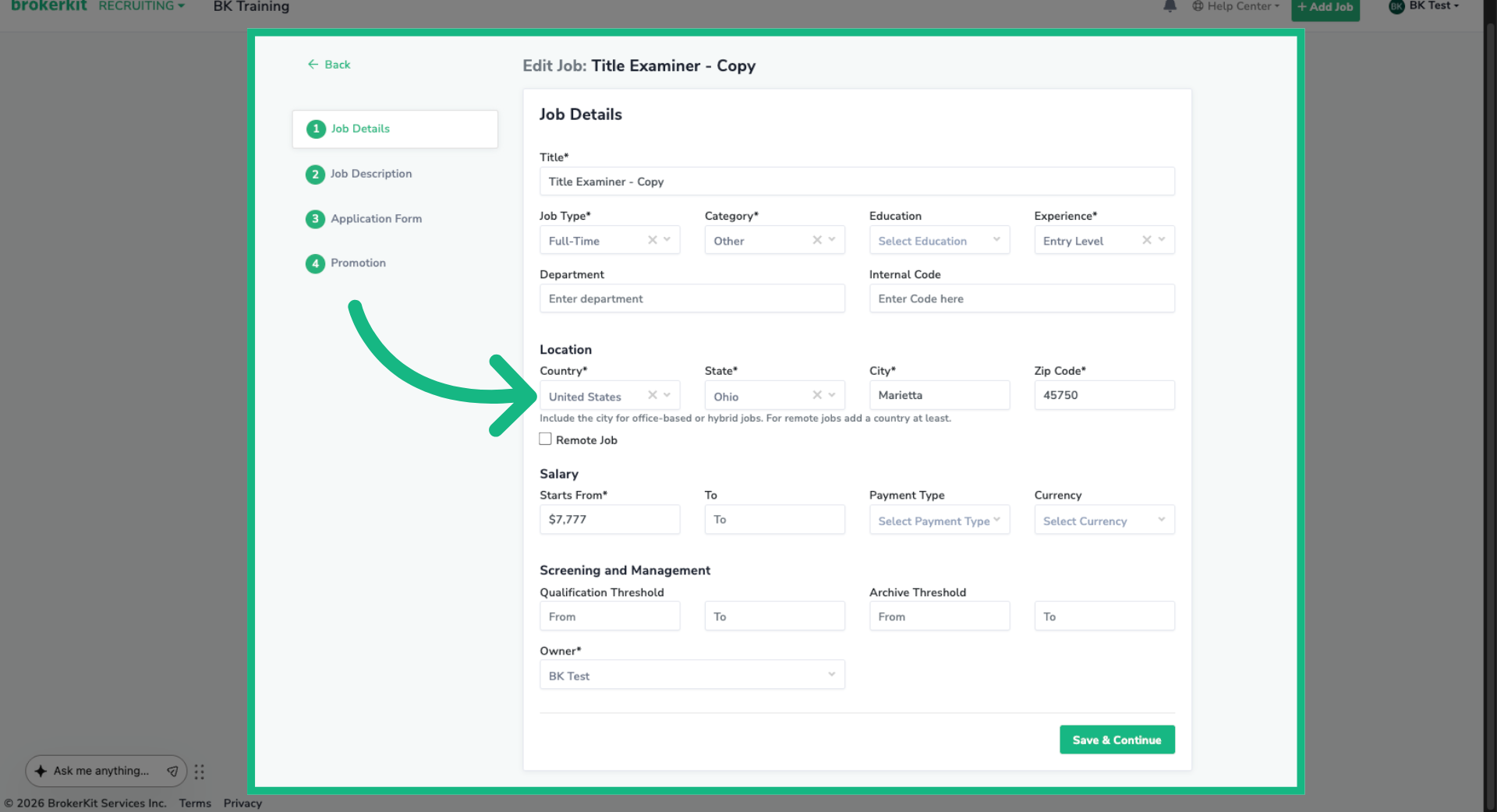
When creating, editing, or cloning a job, you now have two options for entering the location.
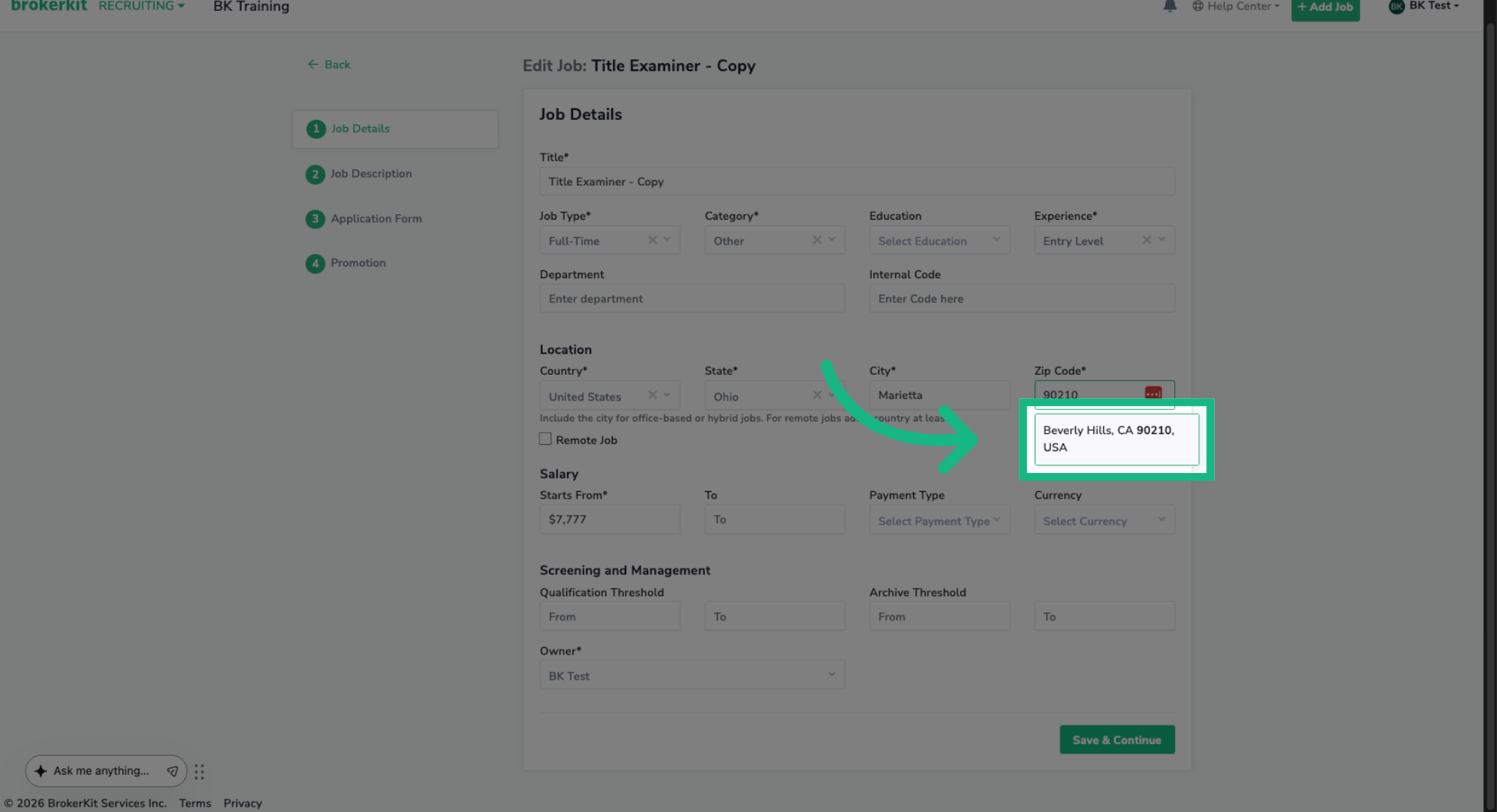
8. Enter New Zip Code
If you know the zip code, just enter it first.
9. Select Location From Suggestions
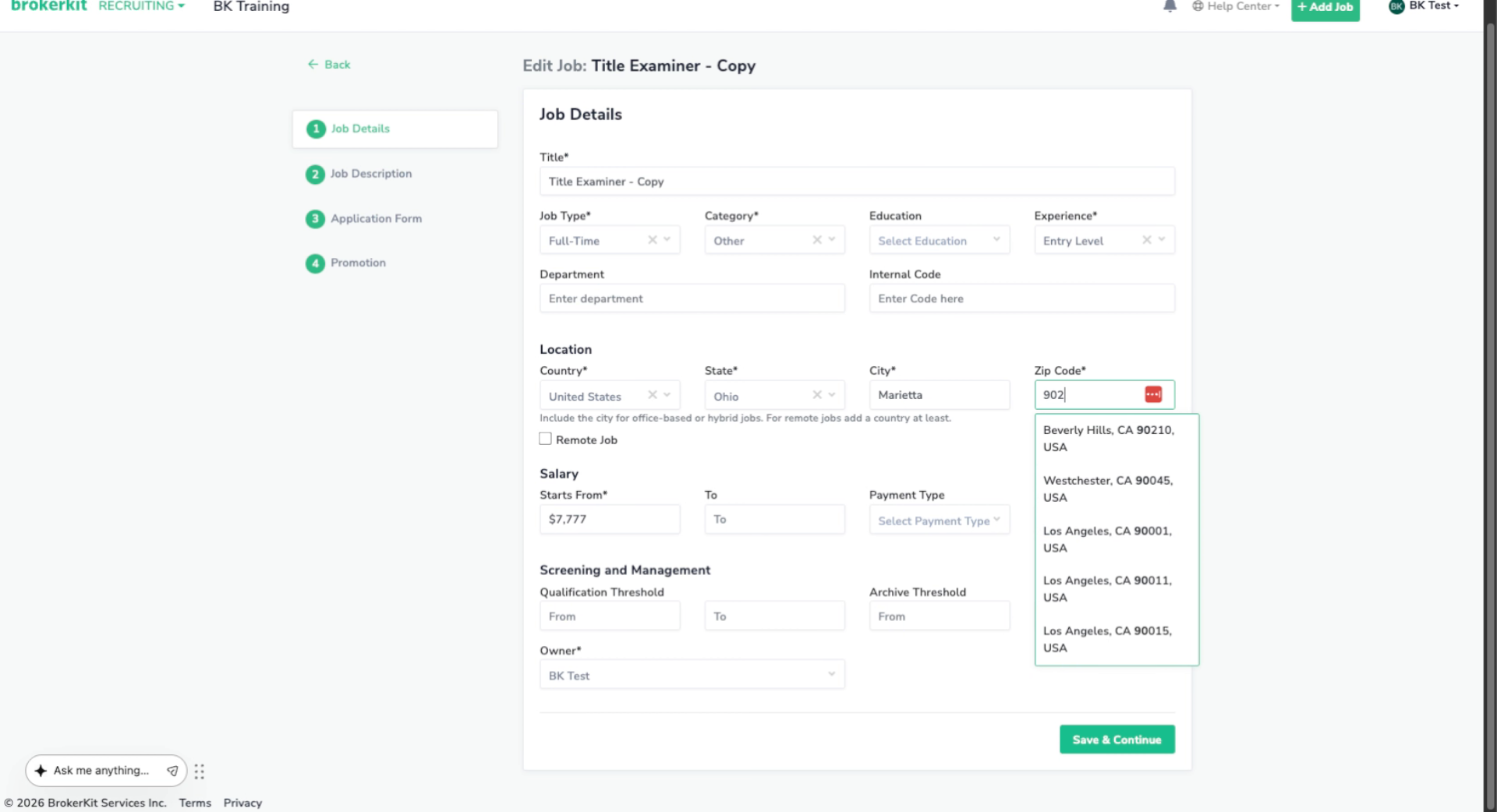
Select the suggested location that matches the entered zip code to ensure accuracy.
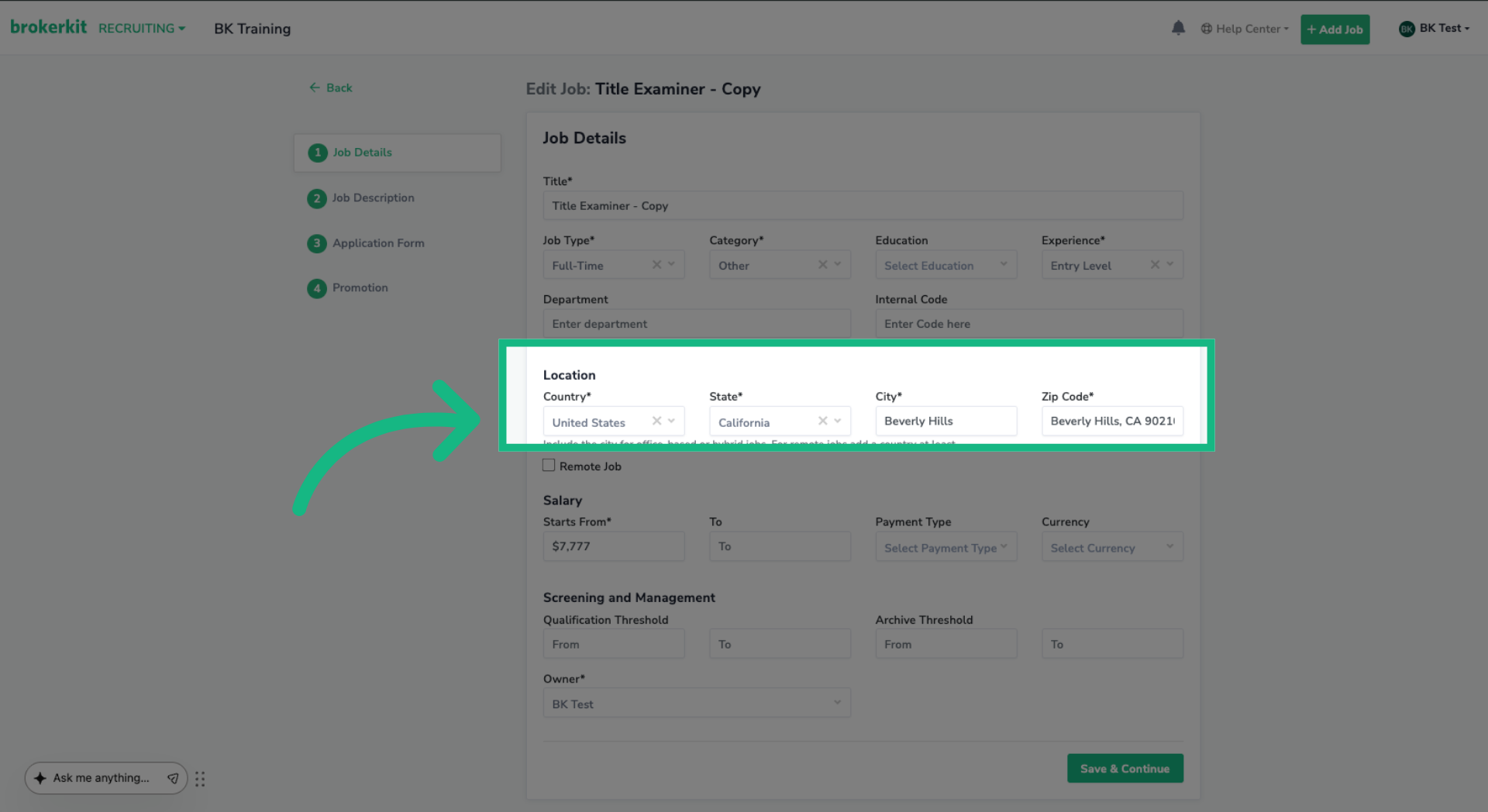
10. Location Auto filled
Brokerkit will automatically fill in the city and state for you.
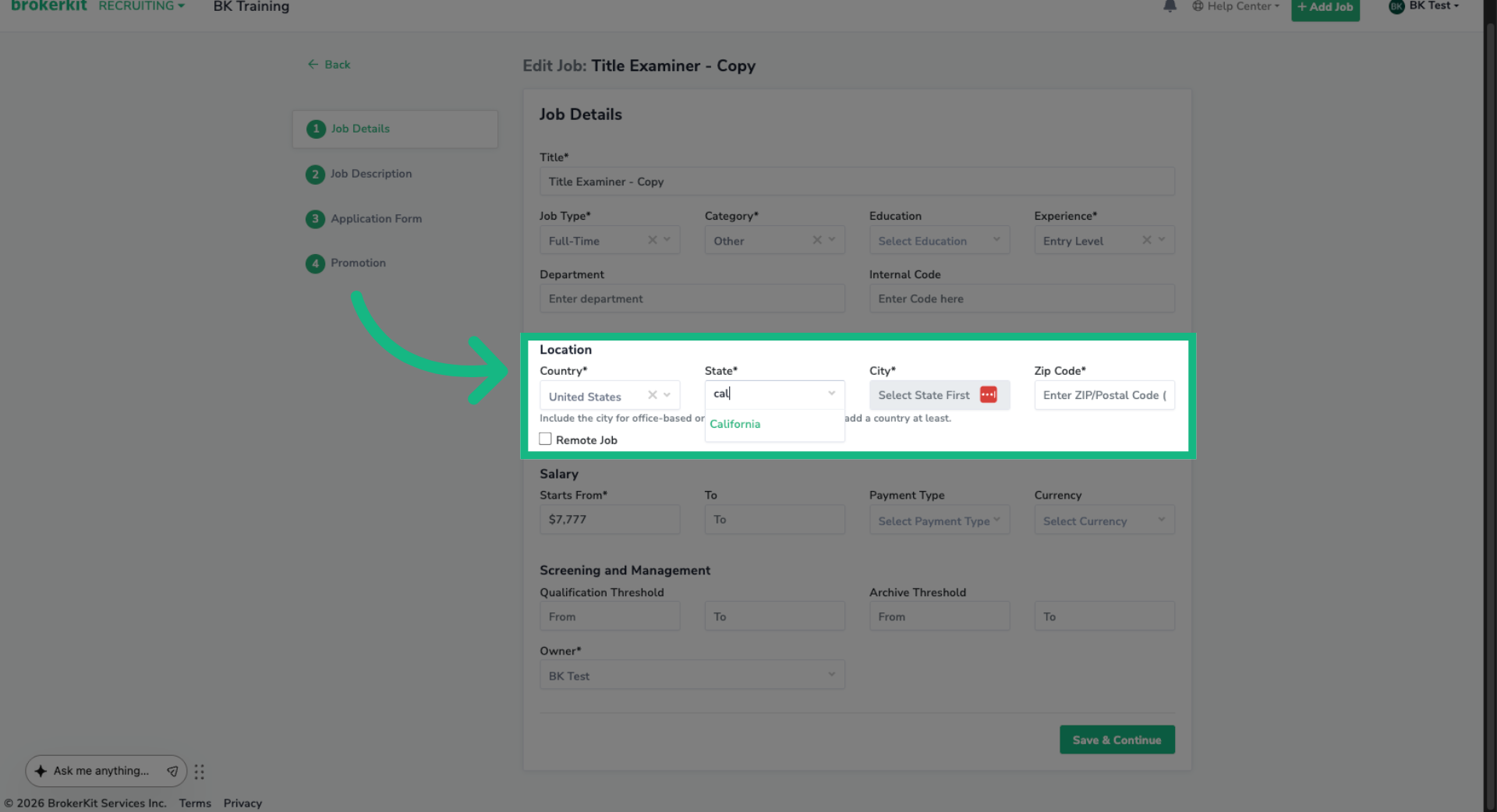
11. Enter Manually
Of course, if you prefer, you can still enter the city, state, zip code manually. The choice is yours.
That's everything you need to know about Clone Jobs and the new zip code lookup. These features help you create job postings faster and keep location data accurate. If you have any questions, reach out to our support team. Thanks for watching!