This tutorial shows you how to use Brokerkits new Jobs feature to post a job on Indeed and manage applicants directly within Brokerkit.
Go to employers.indeed.com
1. Navigate to Indeed employer account
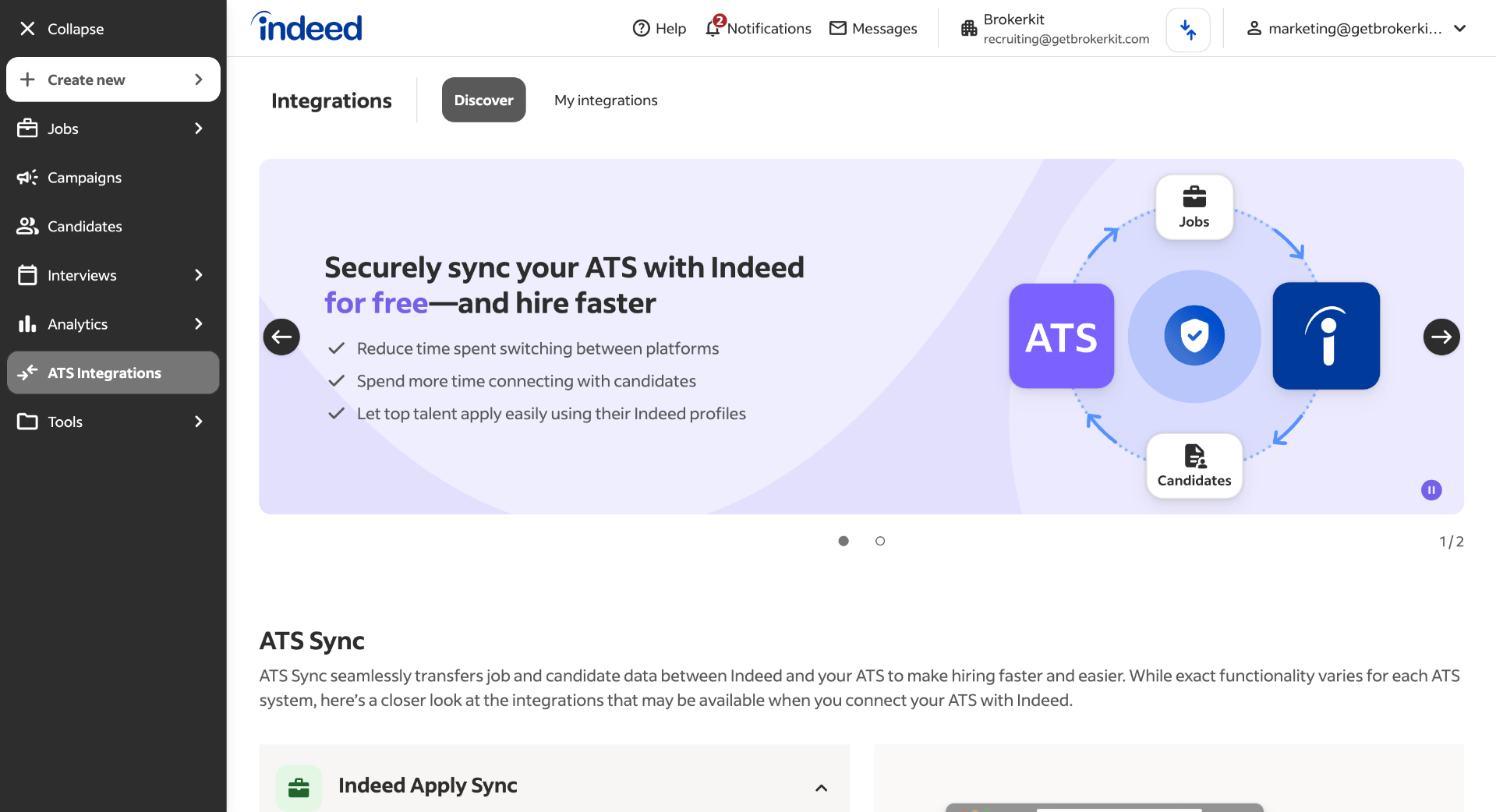
To start, go to your Indeed employer account. Learn more
2. Open Help Section
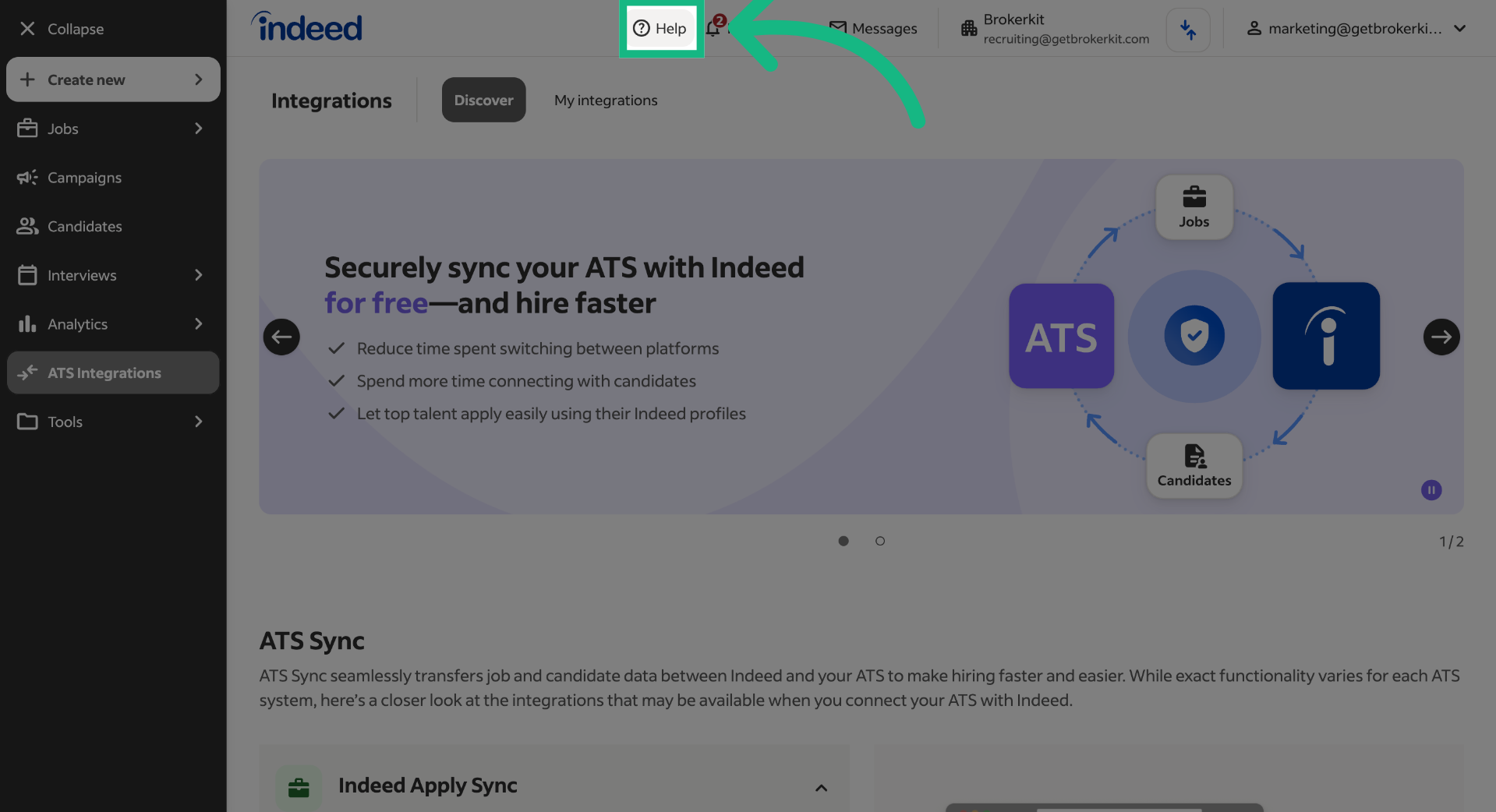
To manage candidates in Brokerkit, you need to ask Indeed to enable this feature on your account. To do this, go to the help option at the top of the screen.
3. Select Contact Us
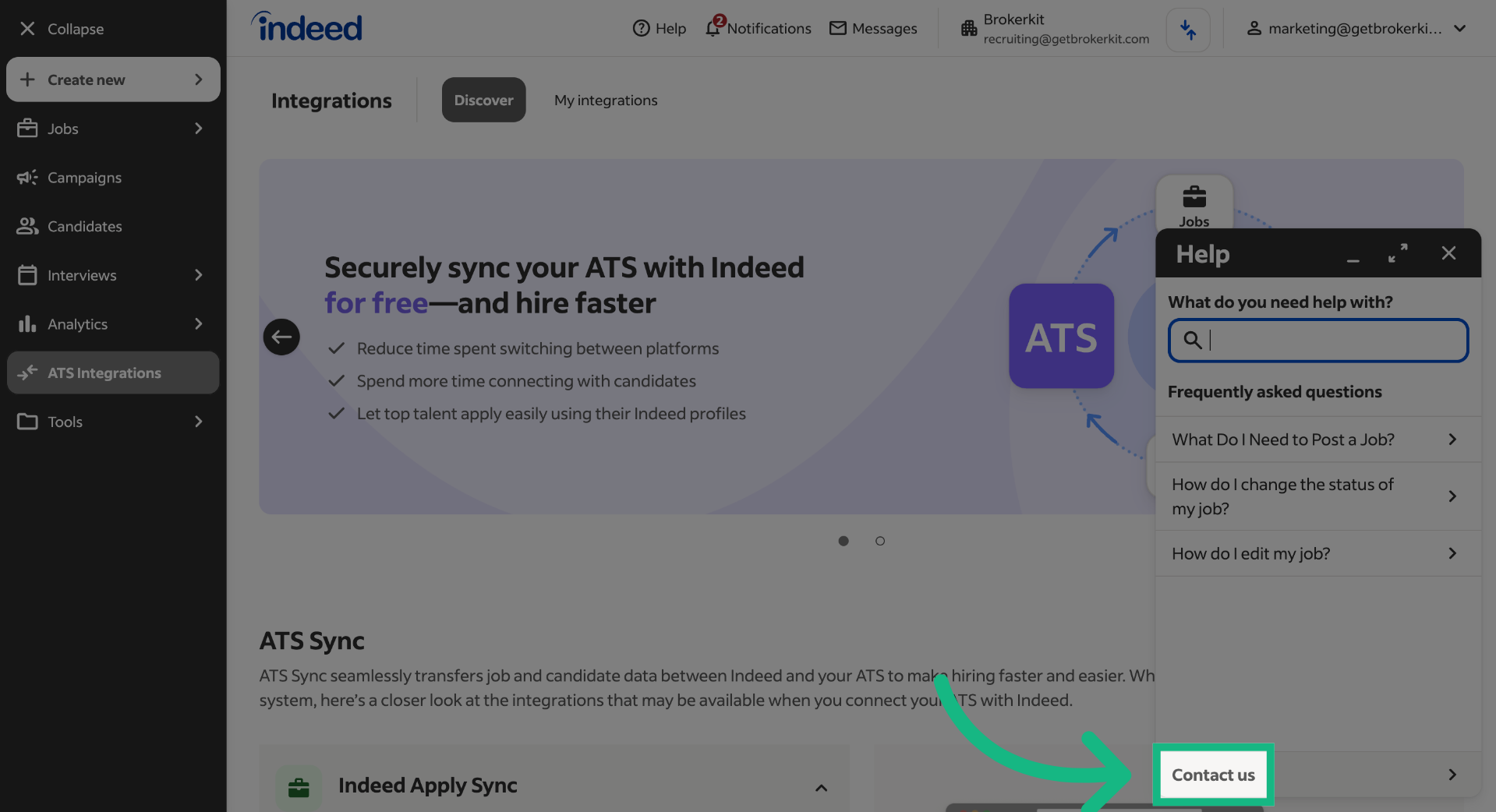
Click on 'Contact us' to initiate communication with support for assistance.
4. Start Chat Support
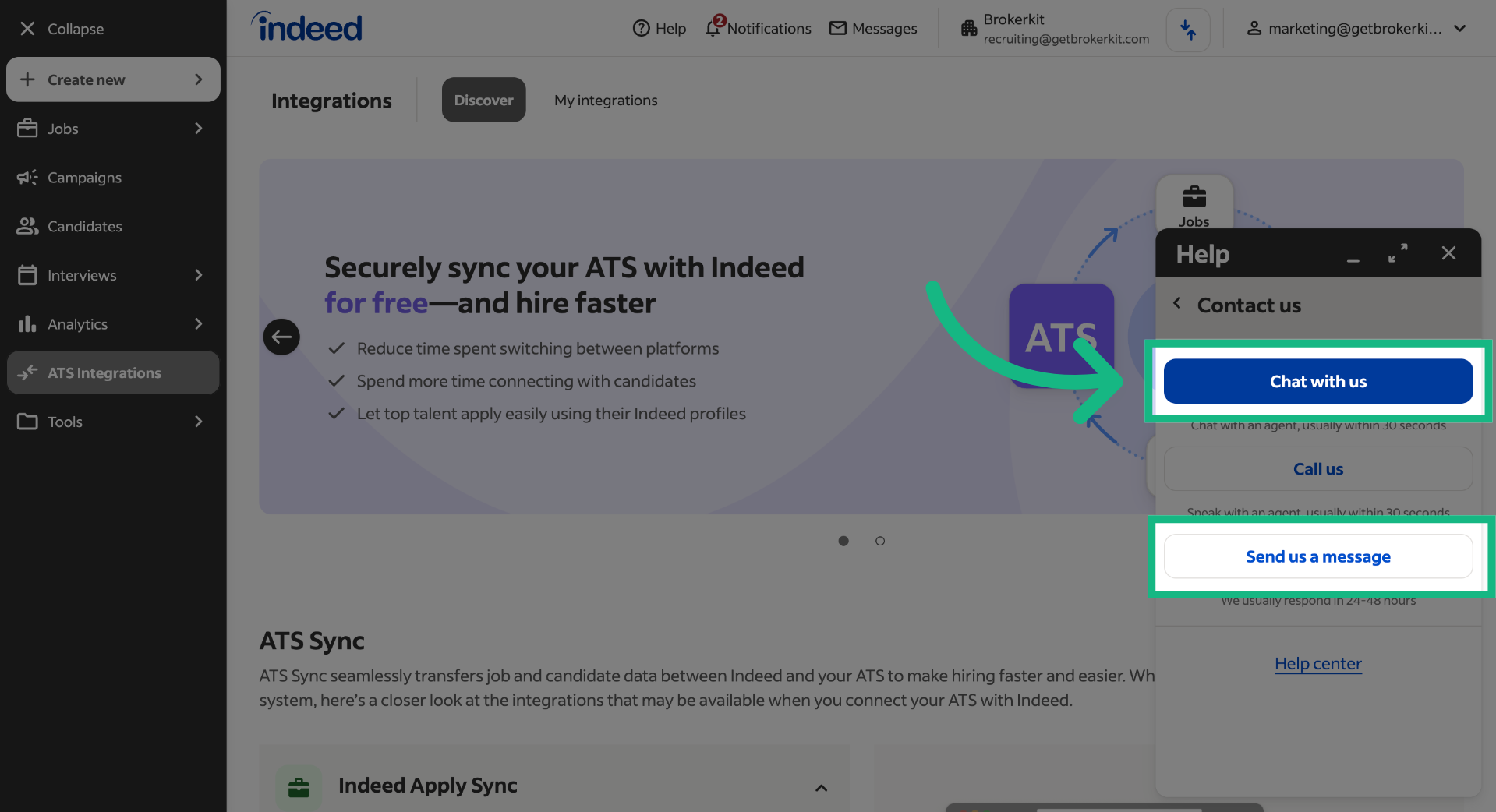
Click 'Chat with us' to begin a live chat session with the support team. If this option is not available, you can use the 'Send us a message' option, so that the support team can get back to you via email.
5. Complete details
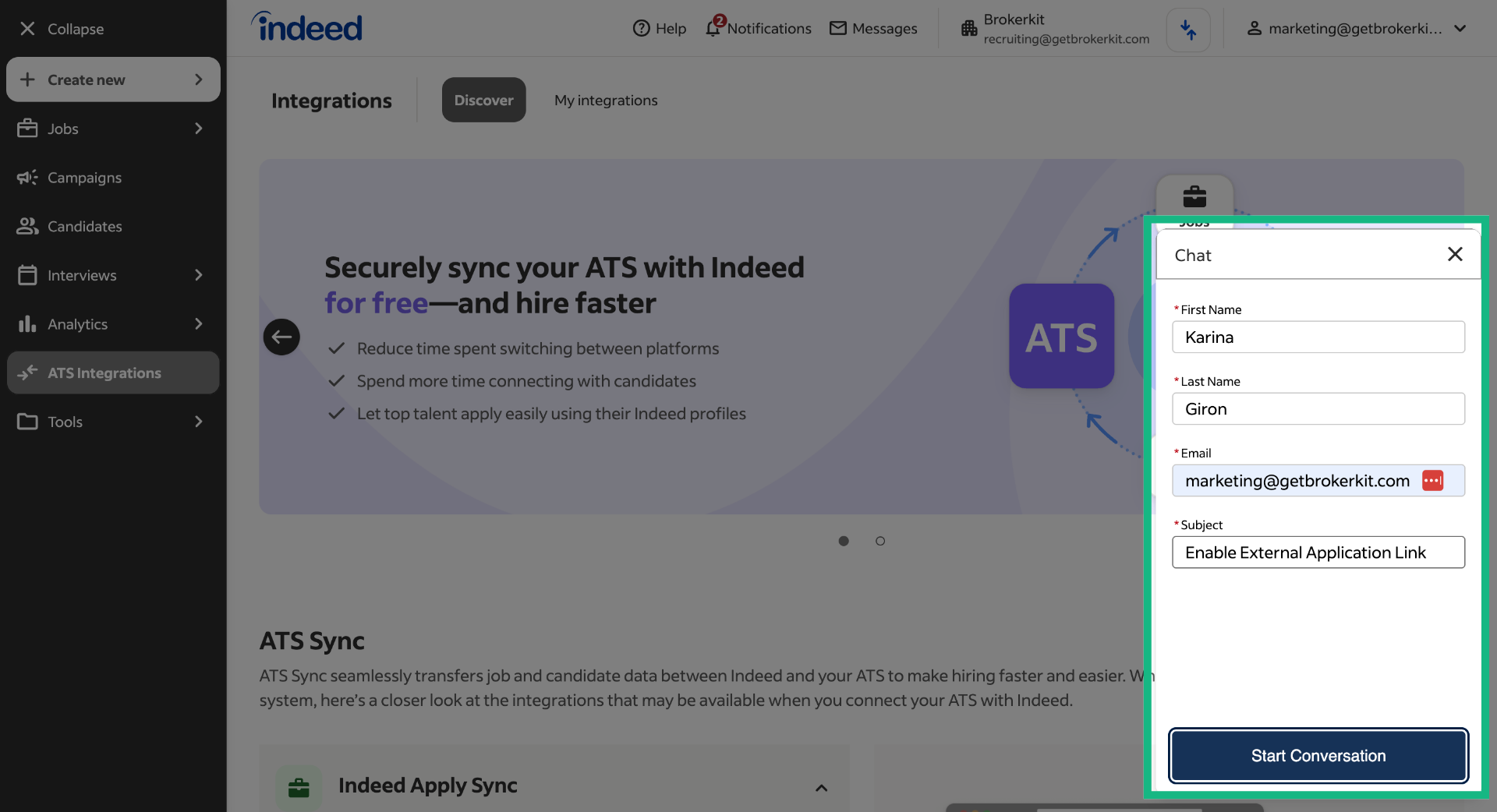
Fill out your personal information, then add a general subject such as "Enable External Application Link." Finally, click Start Conversation.
6. Switch to Brokerkit Website
Switch to the Brokerkit website to access Brokerkits jobs feature.
7. Access Job Listings
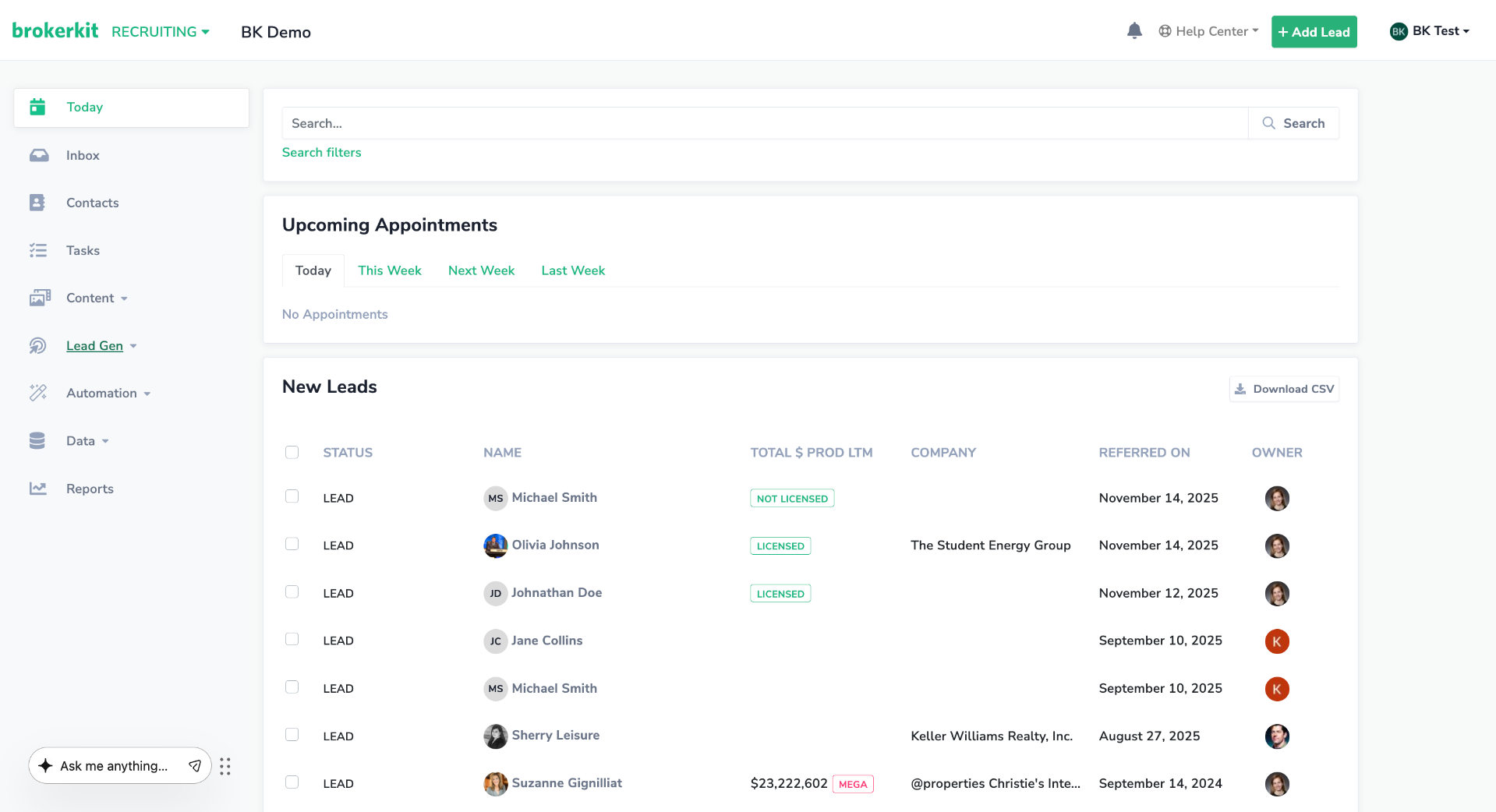
On the left menu, click Jobs.
8. Job Form
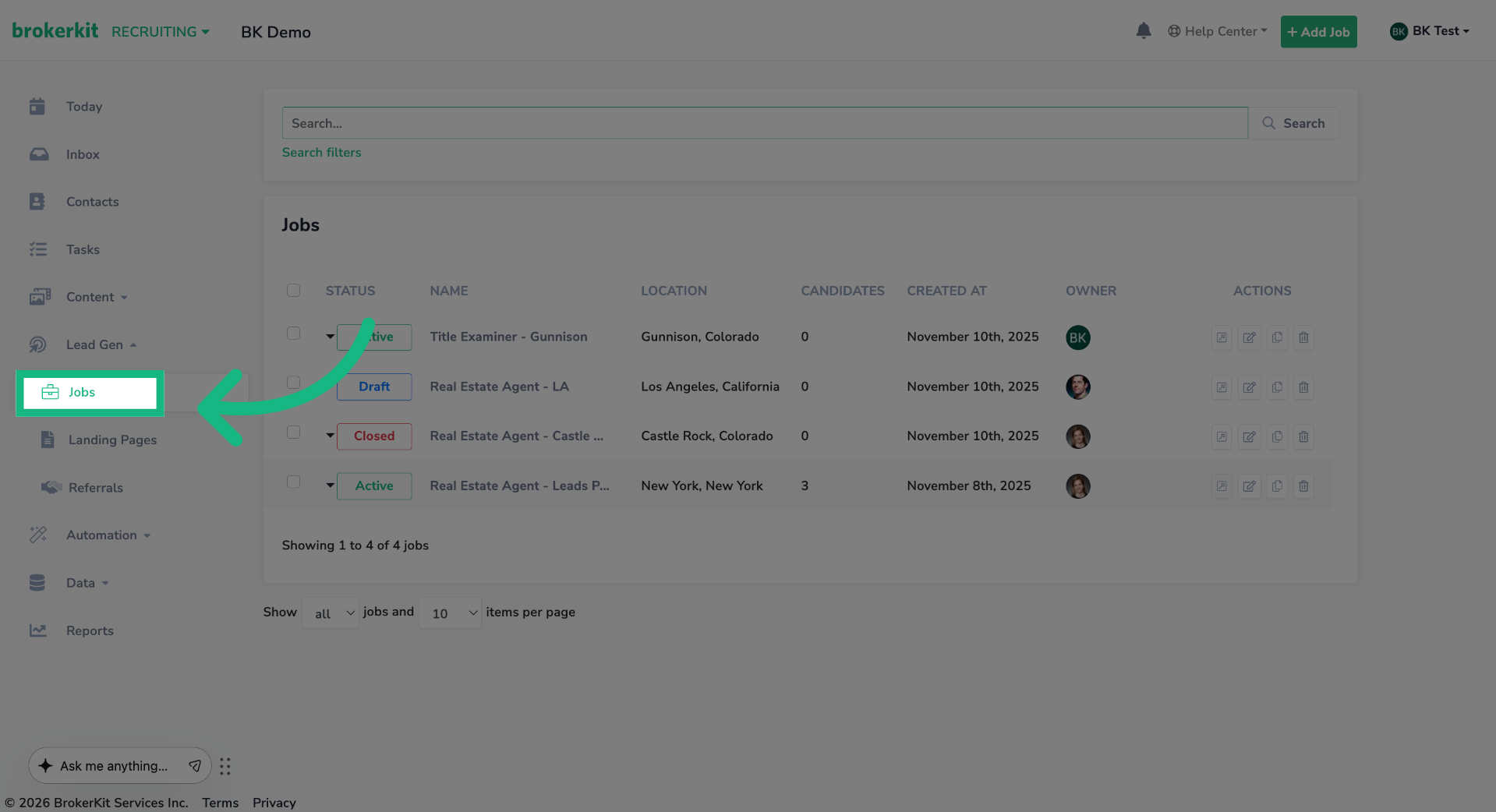
If you don't have any jobs, start by following the tutorial in the upper-right corner to create one. However, if you have an existing job, please continue this video
9. Access Job Listings
Click the edit button of the job you want to use.
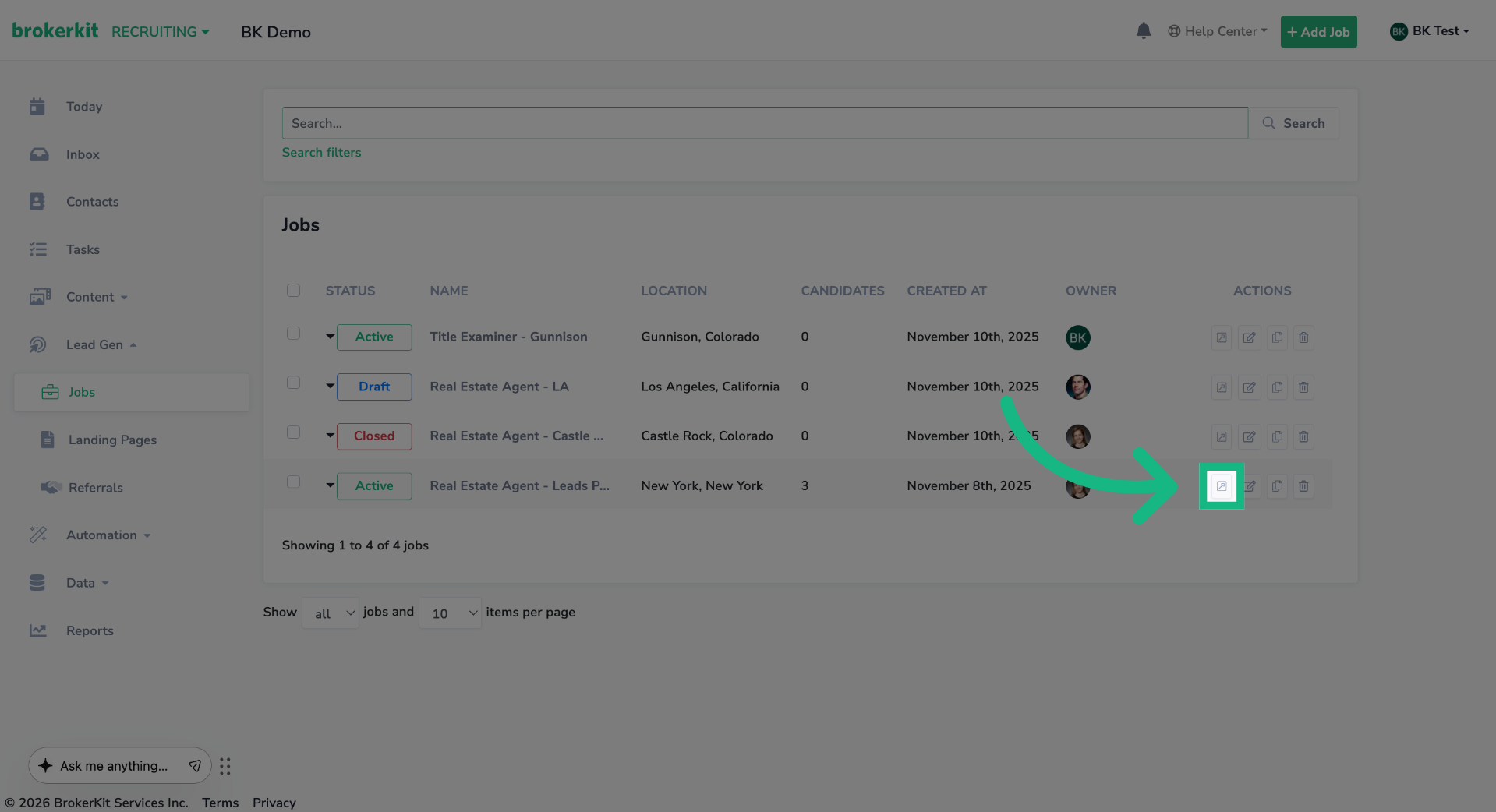
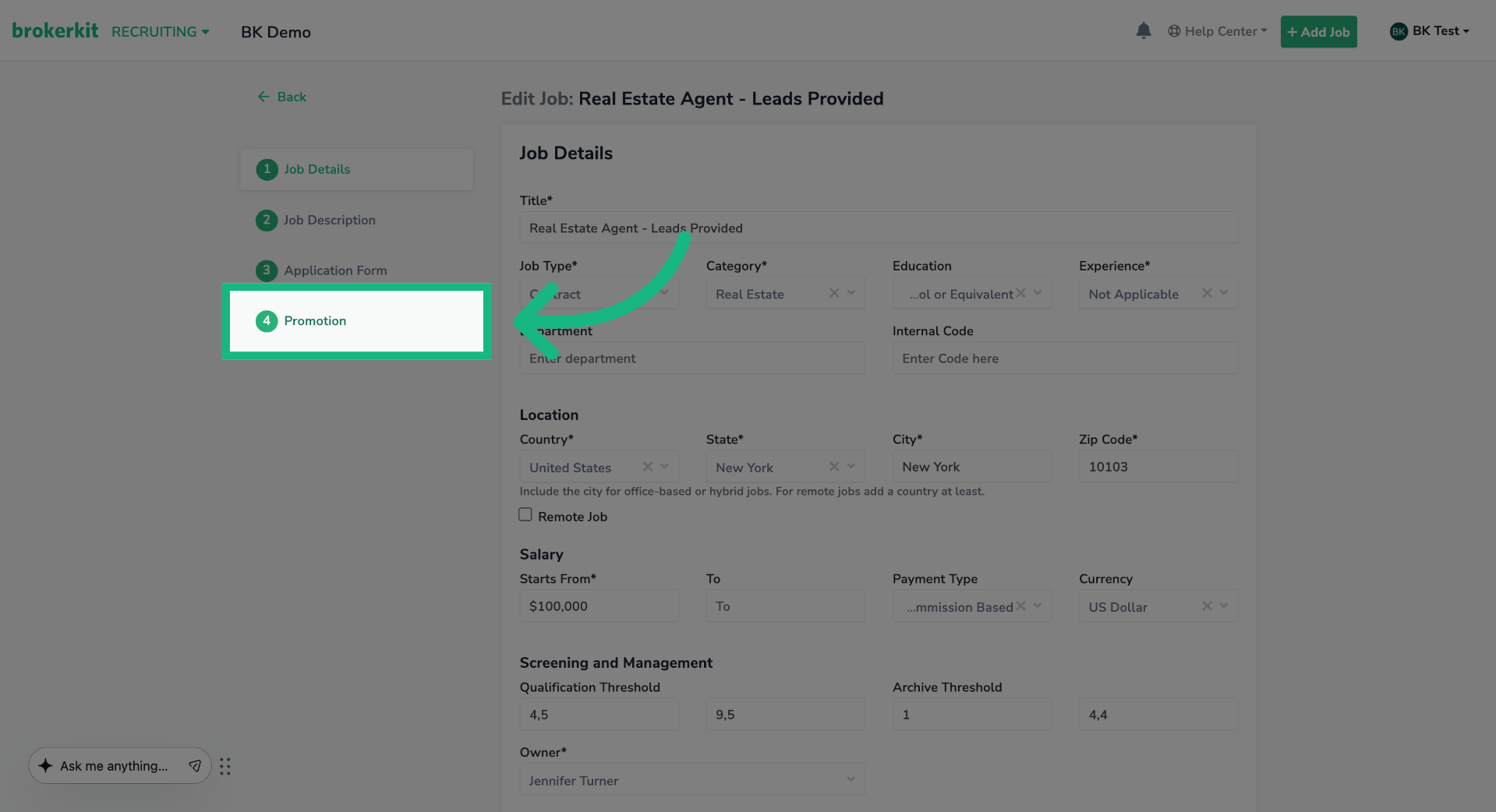
10. Select Promotion Campaign
On the left menu, click the Promotion option.
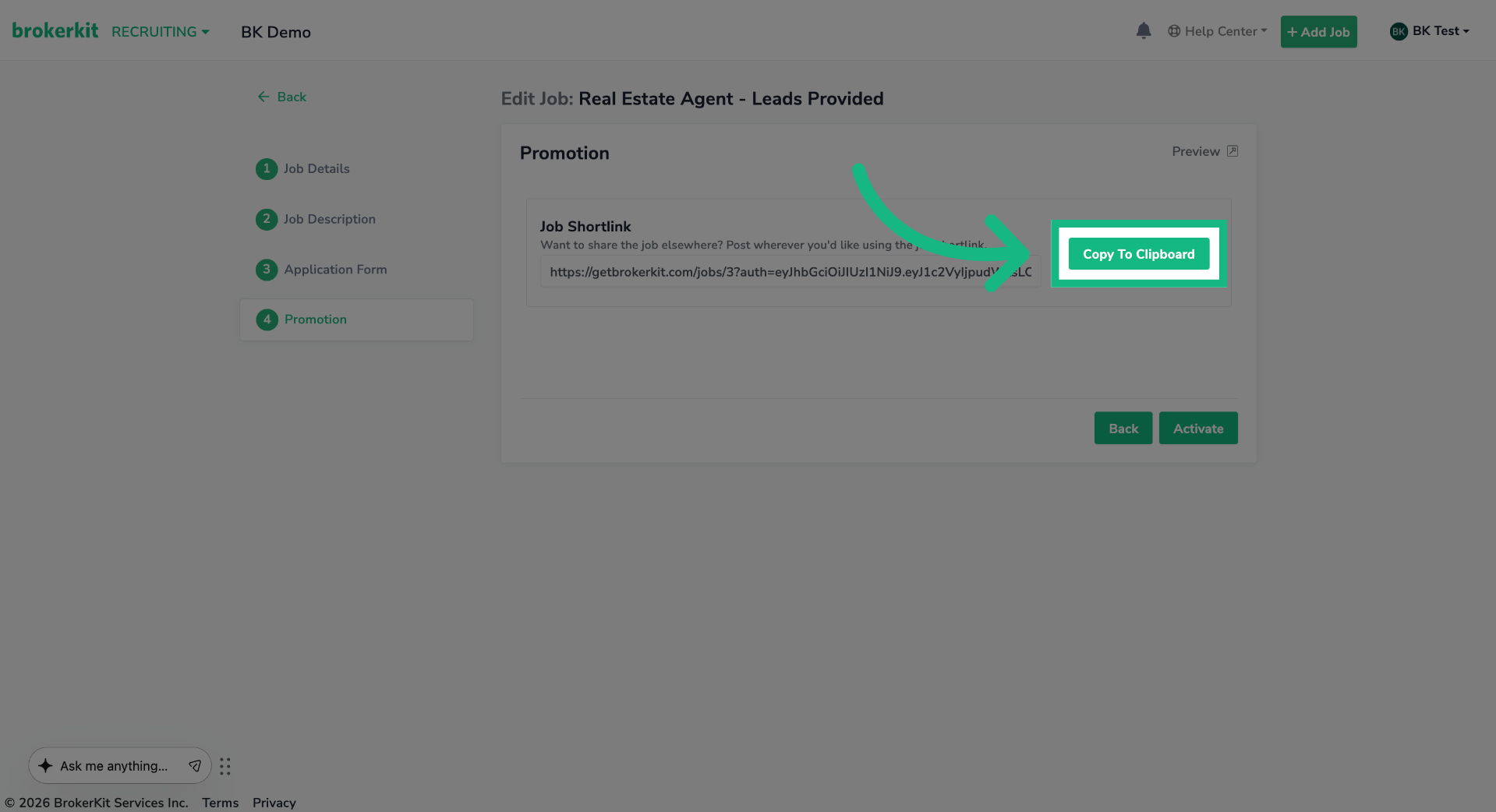
11. Copy Promotion Link
Click Copy To Clipboard to copy the promotion link to use on Indeed.
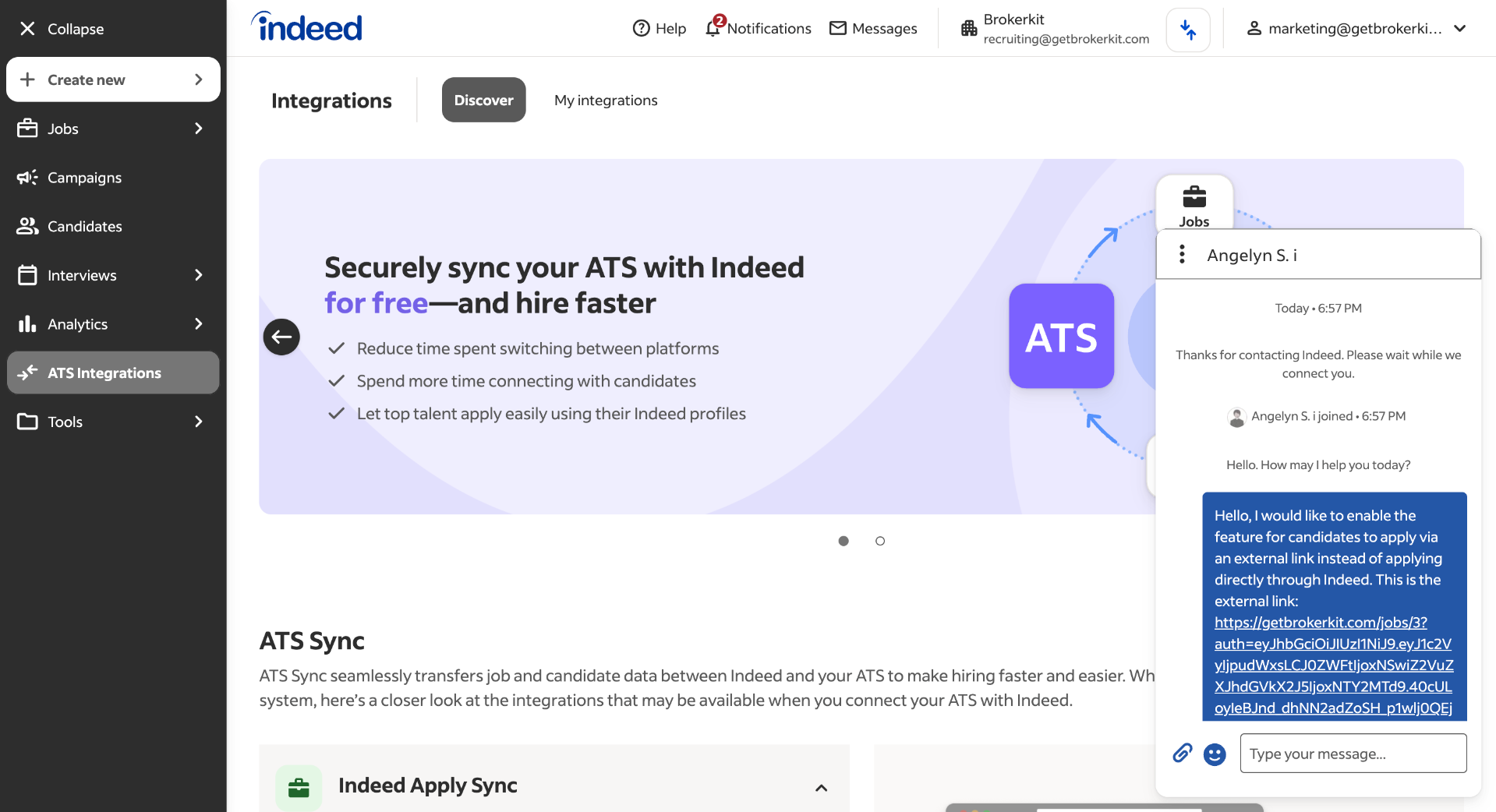
12. Navigate To Chat Menu
Go to the chat menu and send your request to enable the feature for candidates to apply via an external link. Be sure to include the promotional link you just copied, because the Indeed support team requires it to verify that the link is valid.
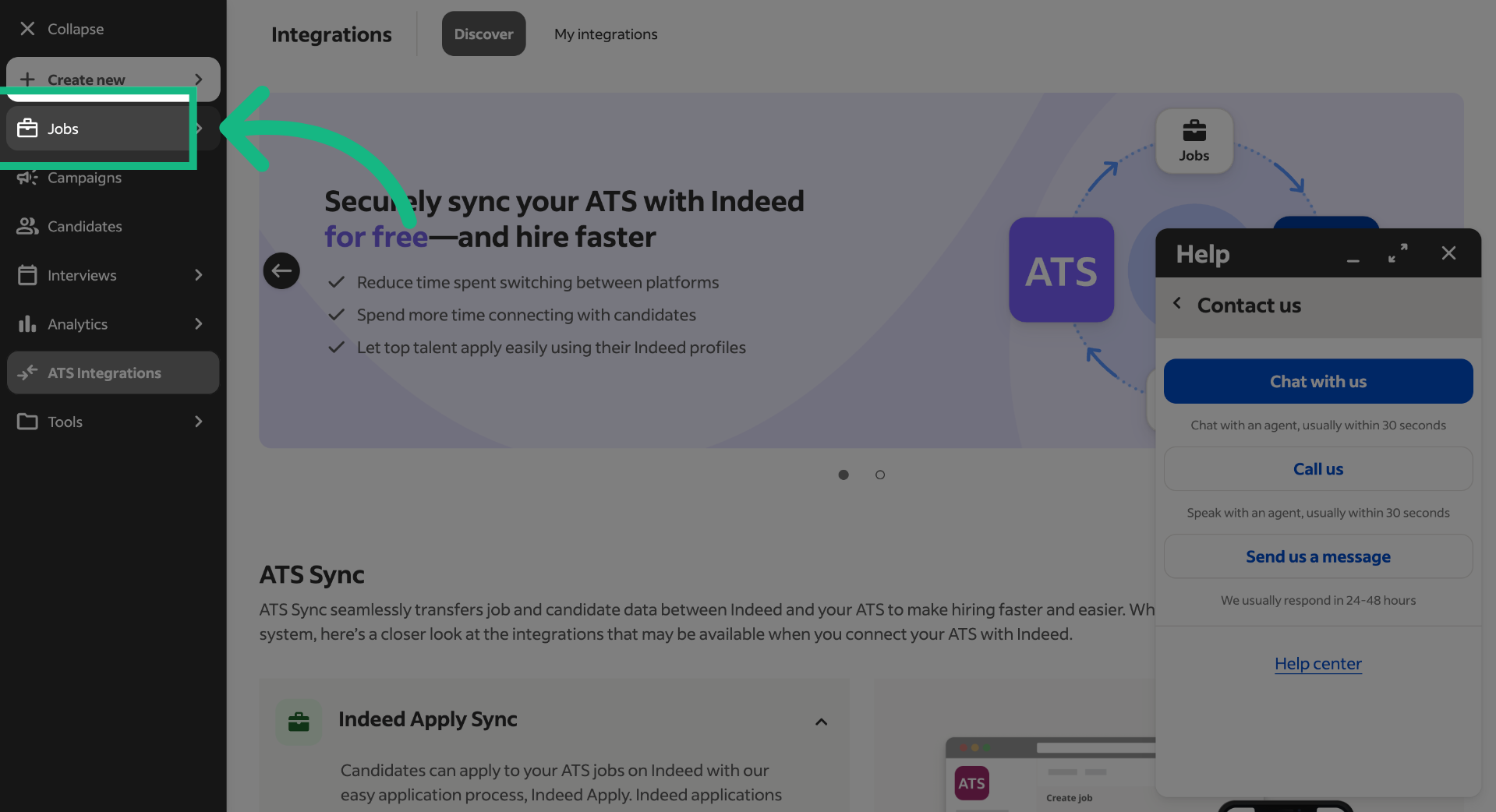
13. Access Jobs Section
Once the Indeed support team confirms they have enabled the feature, go to the Jobs section.
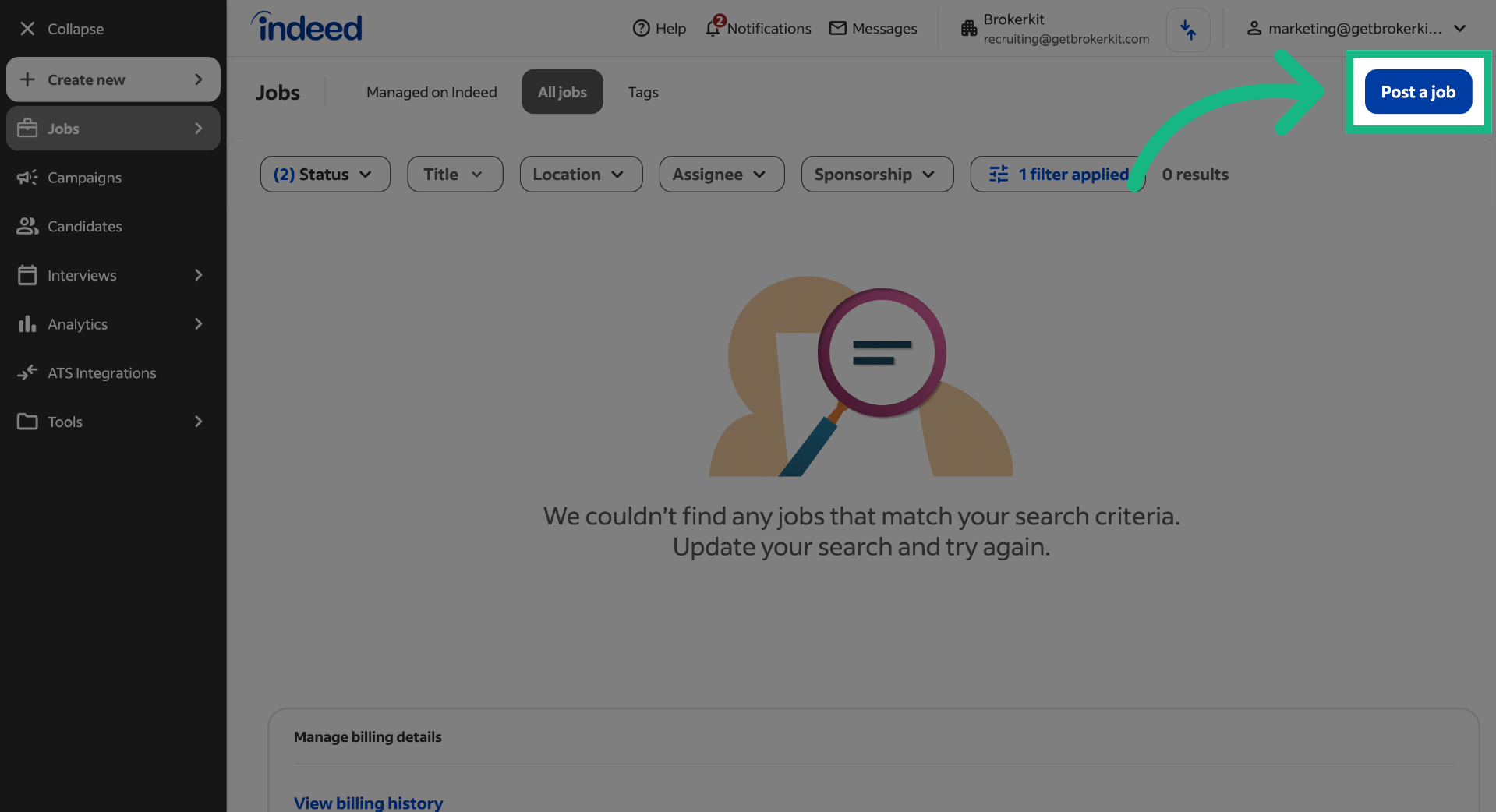
14. Select Post A Job
If you don't have an existing job, click 'Post a job'.
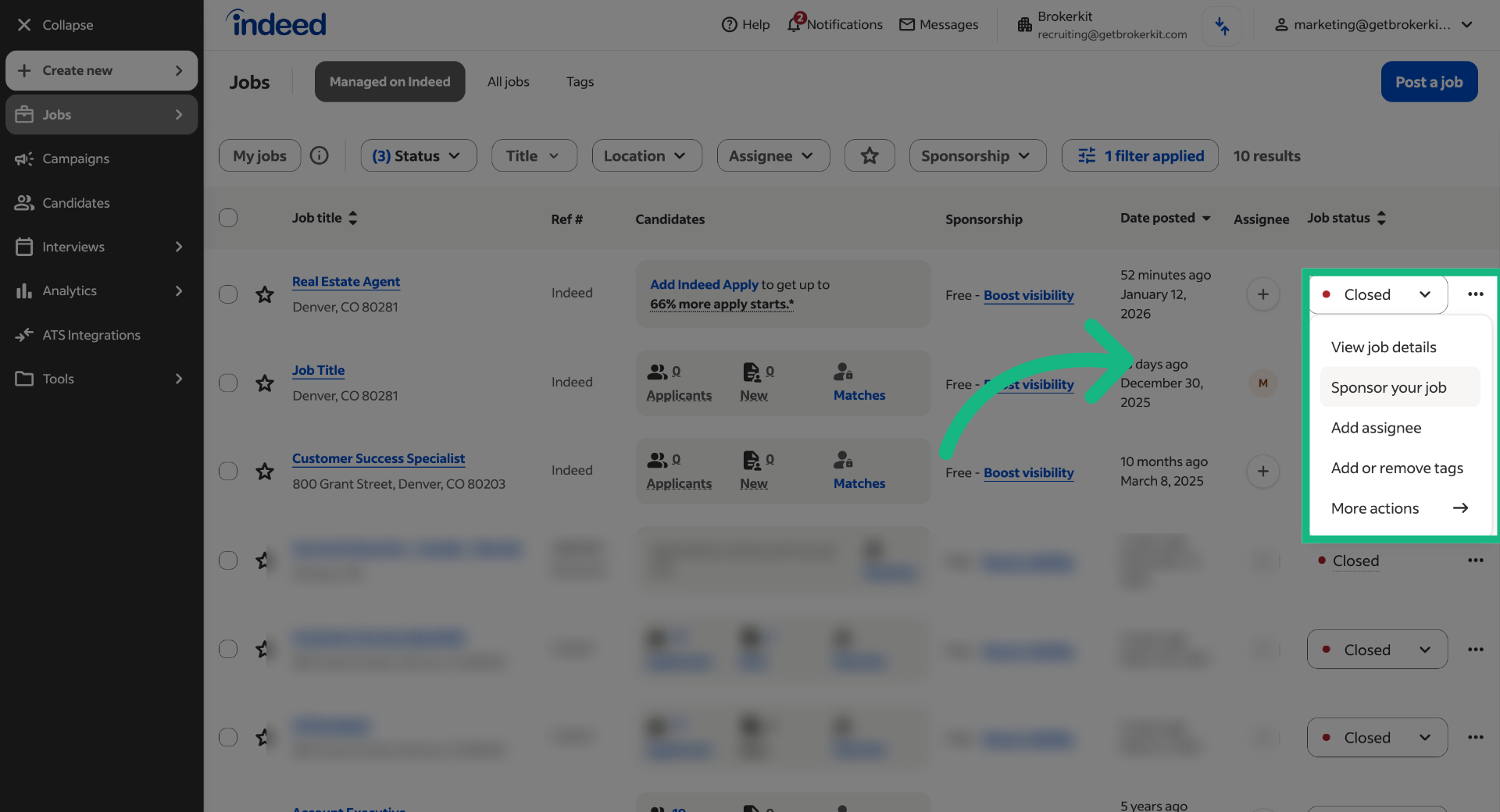
15. Click "View job details"
If you have an existing job, click on the 3 dots and select the option View job details.
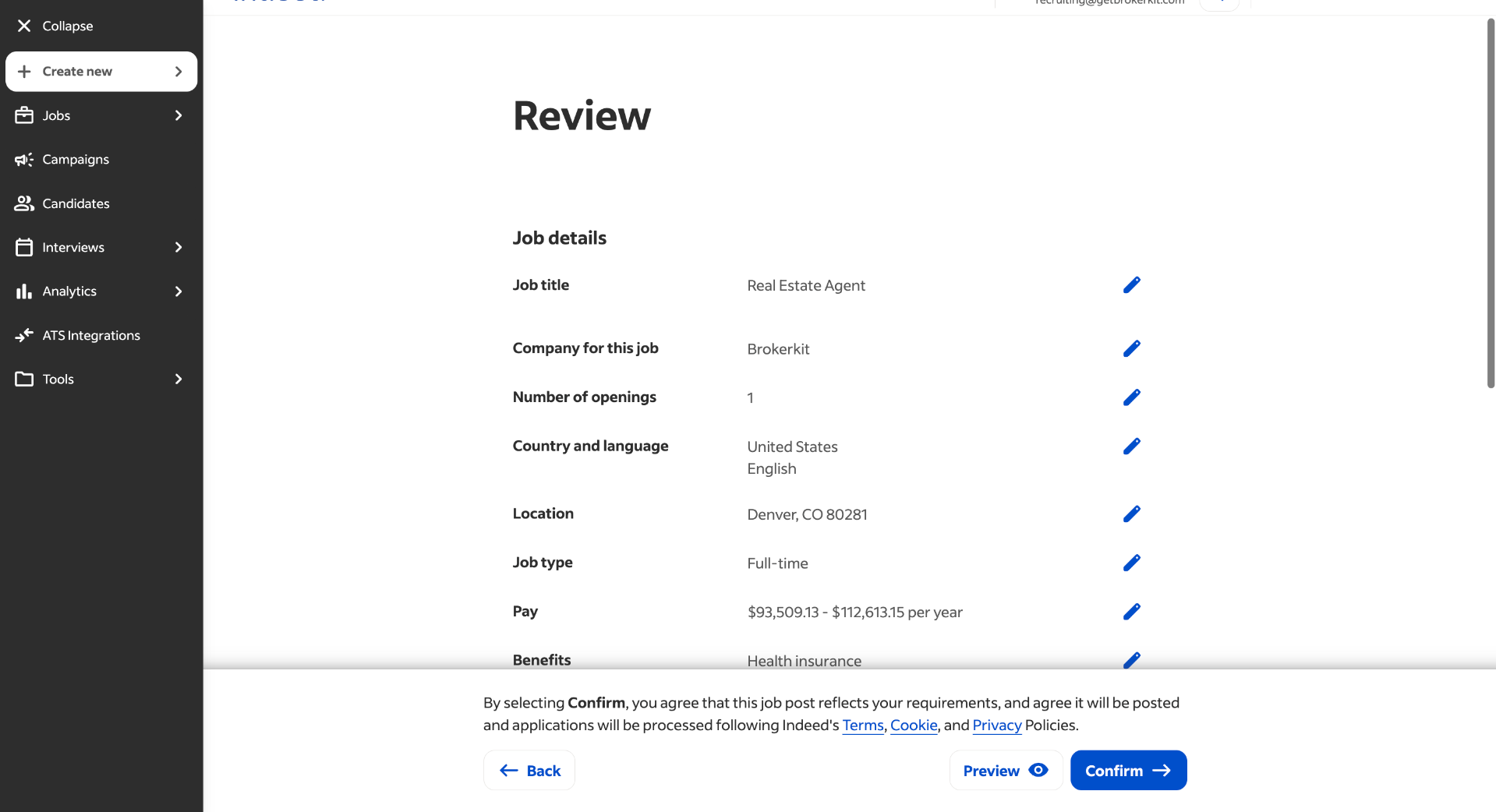
16. Review Job Details
Review all job details are correct and then scroll down.
17. Open Additional Options
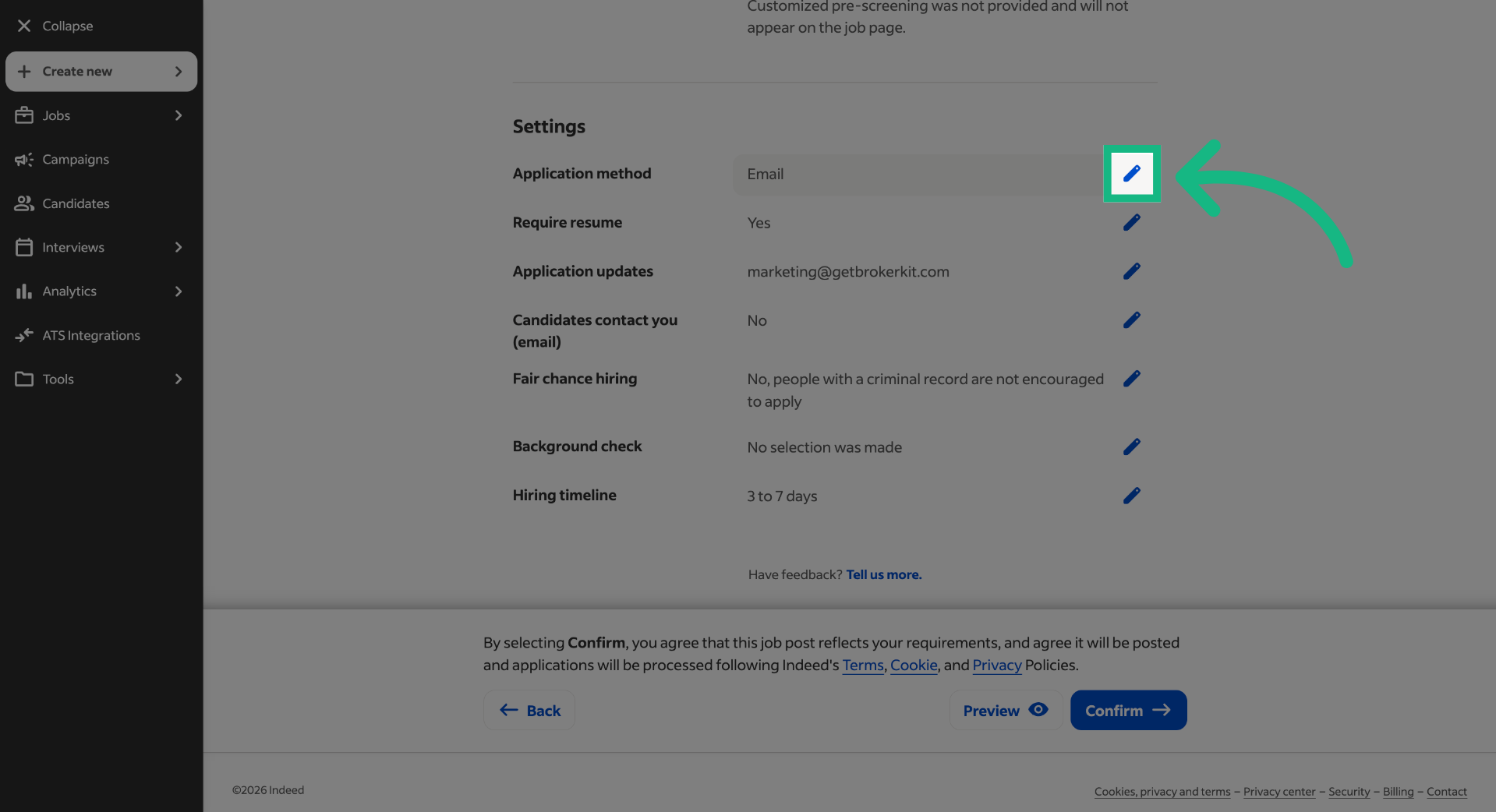
Click to edit the application method setting.
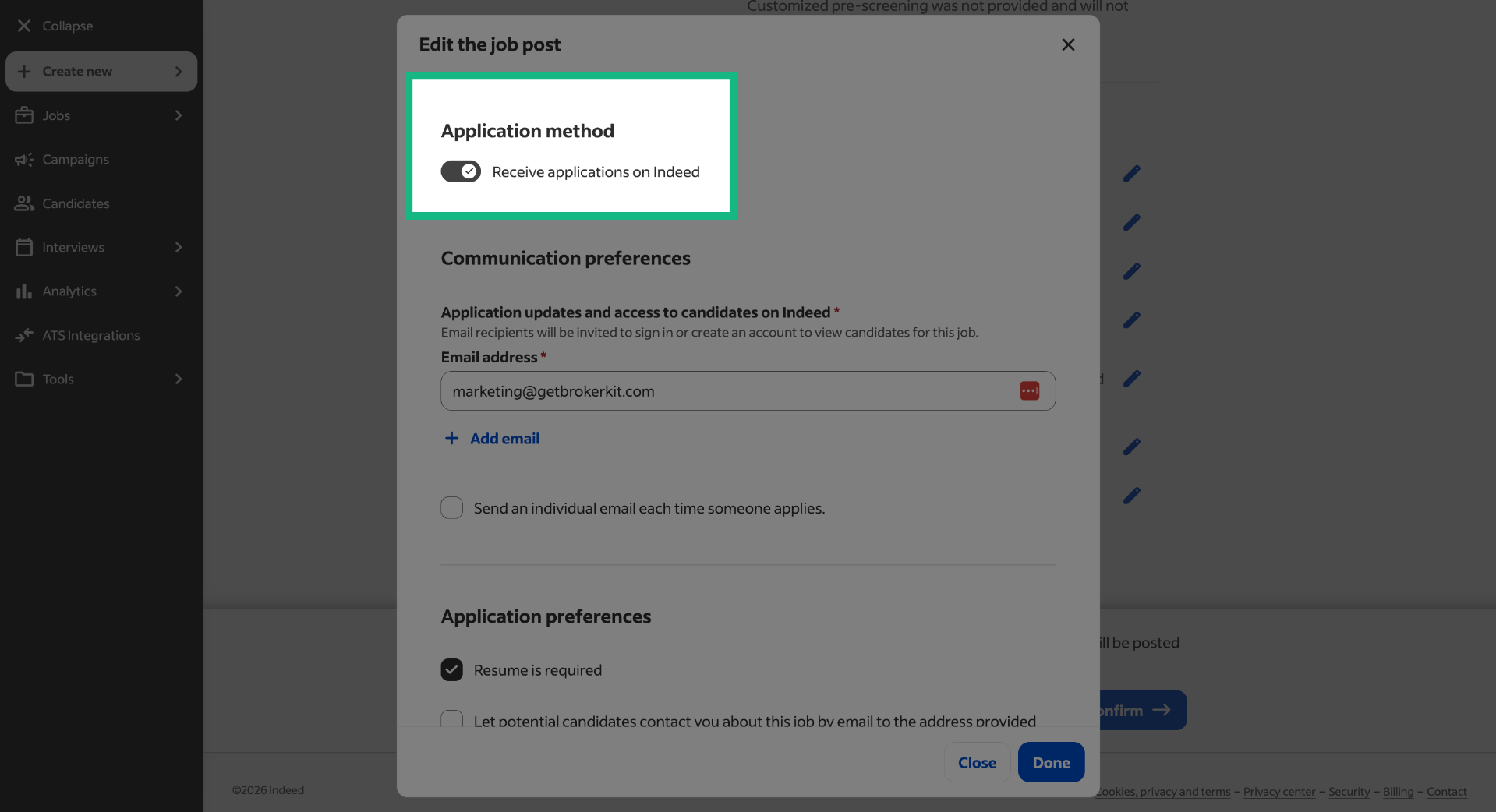
18. Access More Settings
If Indeed has correctly enabled the feature you requested, you should now see a toggle under the Application method section.
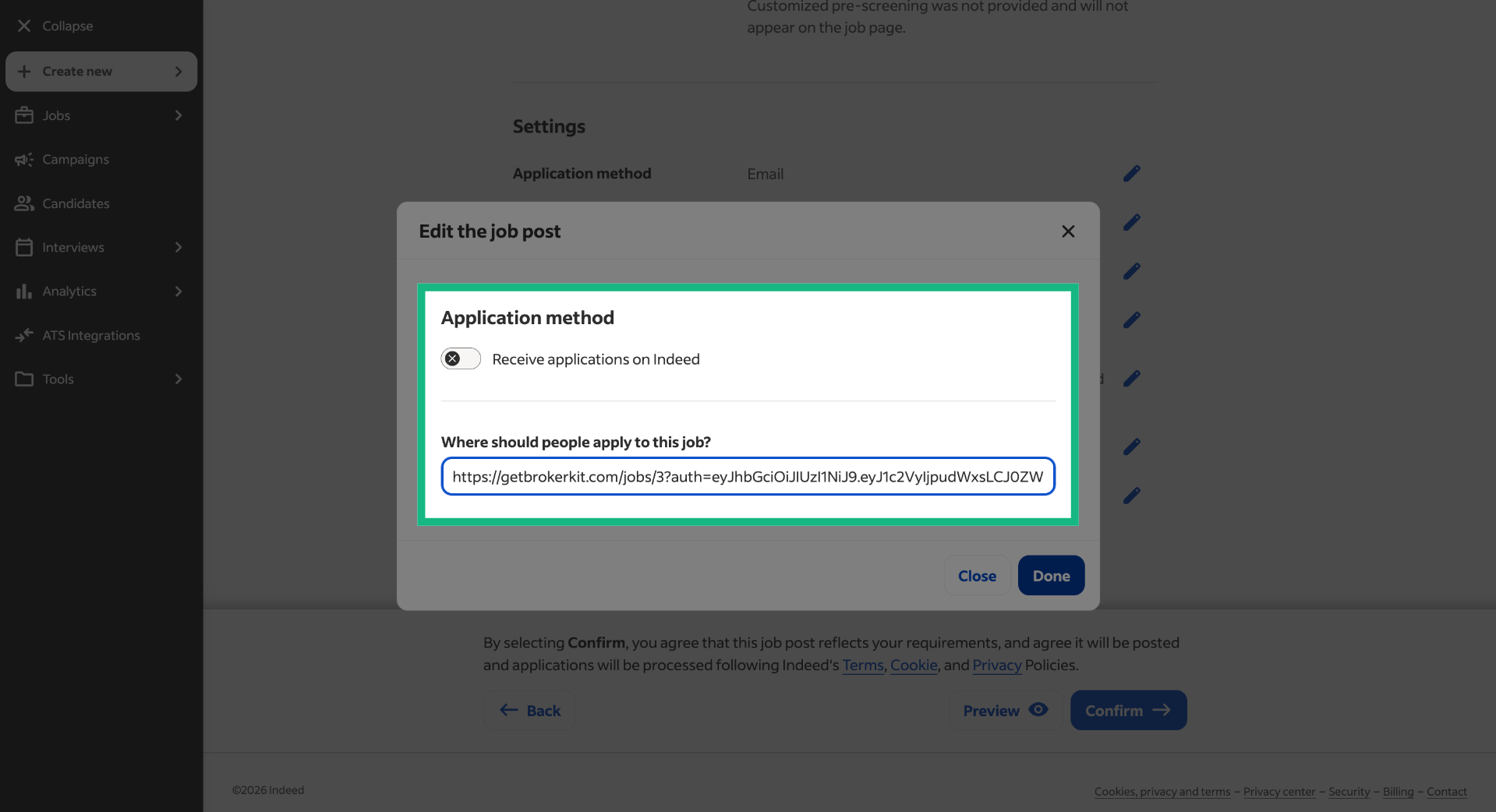
19. Select Application Link Field
Turn off the switch for 'Receive applications on Indee' and paste the promotion link you just copied from Brokerkit. Then click 'Done'.
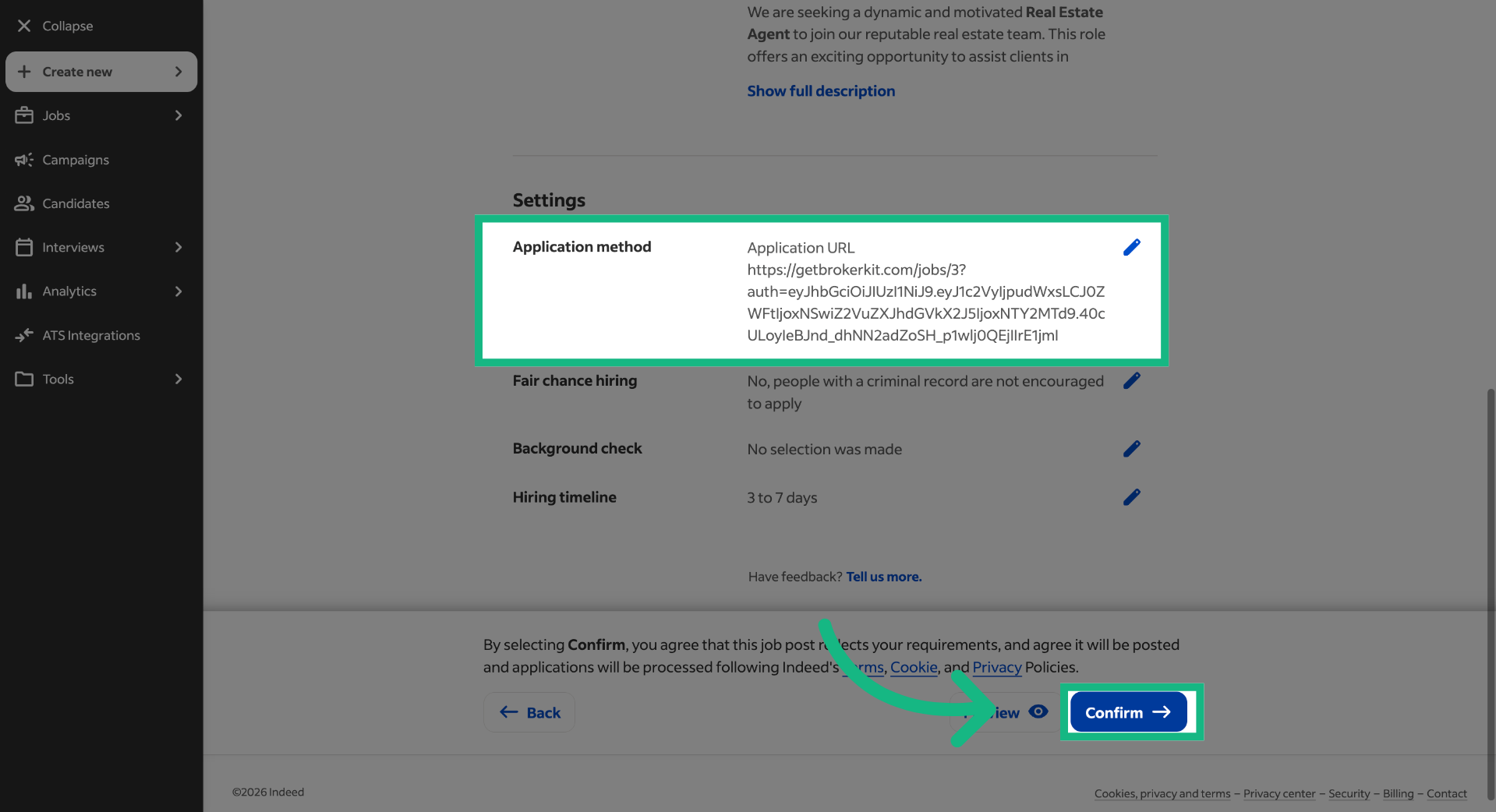
20. Review job details
Review the job details and click Confirm to finish the process
That concludes this tutorial. If you have any questions, please reach out to our support team at support@brokerkit.com.
Strategy & best practices for posting on Indeed
Posting on Indeed is just step one. Here are the strategies that actually drive applicant volume:
Add a compensation range. Don't leave the comp range blank. Job seekers filter by compensation, and a blank range will dramatically shrink your reach. Be explicit in the job description that the role is commission only so candidates aren't surprised.
Plan to pay to boost your post. Indeed's algorithm classifies real estate agent (and other commission-only sales) roles as low-quality because they are commission-only and contract-based. Organic (free) posts will return very few applicants. You almost always need to pay to boost commission-only sales roles — this is true across all industries, not just real estate. Indeed will try to upsell you on paid boosting during the posting flow; plan to use it.
Refresh your post approximately every 30 days. Indeed is designed for full-time, hire-and-done roles; brokerages are always recruiting. You'll see a burst of applicants in the first 1–2 weeks, then volume drops. Stale posts get deprioritized. When you refresh, vary the content (headline, message, job target, office location) so Indeed's duplicate-detection algorithm doesn't suppress the new post.
Set up an automated follow-up campaign. In Brokerkit, go to Campaigns → Library and search for "jobs" to find a starter template for following up with job posting candidates. Customize it with your collateral (videos, documents, lead gen info) and add a Calendly/Cal.com scheduling link so applicants can book a call. For fully automated triggering, create a Campaign Trigger with source = "Job Posting".
Call applicants quickly. Speed to lead matters. The longer you wait, the lower your conversion. Applicants who uploaded a resume are hand-raisers — they want a conversation.
For the full promotion strategy (marketing hooks by candidate tier, BrokerBoost add-on with paid ads across 100+ boards + AI screening, AI resume scoring 1–10, social media outreach), see: Promoting Your Job Postings to Get More Applicants