Whether you are mass texting your team or via campaigns or individual texts on Brokerkit, one of the most powerful features of using Brokerkit's texting service is replies.
When you get a reply to a text on Brokerkit, the first text you'll receive will tell you who is responding, as shown below.

Second message you will receive is a text containing a hyperlink to the contact's profile.
To reply to their message on their phone, simply reply to the text that Brokerkit sent to you, as you would anyone else.
Just like normal texting, each conversation will come from a different phone number (we call these multiplexer numbers) from Brokerkit so that it knows to whom you are replying, and it can automatically log and forward every reply in an instant.
If you ever aren't sure who the reply came from, or you deleted the original message with the name of the replier above in the screenshot above, you can reply with the command "?who," and Brokerkit will send you that header message again with their name.
Note: If you respond to a text after 30 days of inactivity (which we've found is virtually never), the "conversation" will have expired, so you will need to restart the conversation in Brokerkit on the lead view.
Where Do Text Replies Go?
When a contact replies to a text sent through Brokerkit, you can choose how you want to be notified. This is controlled in User Settings > Notifications under the Messaging Engagement section.
For the Text Replies row, you have three notification options:
- Emails — Receive an email notification when a contact replies to your text
- Bell — Receive a bell notification inside Brokerkit
- Text — Get the reply forwarded to your personal phone as a text message
On newer accounts, text replies are forwarded to email by default. This preserves your texting allocation for outbound messages only. If you want text replies forwarded to your phone instead:
- Go to User Settings > Notifications
- Scroll to Messaging Engagement
- Find the Text Replies row
- Uncheck Emails and check Text
- Click Update Notifications
After making this change, future text replies from contacts will be forwarded to your phone as text messages instead of email.
Understanding Multiplexer Numbers
Each contact reply is forwarded to your phone from a unique Brokerkit multiplexer number. This is how BrokerKit keeps conversations separate so it knows who you are replying to. A few important things to know:
- Each contact gets a different number — Replies from different contacts will arrive from different multiplexer numbers. This is by design.
- Numbers stay consistent — The same contact's replies will come from the same multiplexer number as long as there is recent activity.
- Numbers recycle after inactivity — If there has been no texting activity with a particular contact for an extended period (at least 30 days), the multiplexer number may be recycled. If the contact replies again after that, their replies will come from a new, different number. This is normal and does not affect functionality.
Troubleshooting: Not Receiving Text Replies on Your Phone
If contacts are replying to your texts in Brokerkit but you are not receiving those replies forwarded to your cell phone, follow these steps:
1. Check Your Notification Settings (Most Common Fix)
Go to User Settings > Notifications and look under Messaging Engagement. Find the Text Replies row and make sure the Text checkbox is checked.
- Emails — Get an email notification when a contact replies to your text
- Bell — Get a bell notification in Brokerkit when a contact replies
- Text — Get the reply forwarded to your phone as a text message
If the Text checkbox is not checked, replies will still be logged in Brokerkit but will NOT be forwarded to your phone. This is the most common reason users don't receive text replies on their cell phone.
After checking the box, click Update Notifications to save.
2. Verify Your Forward Number
Go to User Settings > Phone Number and confirm your cell phone number is entered as the forward number. Text replies can only be forwarded if a valid forward number is set.
3. Check If You Blocked the Multiplexer Number
Since replies come from Brokerkit multiplexer numbers (not the contact's personal number), it is possible you may have accidentally blocked one of these numbers on your phone. Check your phone's blocked numbers list and unblock any unfamiliar numbers that may be Brokerkit multiplexer numbers.
4. Check for the Reply in Brokerkit
Even if the reply was not forwarded to your phone, it should still appear in the contact's profile activity timeline in Brokerkit. Open the contact's profile and look for the text reply there. If it appears in Brokerkit but not on your phone, the issue is with the forwarding settings above.
5. Contact Support
If you have verified all the settings above and are still not receiving text replies on your phone, please email support@getbrokerkit.com with:
- Your name and team name
- The contact's name and phone number
- The approximate date and time of the missing reply
Our team will investigate the text delivery logs and report back to you. If the issue persists, just say "talk to human" in this chat and we'll connect you with our support team.
Now you can gain more control over your texts by using Notification Center, where you can receive notifications about the activity and avoid missing responses.
In User Settings, you can always change your preferences about the notification you receive regarding to texts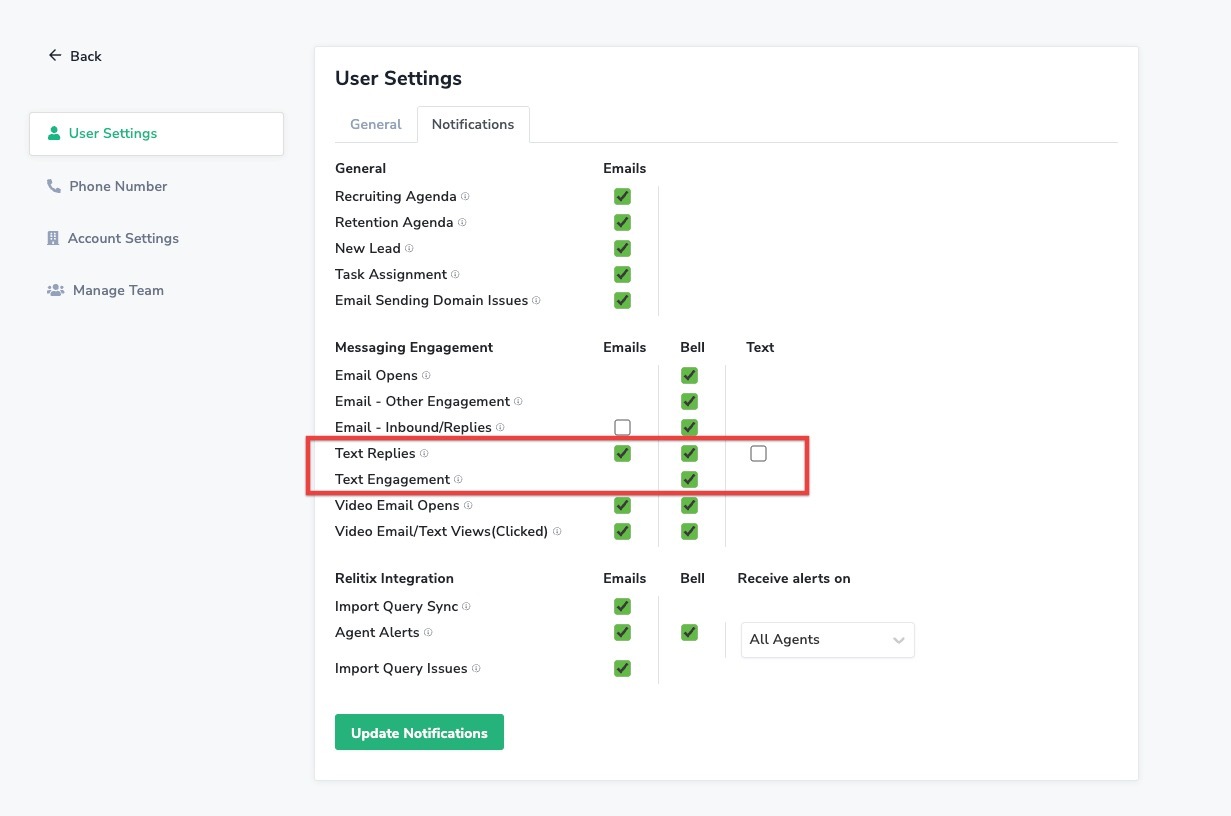
Last, note that you can also go in and filter on text replies in the Brokerkit user interface with the Engagement filter like below:

- The Notification Center is a great way to track engagement from your contacts, including text replies. You can see who replied to your text campaigns by checking the Notification Center bell icon and your Brokerkit Inbox.
Notification Settings for New Leads and Candidates
Text-reply notifications are separate from new-lead and new-candidate alerts.
To manage them:
- Open User Settings → Notifications.
- Under General, configure the New Lead row.
- Under Jobs, configure the New Candidate row.
- Enable Bell for in-app alerts or Text for SMS alerts.
- Make sure your forwarding number is configured before enabling Text.