Troubleshooting: Other Users Can't See My Videos
Issue: You uploaded videos to the video library, but other team members say they don't see your videos when they look at their library.
Solution: This is normal behavior. Each user's video library filter defaults to "Show my videos" which only displays videos they personally uploaded.
To see videos uploaded by ALL users (not just their own), each team member needs to change their filter setting:
- Go to the Video Library
- Scroll to the bottom of the page
- Find the filter dropdown (currently set to "Show my videos")
- Change it to "Show all videos"
Important: This is a personal filter setting - each user controls their own view. There is no organization-wide setting to force everyone to see all videos. Each user must change their own filter preference.
Note: This is not a permissions or sharing issue. All videos are automatically shared with your organization when uploaded. The filter just controls what each individual user sees in their own library view.
Video Library Subscription Limits
- There is a limit on the count of videos that can be stored in the video library for an account which is based on the pricing plan for that account.
- Our current pricing plans have allocations for a certain number of videos in your library, but some of our legacy pricing plans will not have an allocation.
- Please check your Brokerkit billing page here to see what the limits are by the pricing plan.
To increase video limits, upgrade to a current pricing plan on the Brokerkit billing page here or contact support@getbrokerkit.com for assistance.
How Long Does Video Processing Take?
After you add a video, it has to be processed before it appears in your Video Library. How long this takes depends on which of the three methods you used:
- Recorded video (Record a Video) — Typically 1-3 minutes after you click Save, longer for recordings near the 10-minute limit. BrokerKit uploads your recording, converts it to MP4, and generates a thumbnail (and optional animated GIF preview).
- Uploaded video file (Upload New Video) — Typically 2-5 minutes for upload and processing combined. Time scales with file size (up to 100 MB), internet upload speed, and video length. Files near 100 MB or close to 10 minutes long can take up to 10 minutes.
- YouTube URL (Insert Video URL) — Usually under 30 seconds. No file is uploaded — BrokerKit only validates the link and fetches the title and thumbnail from YouTube. The YouTube video must be Public or Unlisted (Private videos won't work).
For recorded and uploaded videos, BrokerKit converts your file to a web-friendly format (H.264 MP4 at 720p) and generates thumbnails. This conversion runs on our servers, and time scales with the length and size of the video. YouTube URLs skip this step because the video is already hosted by YouTube.
You can close the upload window or keep working in other tabs while processing runs. The video appears in your Video Library with a green check mark when it's ready. If it's still missing after 10 minutes, see the troubleshooting steps below.
Video Upload Troubleshooting
If your video recording isn't uploading, the upload is stuck, or you get an error when adding a video, work through this list of common causes:
File Size Limits
- Uploaded videos must be under 100 MB. Files larger than this will fail to upload.
- If your file is larger than 100 MB, trim or compress it (most video tools have a "reduce size" or "compress" option) and try again.
- For long recordings, consider uploading to YouTube and adding the YouTube URL to your Video Library instead — see How to add YouTube URLs to your Video Library.
Which video file formats can I upload?
The upload control accepts MP4, MPEG/MPG, AVI, MOV, FLV, WMV, and M4V. Acceptance does not guarantee processing or conversion. If processing fails, convert to MP4 and retry. Audio-only files and images are not supported.
Common Upload Failure Causes
- Video not uploading at all. Check your internet connection — large video uploads need a stable connection. Try a wired connection or a different network if Wi-Fi is unreliable.
- Upload stuck at 0% or a partial percentage. Refresh the page and try again. If it still stalls, try a smaller / shorter video to confirm the feature is working.
- "Upload failed" error message. Usually caused by file size or format (see above). Double-check both.
- Green check mark never appears. Wait 1-5 minutes for most videos, up to 10 minutes for files near 100 MB or close to 10 minutes long. Larger and longer videos need extra processing time after the upload completes before they appear in the library. See How Long Does Video Processing Take? above for typical times by method.
- Video records but won't save. Browser permissions may have been revoked mid-recording. Reload the page and re-grant camera / microphone permissions when prompted.
Videos Disappeared From Library
- Check the "Show my videos" / "Show all videos" filter at the bottom of the Video Library page. Default is "Show my videos" — switch to "Show all videos" to see videos uploaded by teammates.
- Check the Trash tab — deleted videos remain there for 30 days before permanent deletion.
Still Not Working?
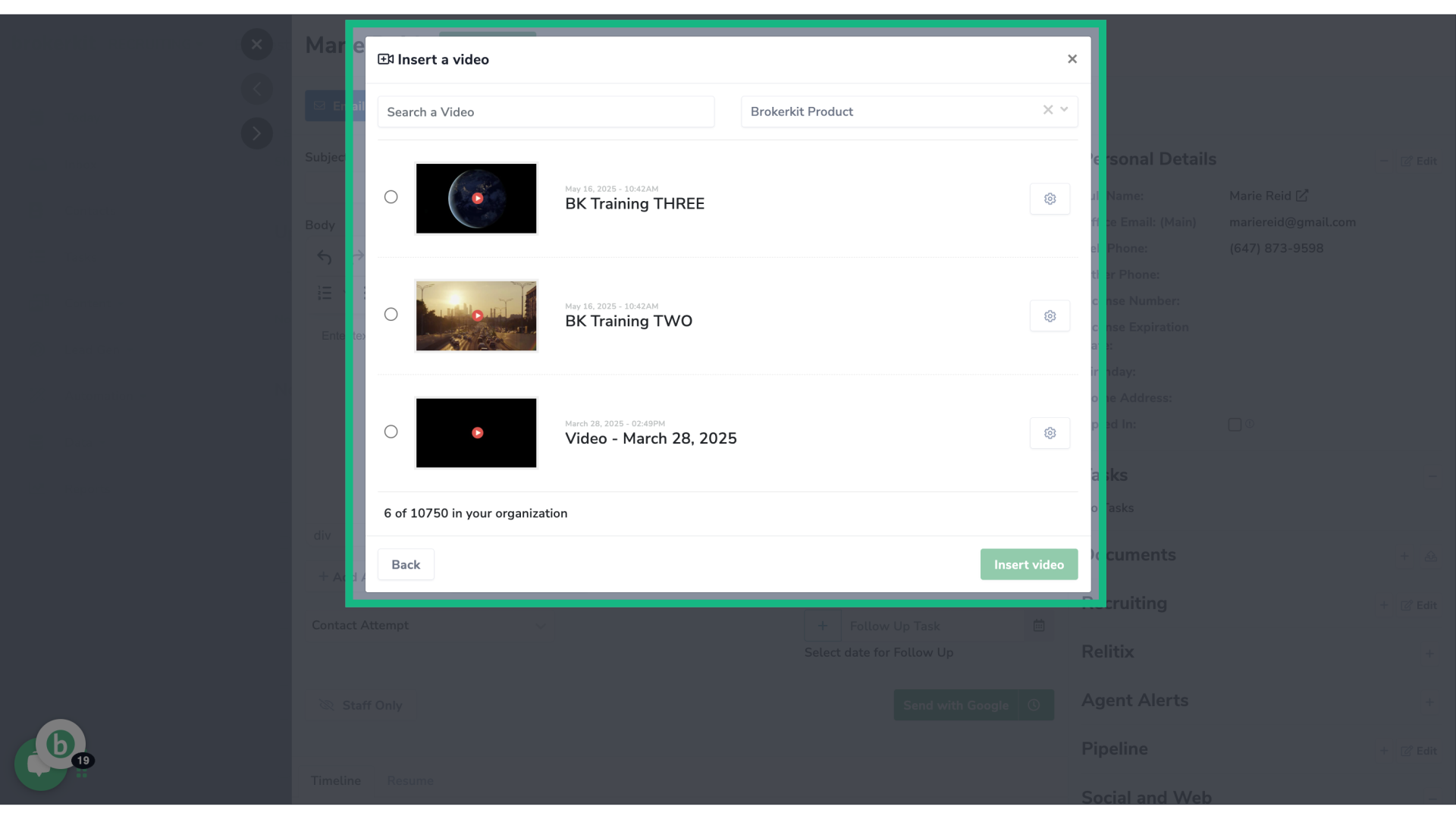
Contact support at support@brokerkit.com with:
- The video file size and format
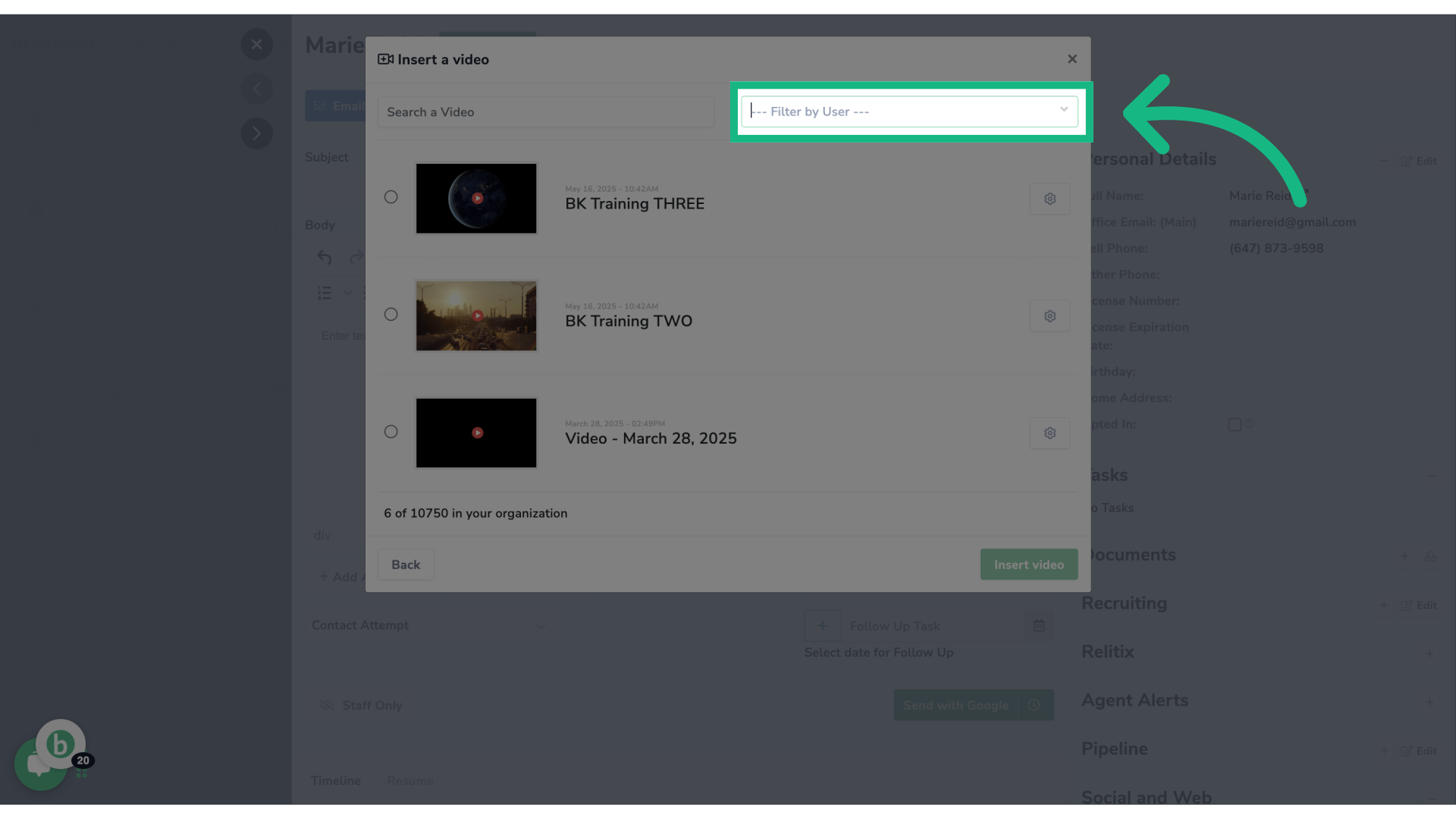
- The browser you're using (Chrome, Safari, etc.)
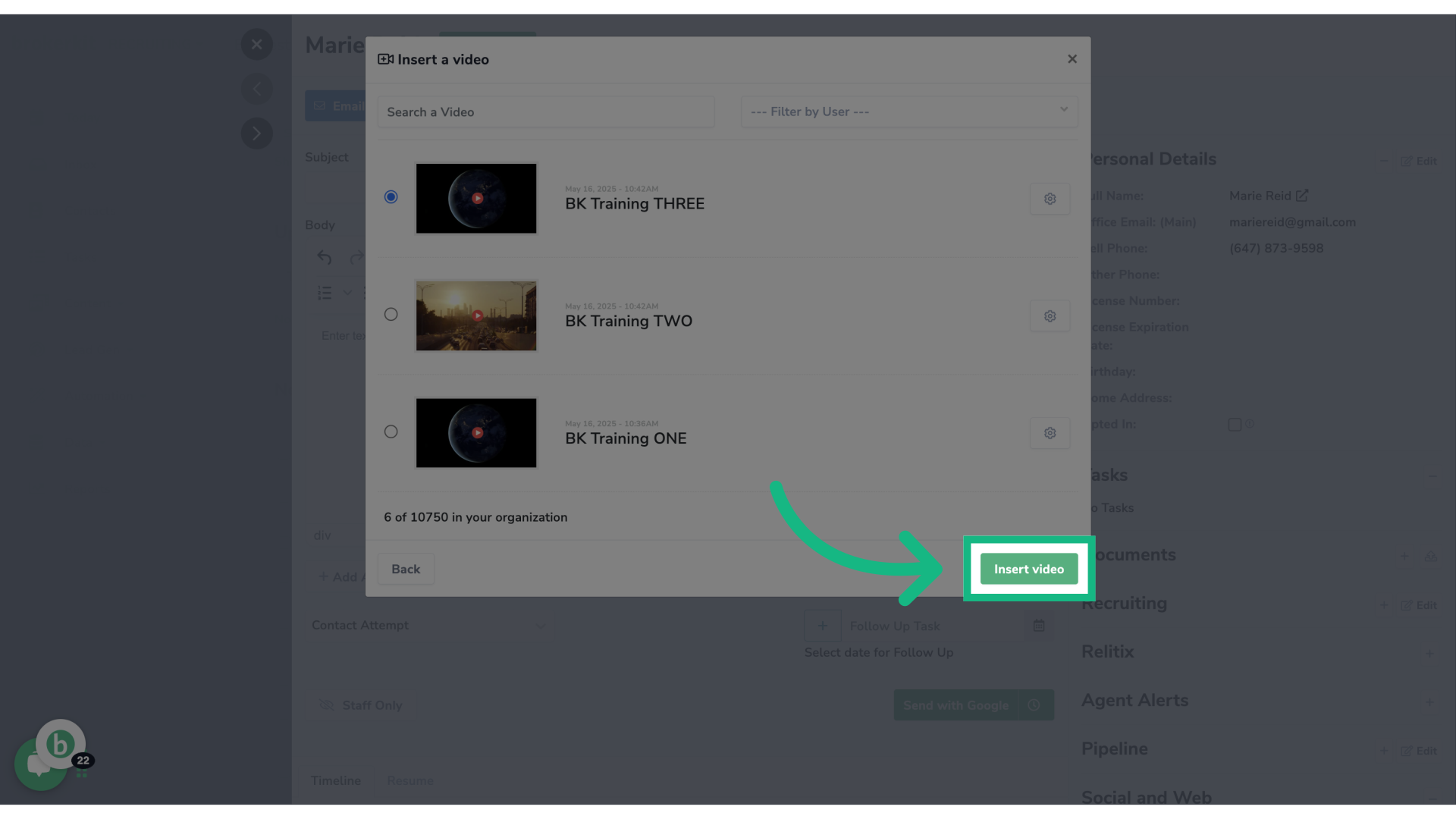
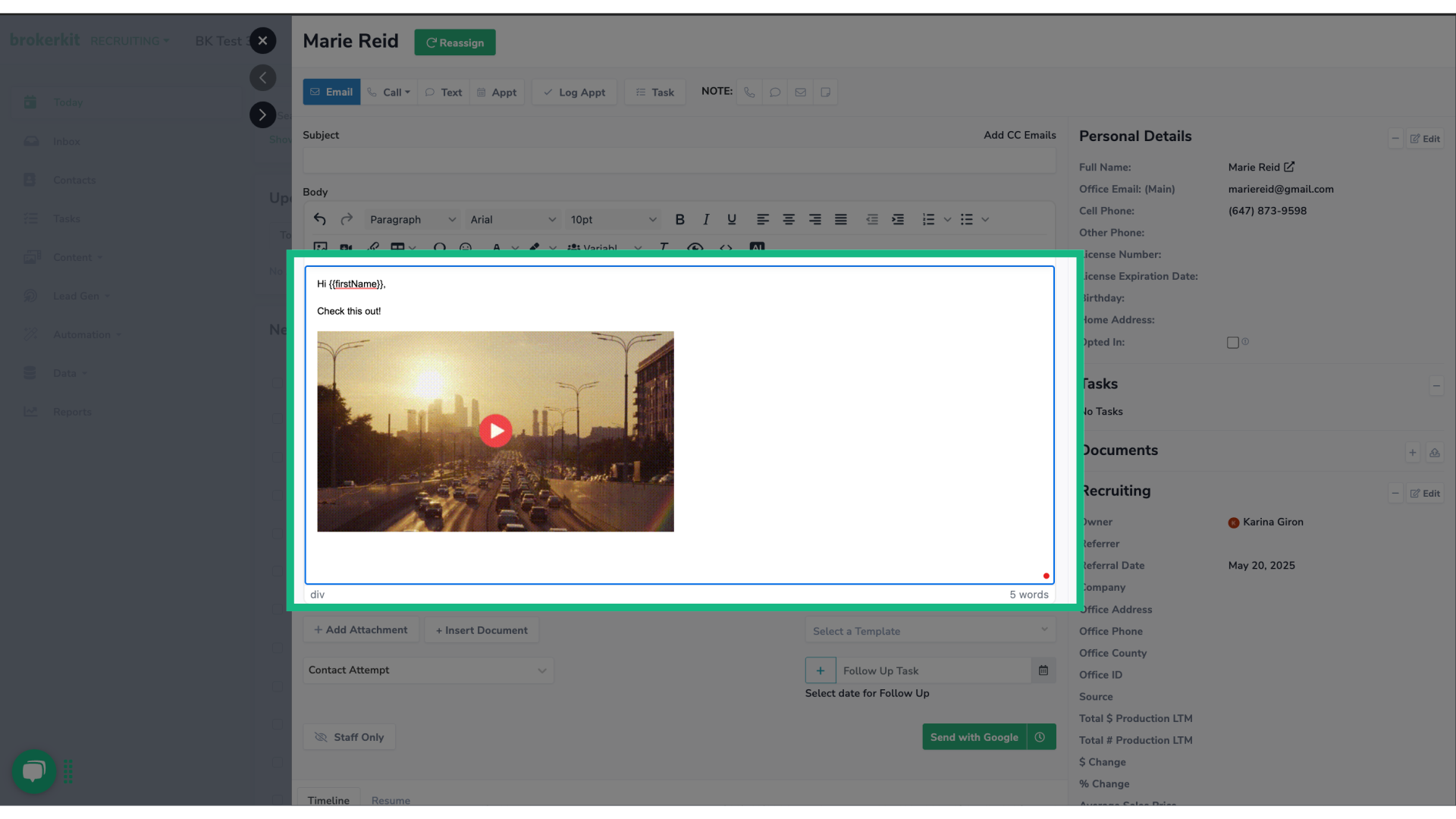
- A screenshot of any error message
How to navigate the video library?
Welcome to this tutorial on how to navigate the new Videos Library. This library will be a central hub where you can view and organize all your videos in one place.
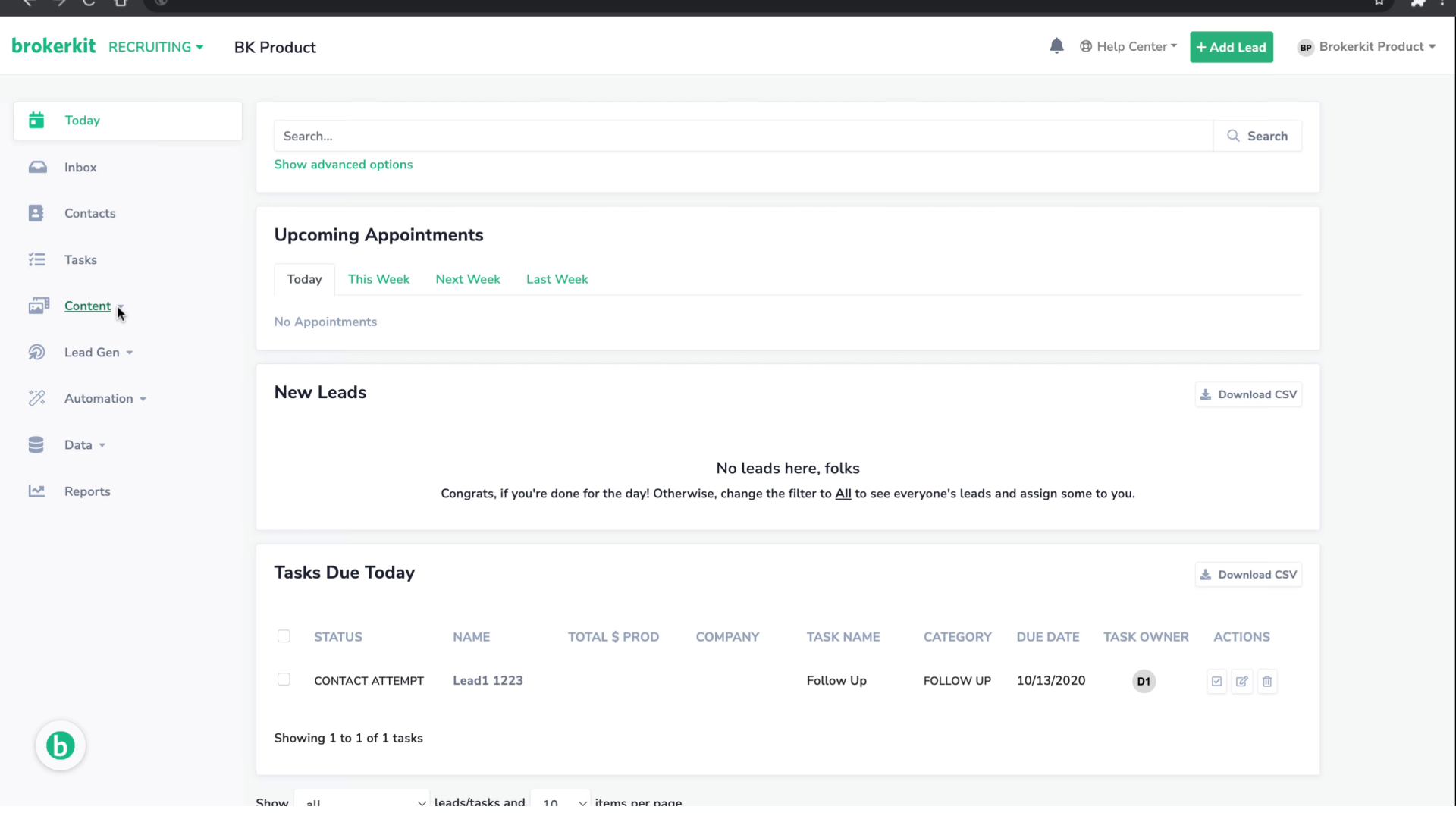
1. Introduction
To start, please access the Brokerkit platform.
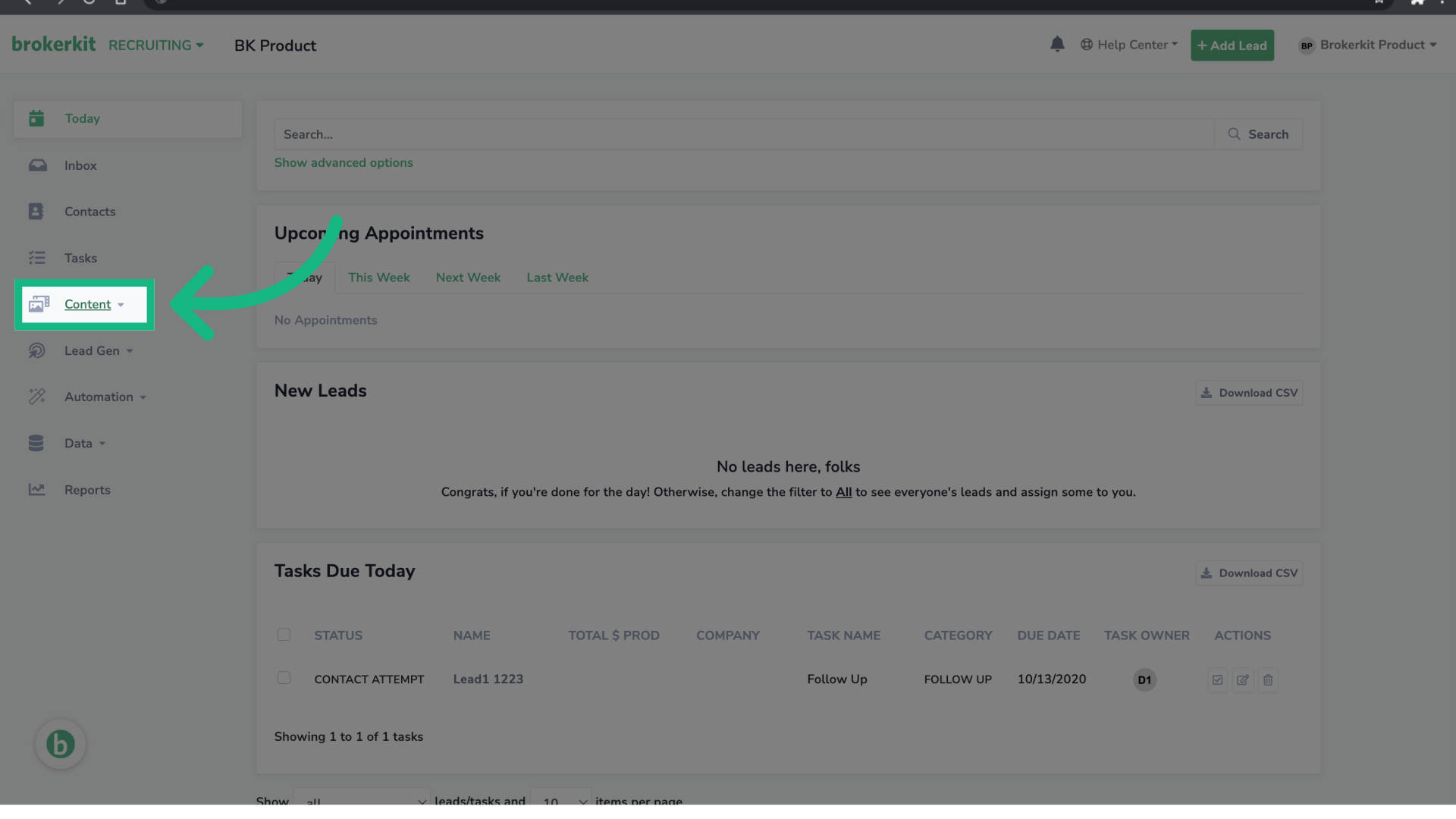
2. Click "Content"
Go to the left menu, and select Content.
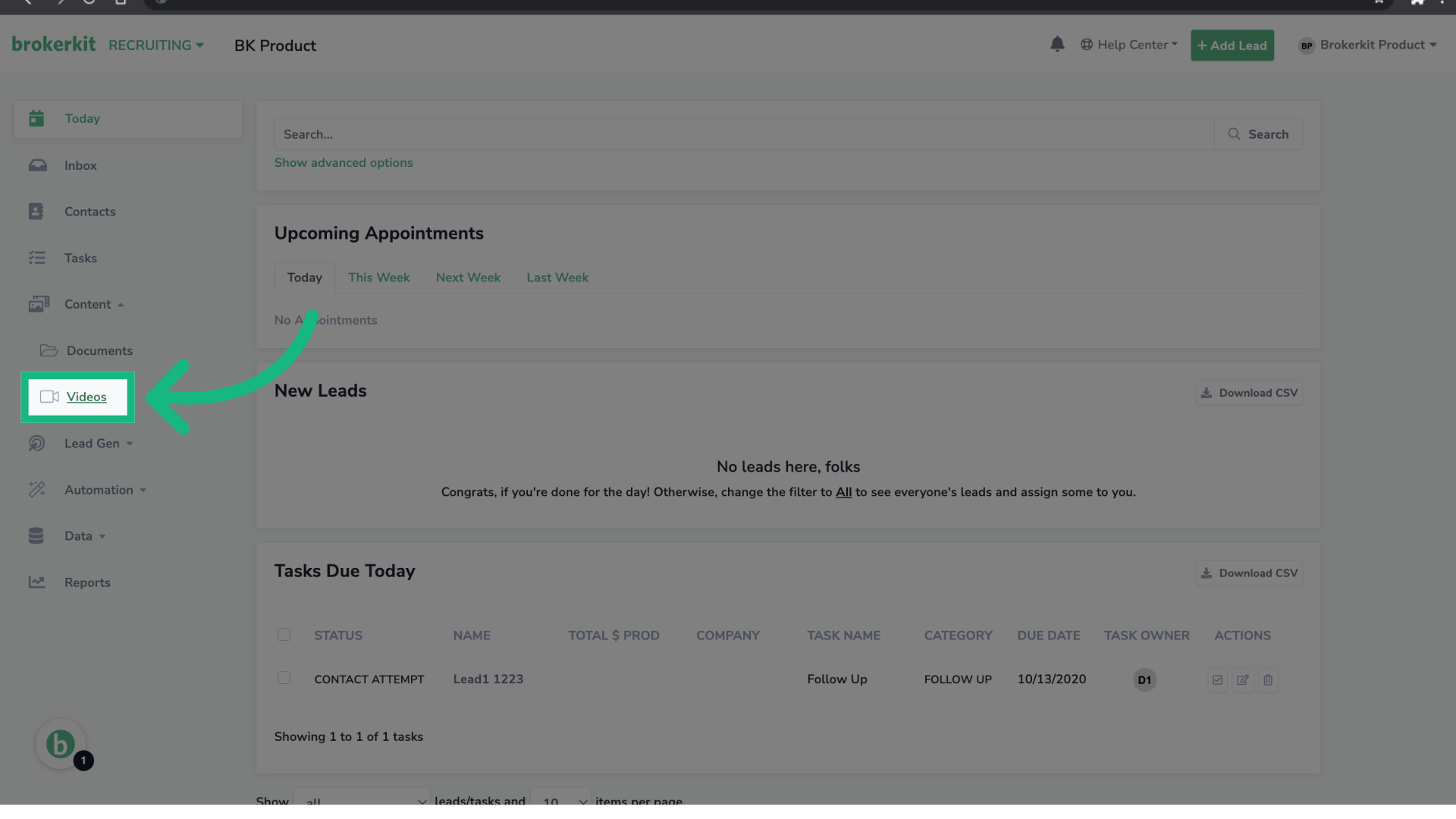
3. Click "Videos"
Then select Videos.
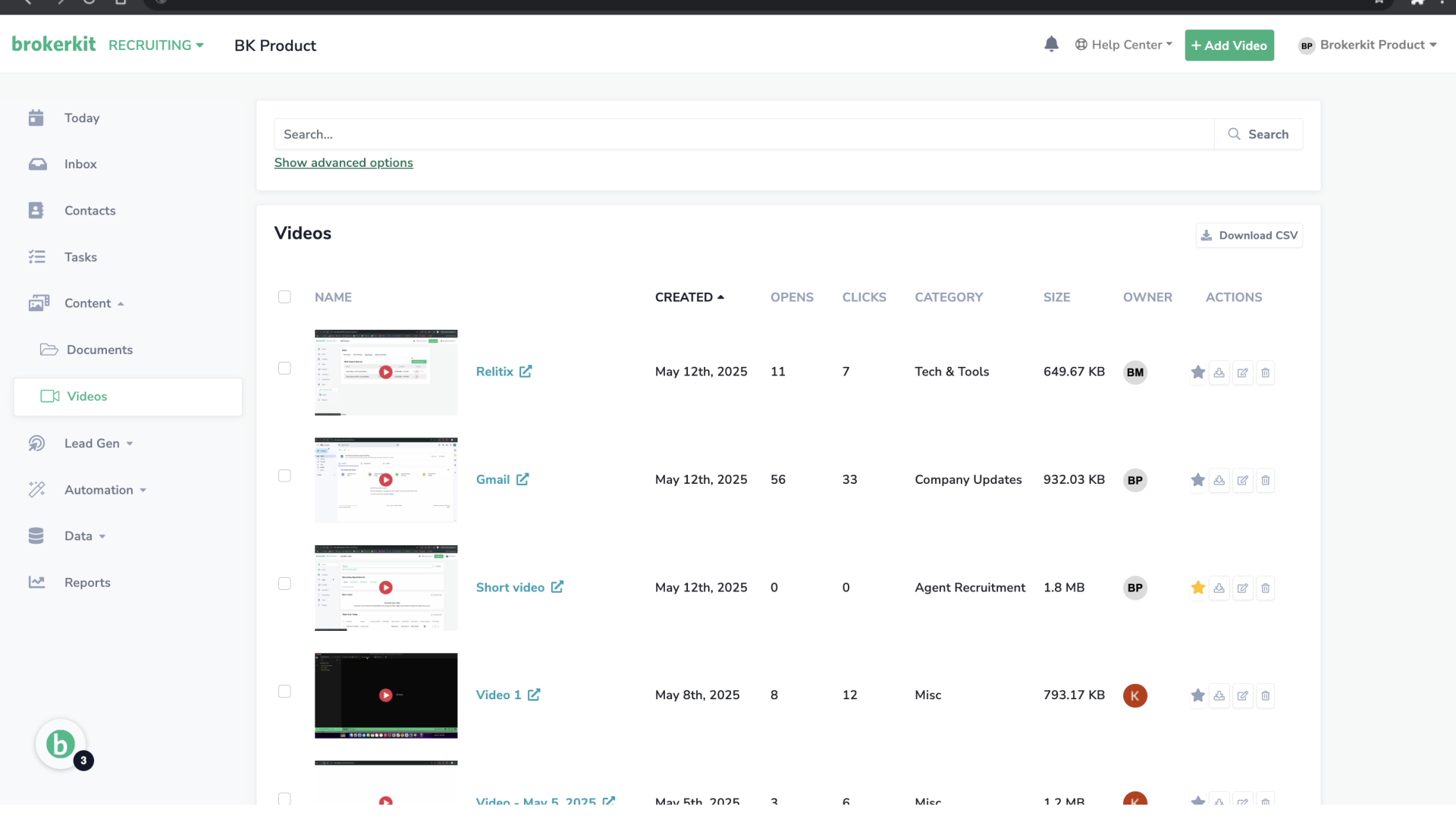
4. Videos Page
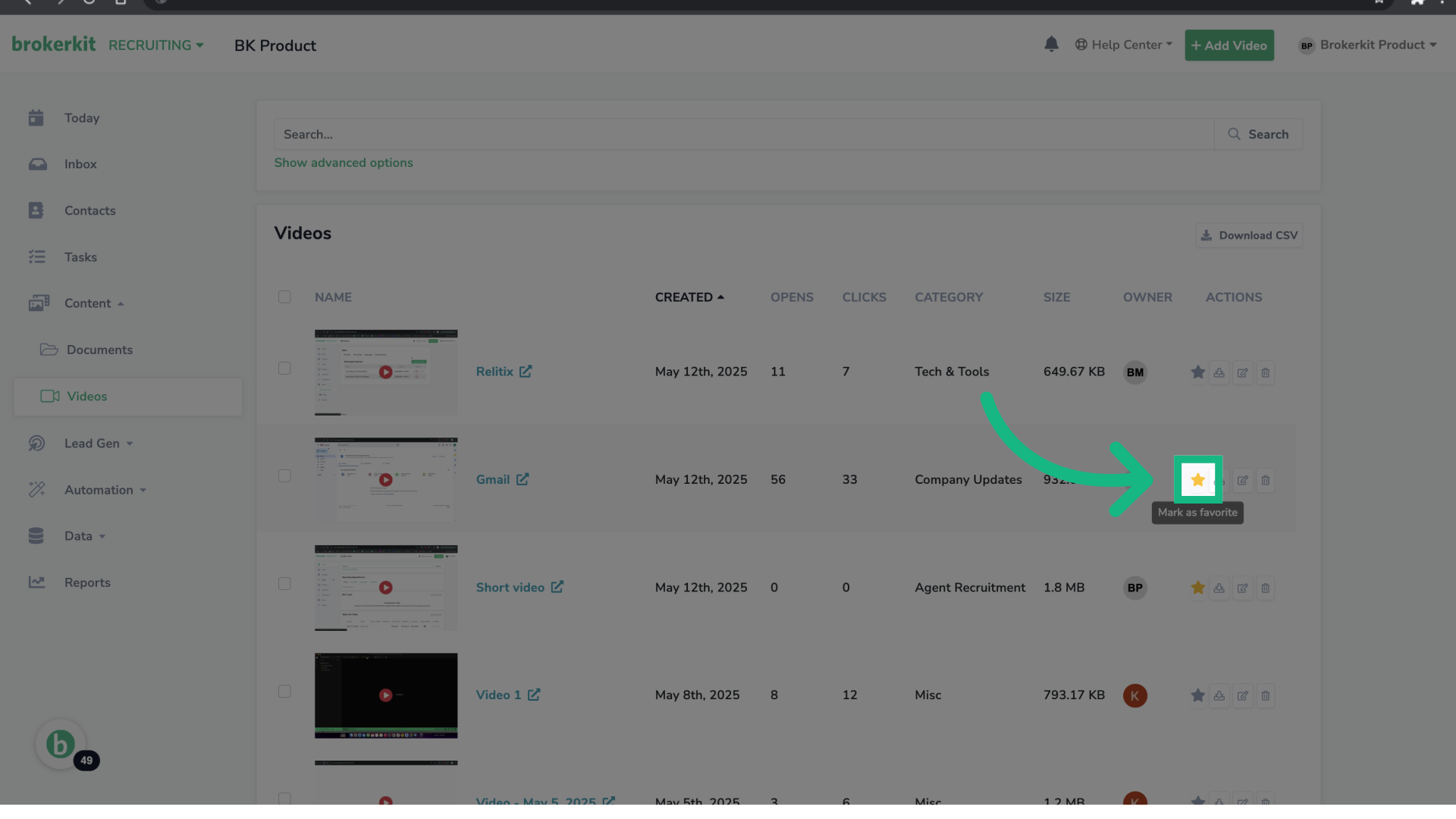
You can mark a video as favorite, download it, edit it or delete it.
5. Mark as favorite
To mark it as favorite, click on the star, to unfavorite just click again.
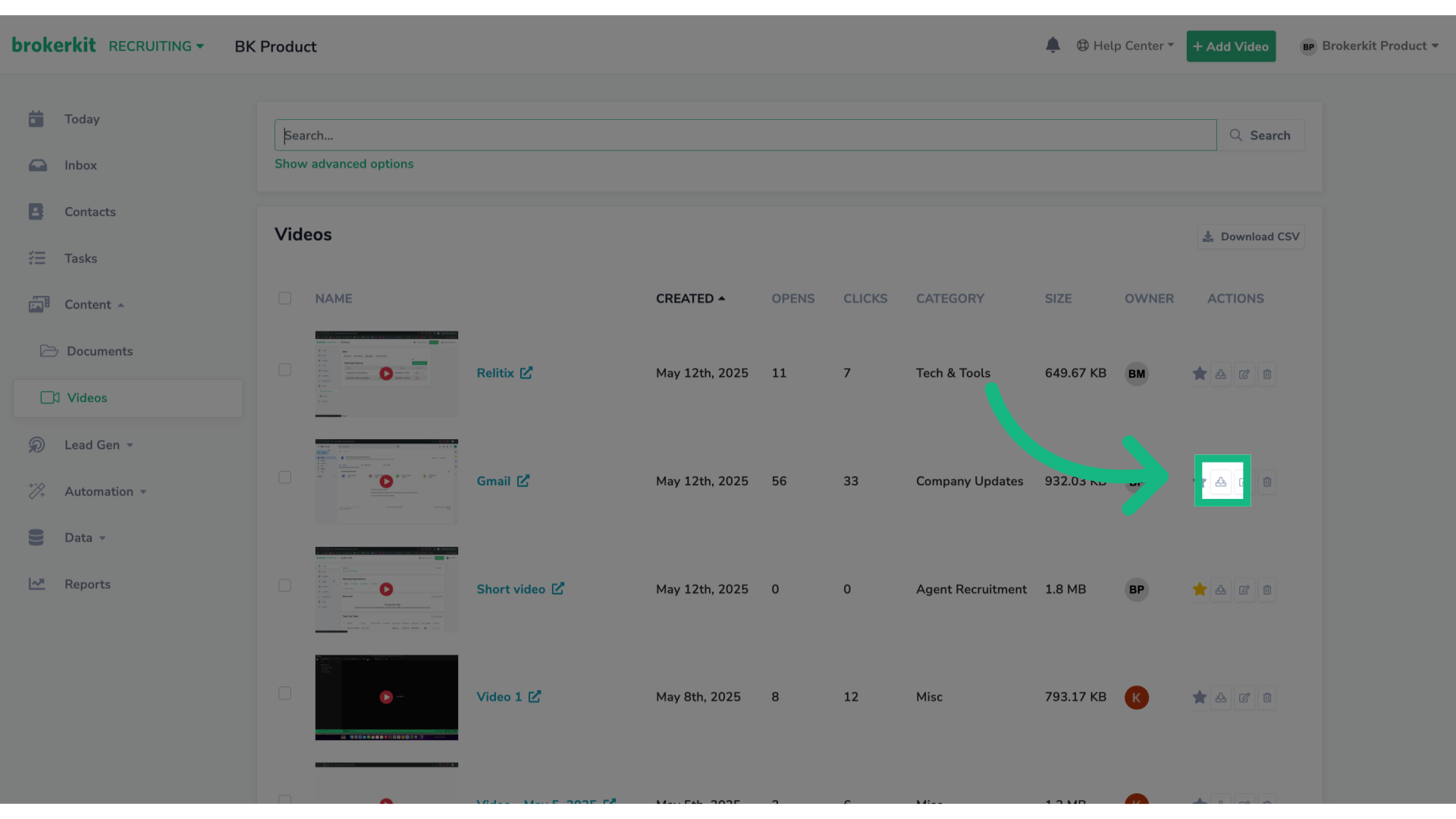
6. Click to download
To dowload the video, click the download icon.
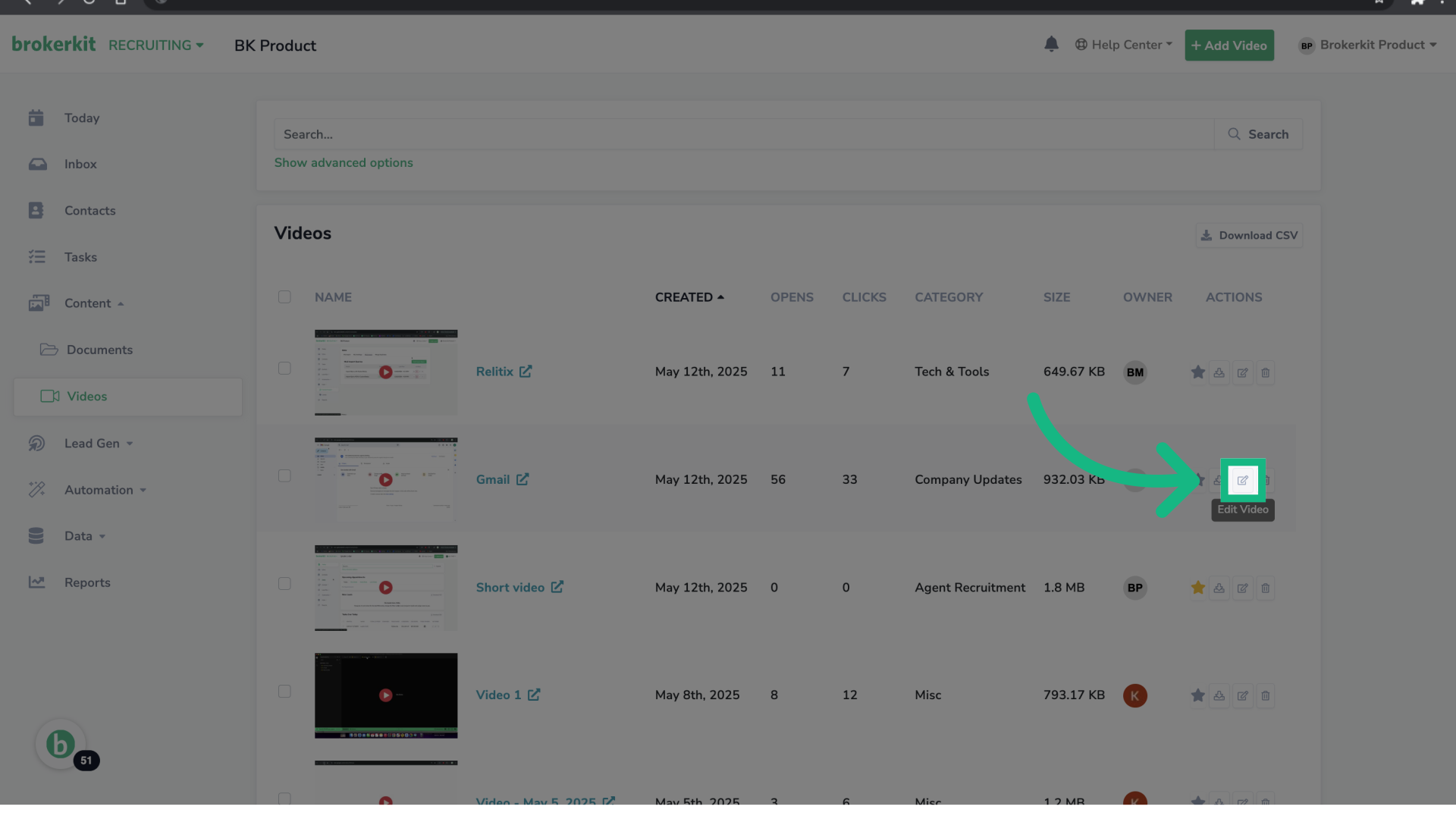
7. Click to edit
To edit the video, click the edit icon.
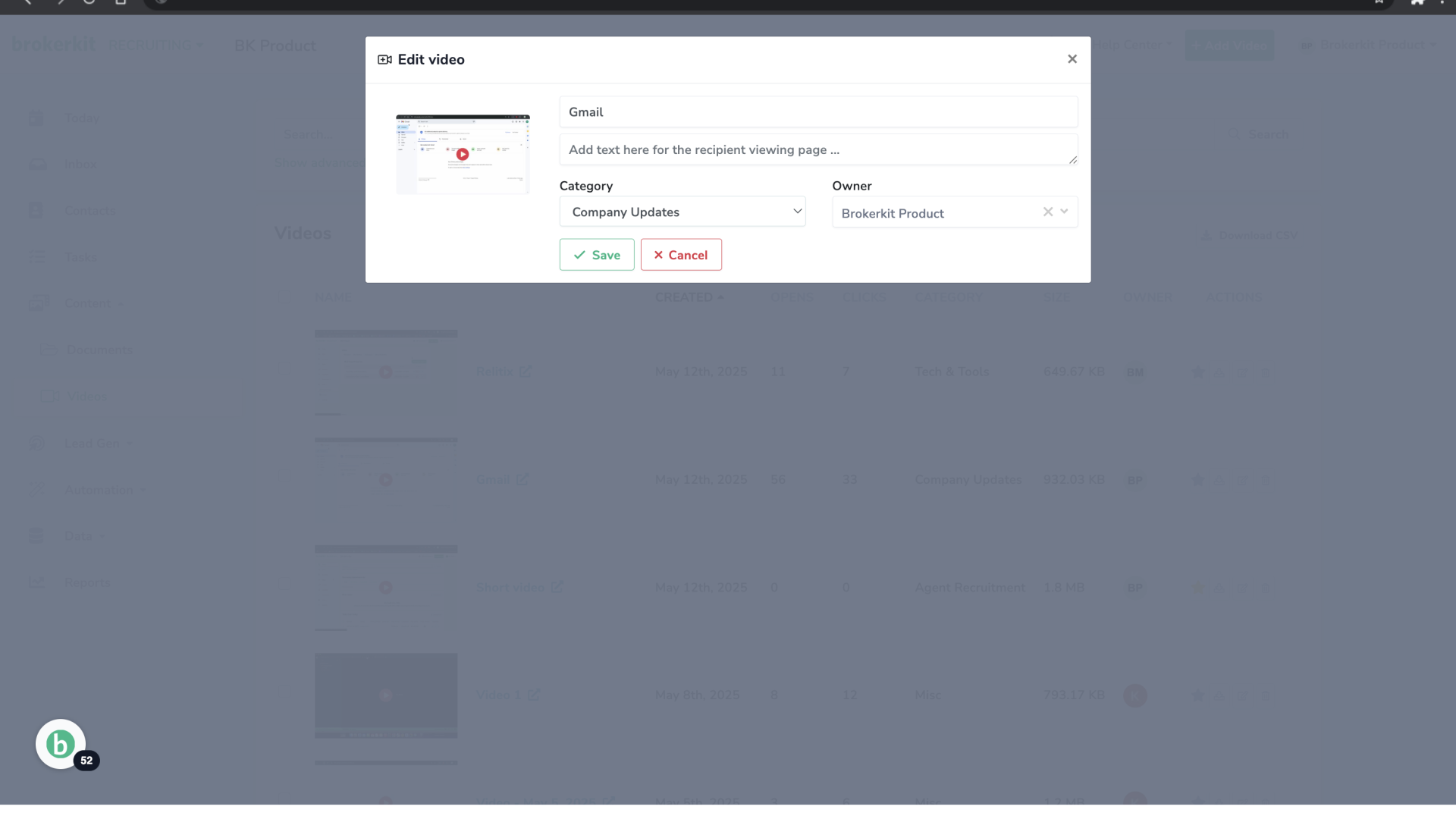
8. Edit a Video
You can edit the name, category or owner. Don't forget to click Save.
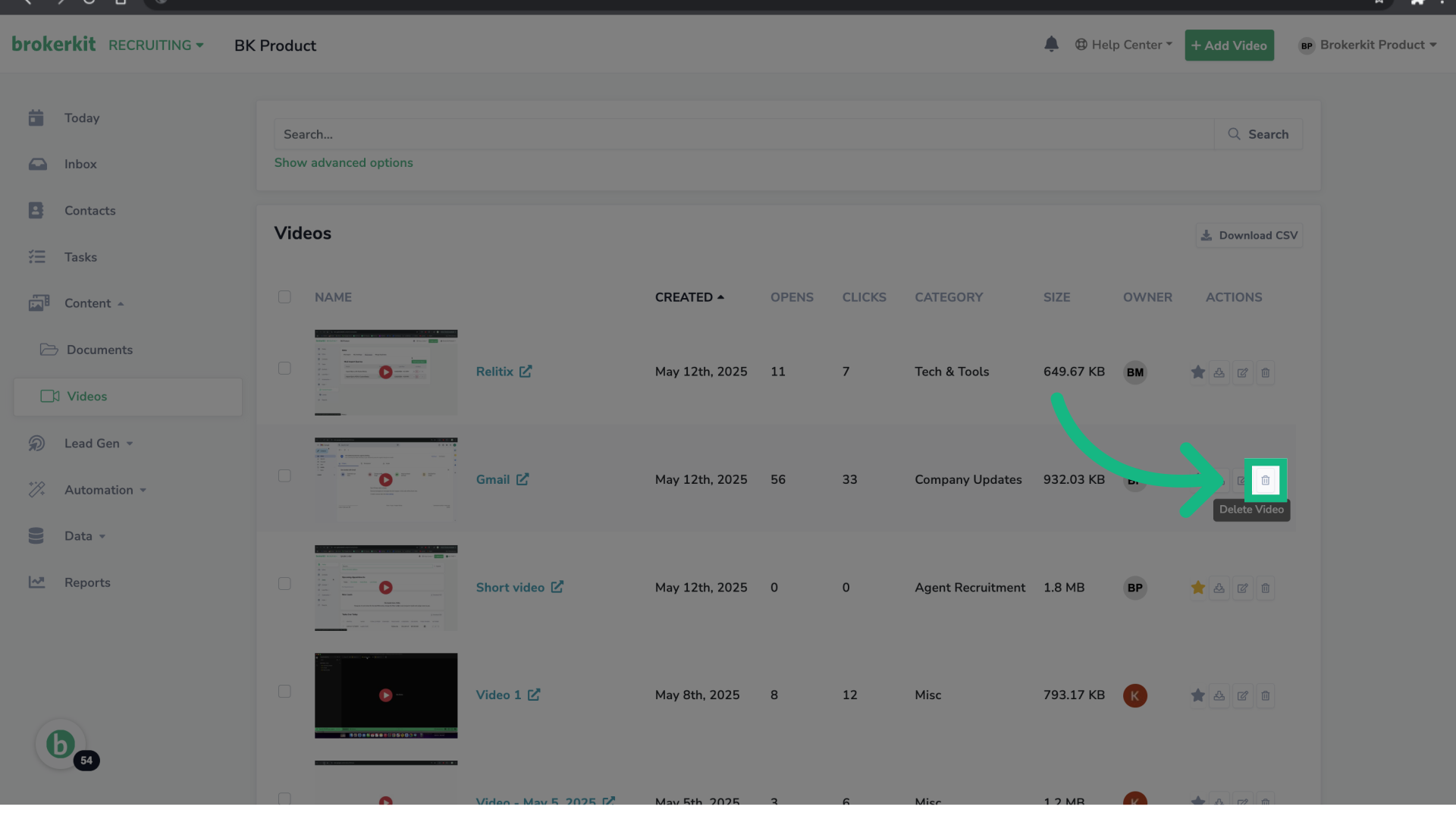
9. Click to delete
To delete a video, click the trash icon. Deleted videos are moved to the Trash page, where they remain for 30 days.
10. Bulk Actions
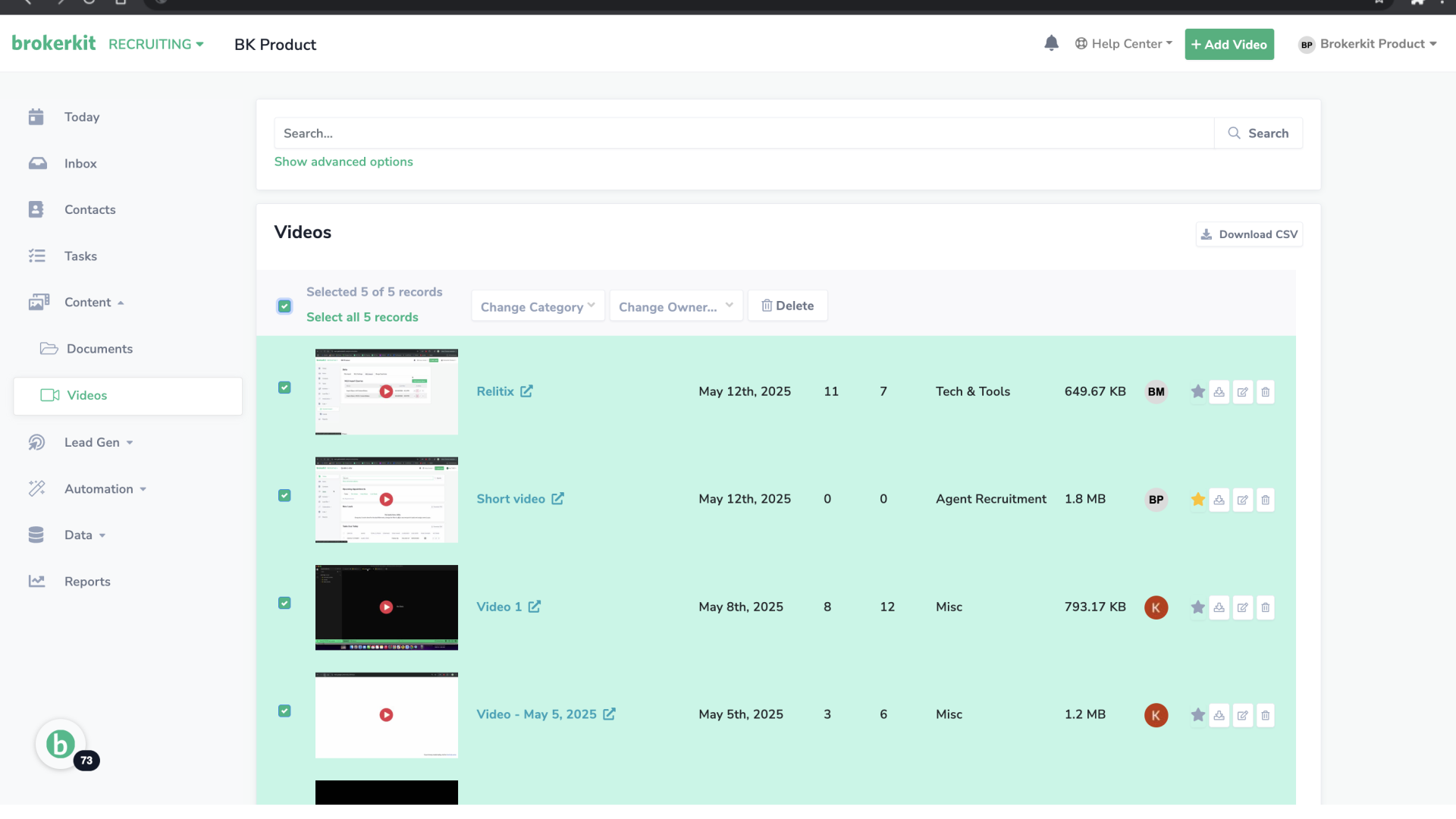
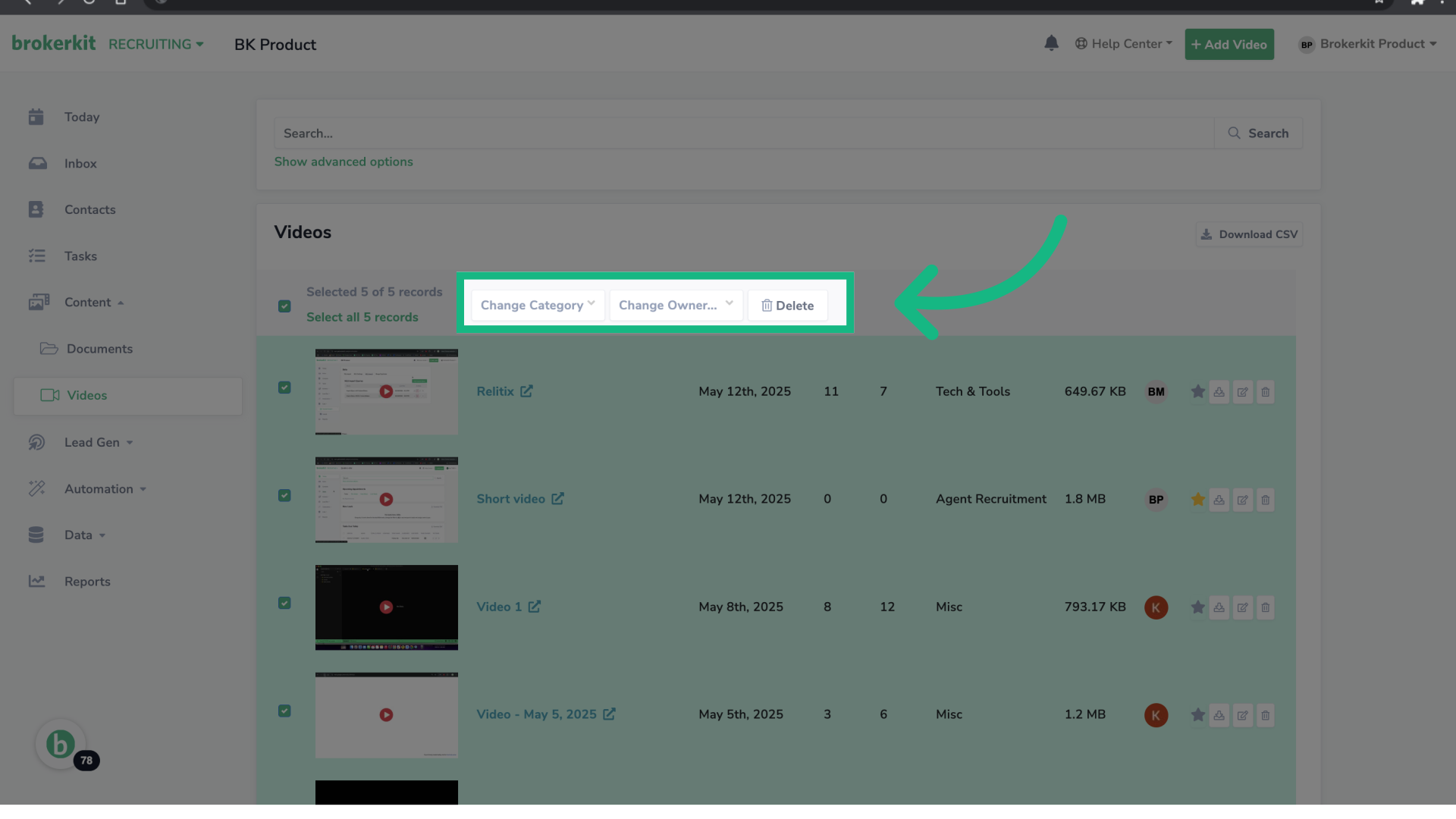
Also, you can perform bulk actions, including changing categories, owners or deleting videos.
11. Choose the action
First, select the videos you want to work with. Then, choose the bulk action.
12. Click "Download CSV"
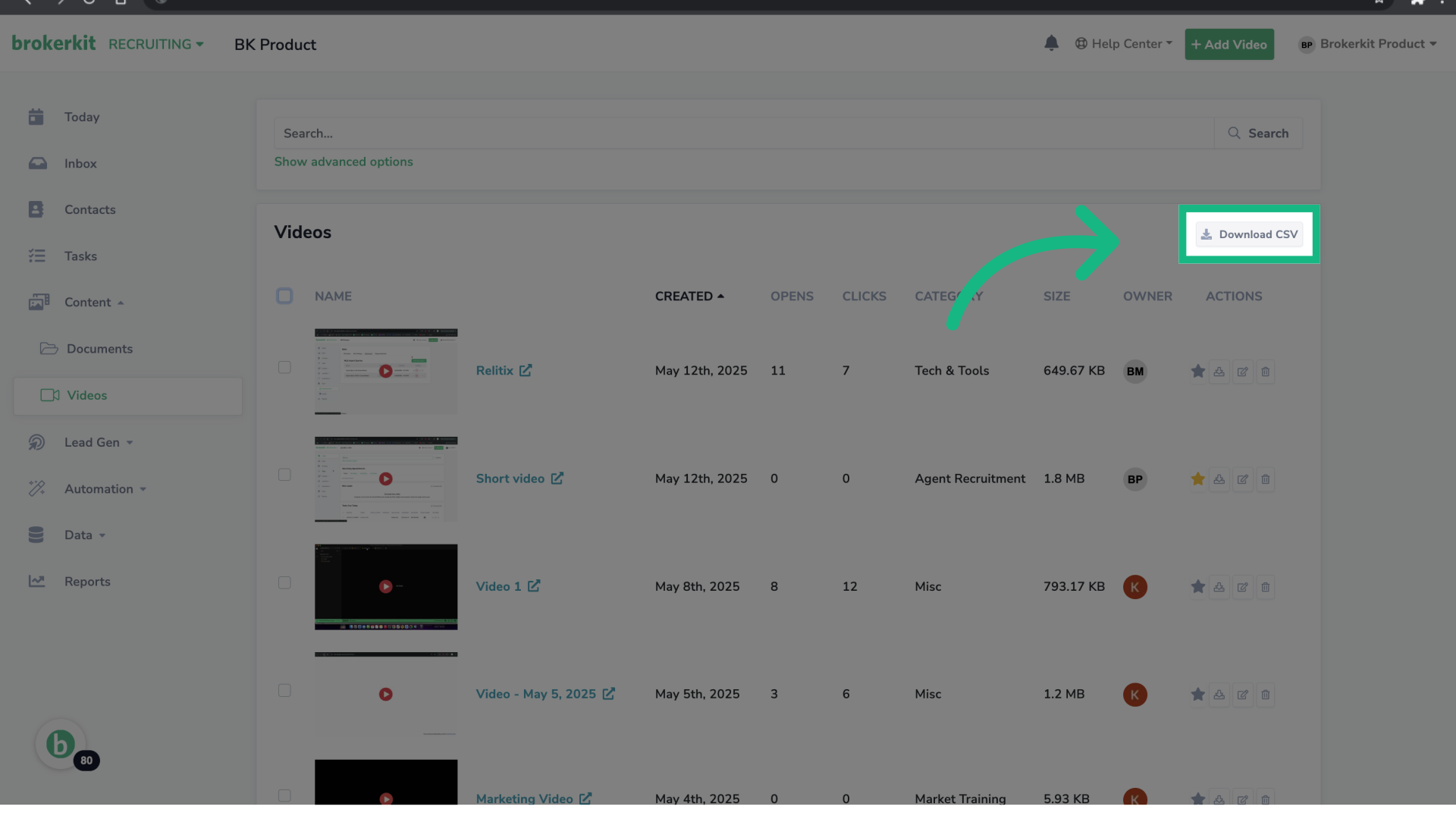
Finally, if you'd like to have your video info as a table, click Download CSV. A CSV will be generated and sent to your email.
13. How to add or upload a new video?
Now, let's see how to add a new video. For more information, please go to this video ➡️
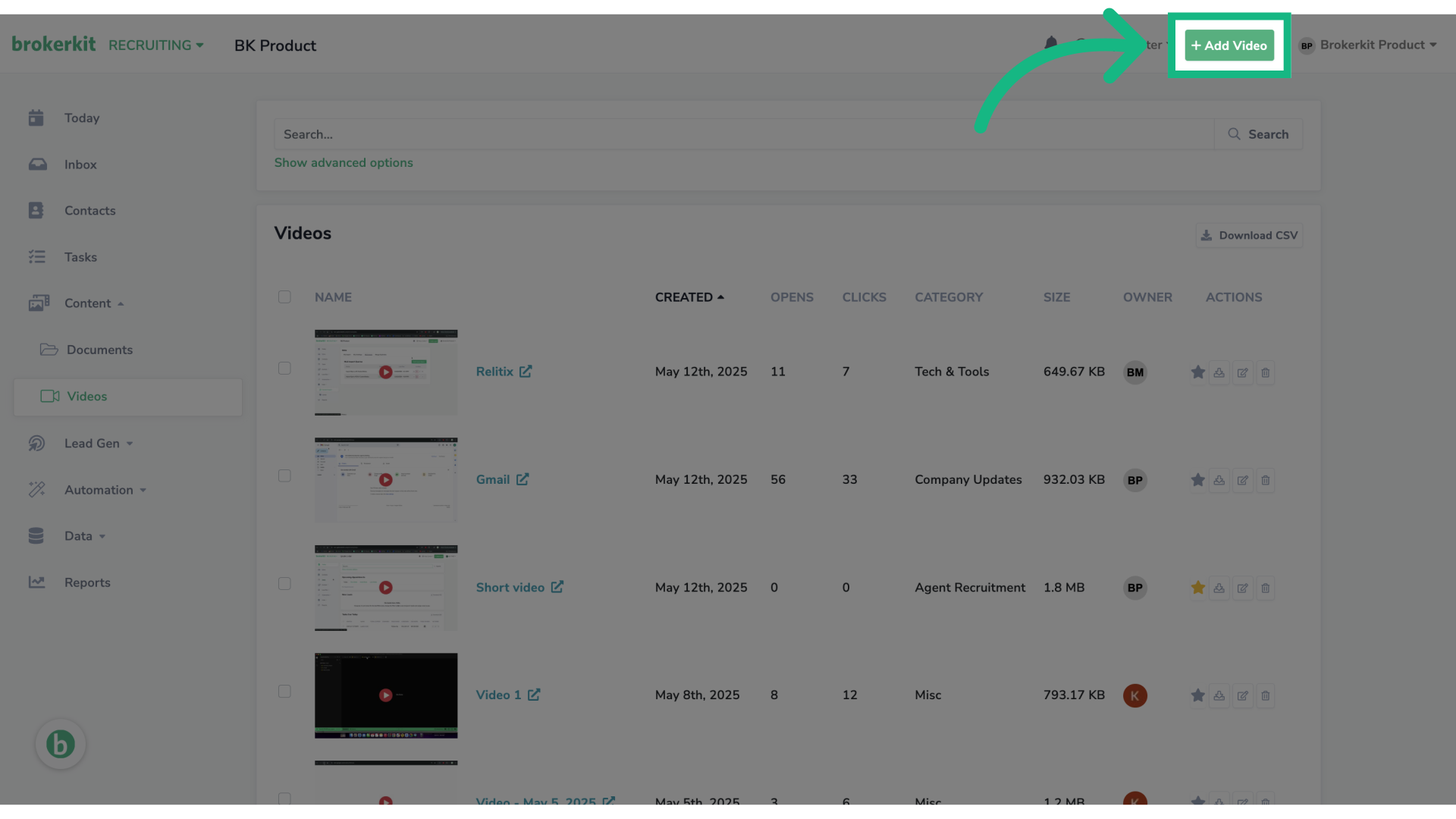
14. Click "Add Video"
At the top of the page, click the button Add video.
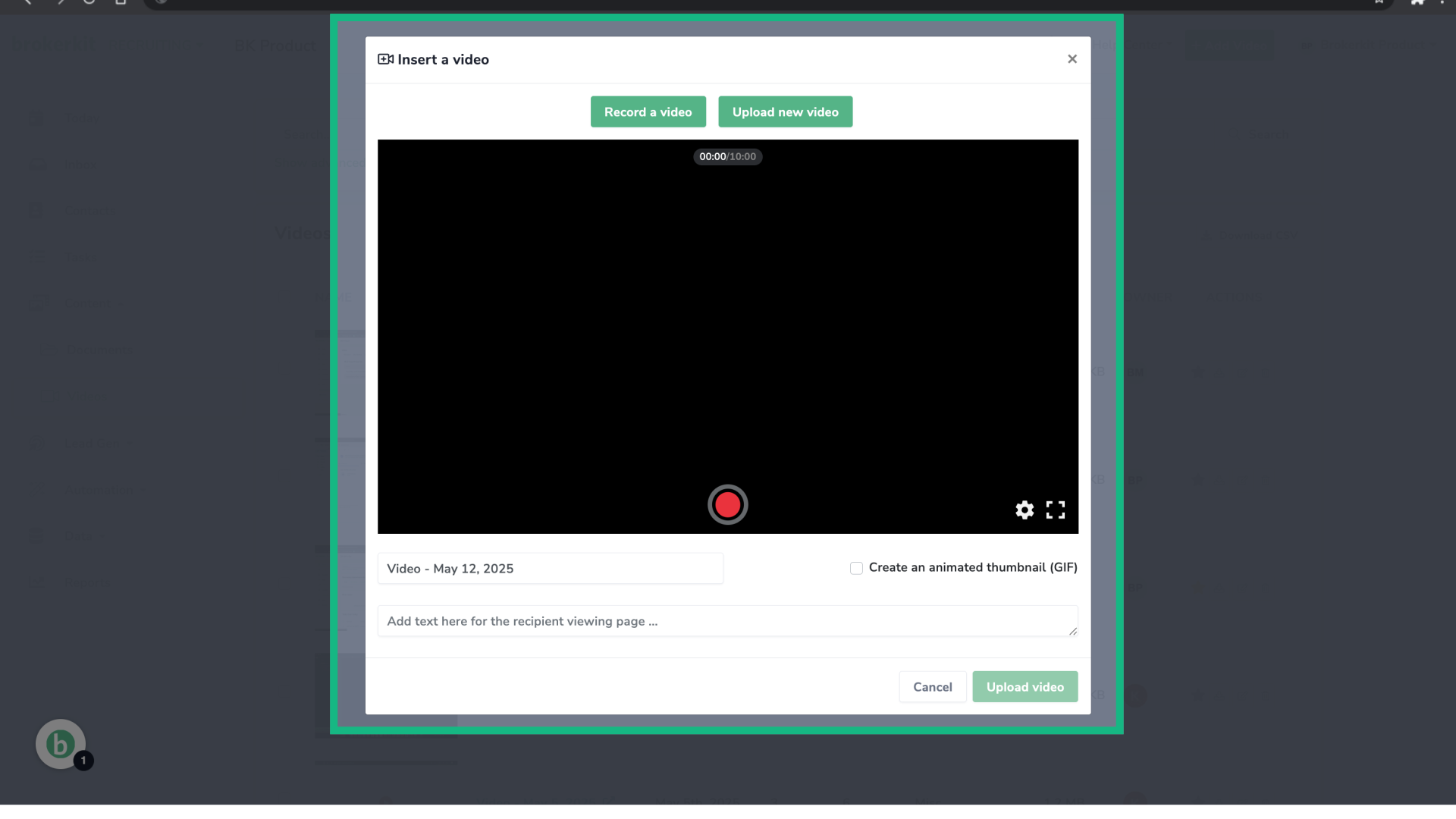
15. Record online video
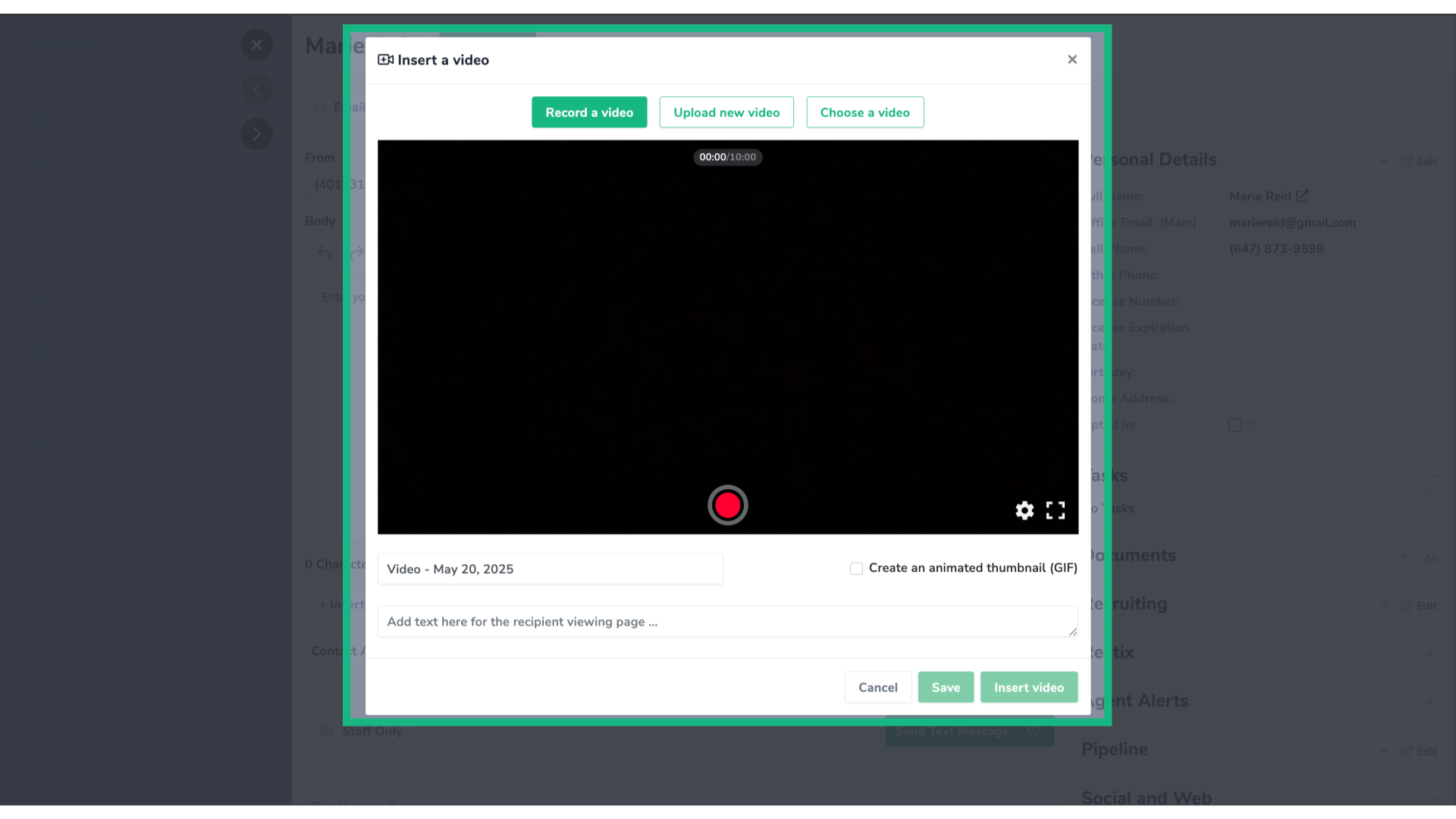
If you want to record an online video, click the red button to start recording, then click it again to stop it.
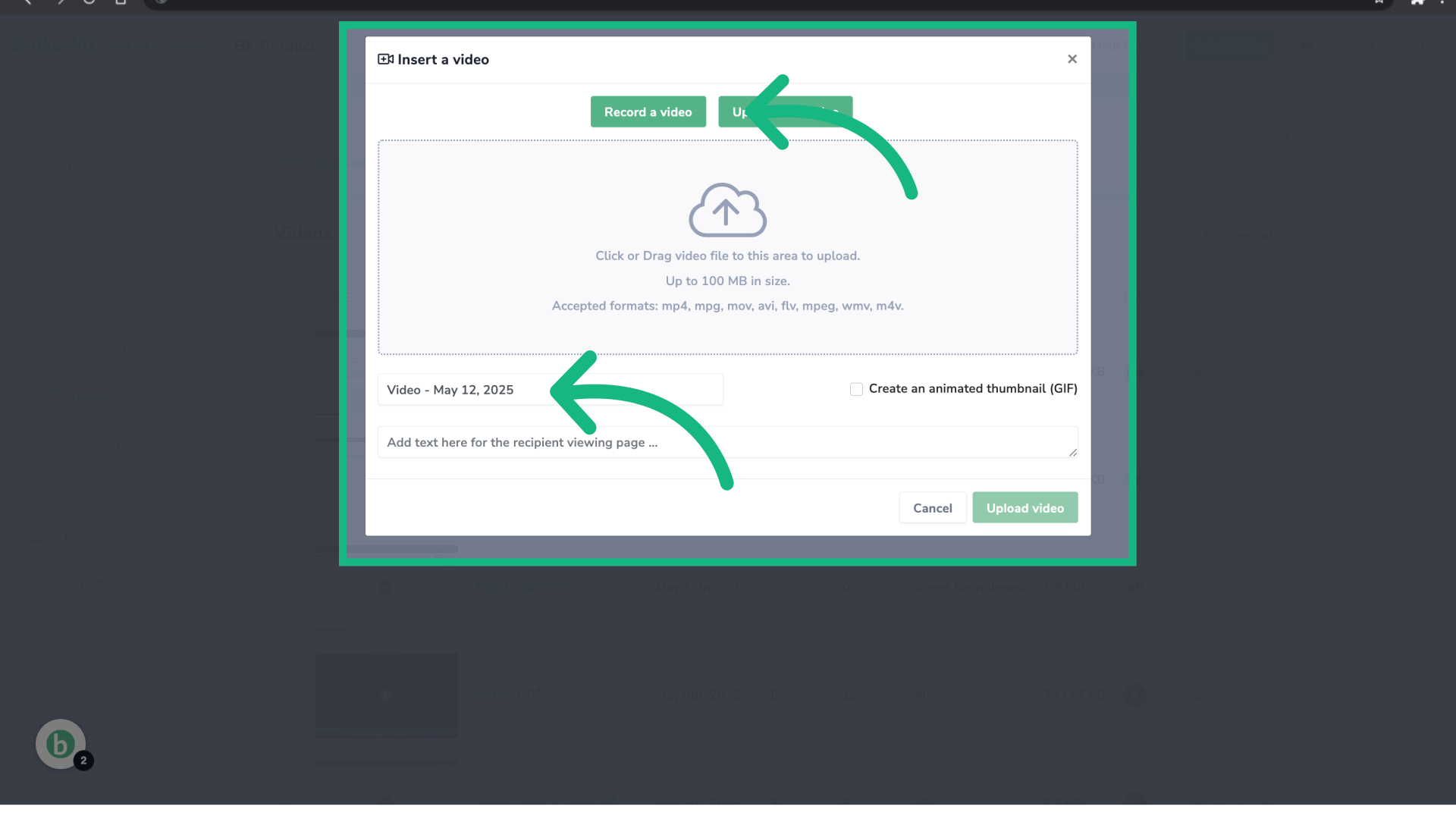
16. Upload a video
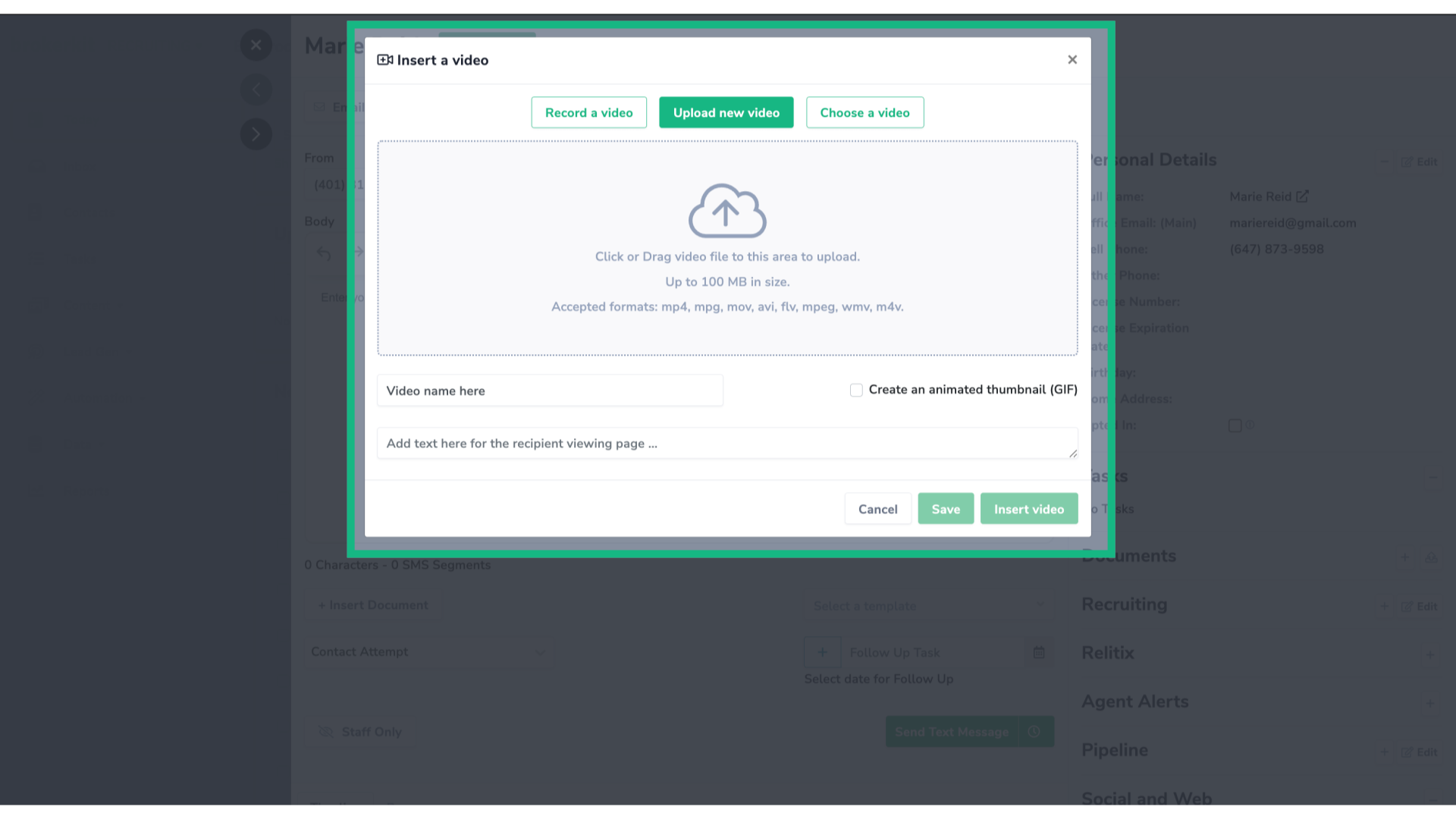
If you want to upload a video, select it from your computer, it has to be in the format supported and under 100 MB. Add a video name and then hit the Upload video button.
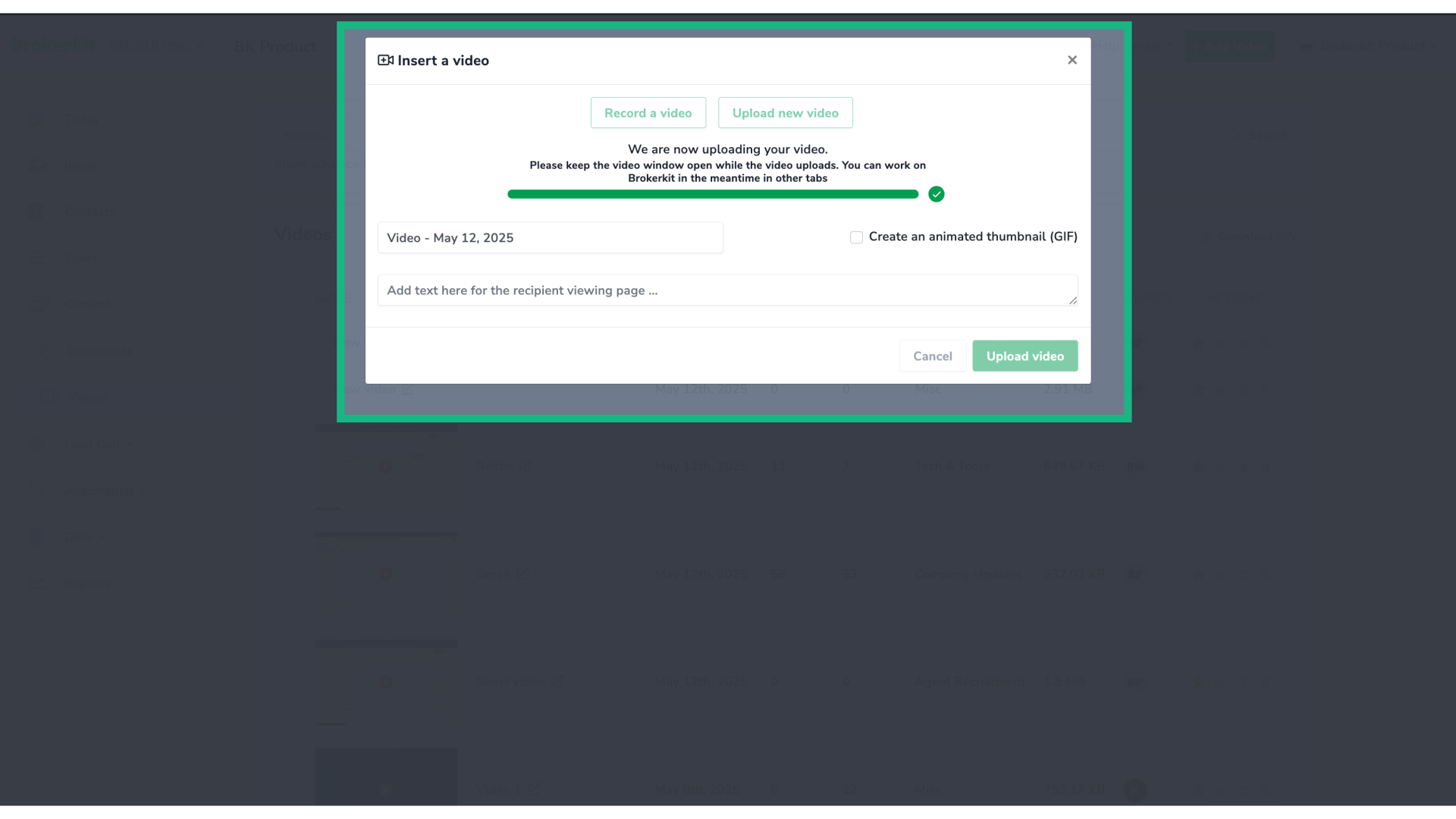
17. Wait for the upload
Wait for the video to get uploaded to your library, once you see the green check, it means it was successfully uploaded.
18. How to navigate the new Video Page using advanced filters?
Now, let's talk about filters.
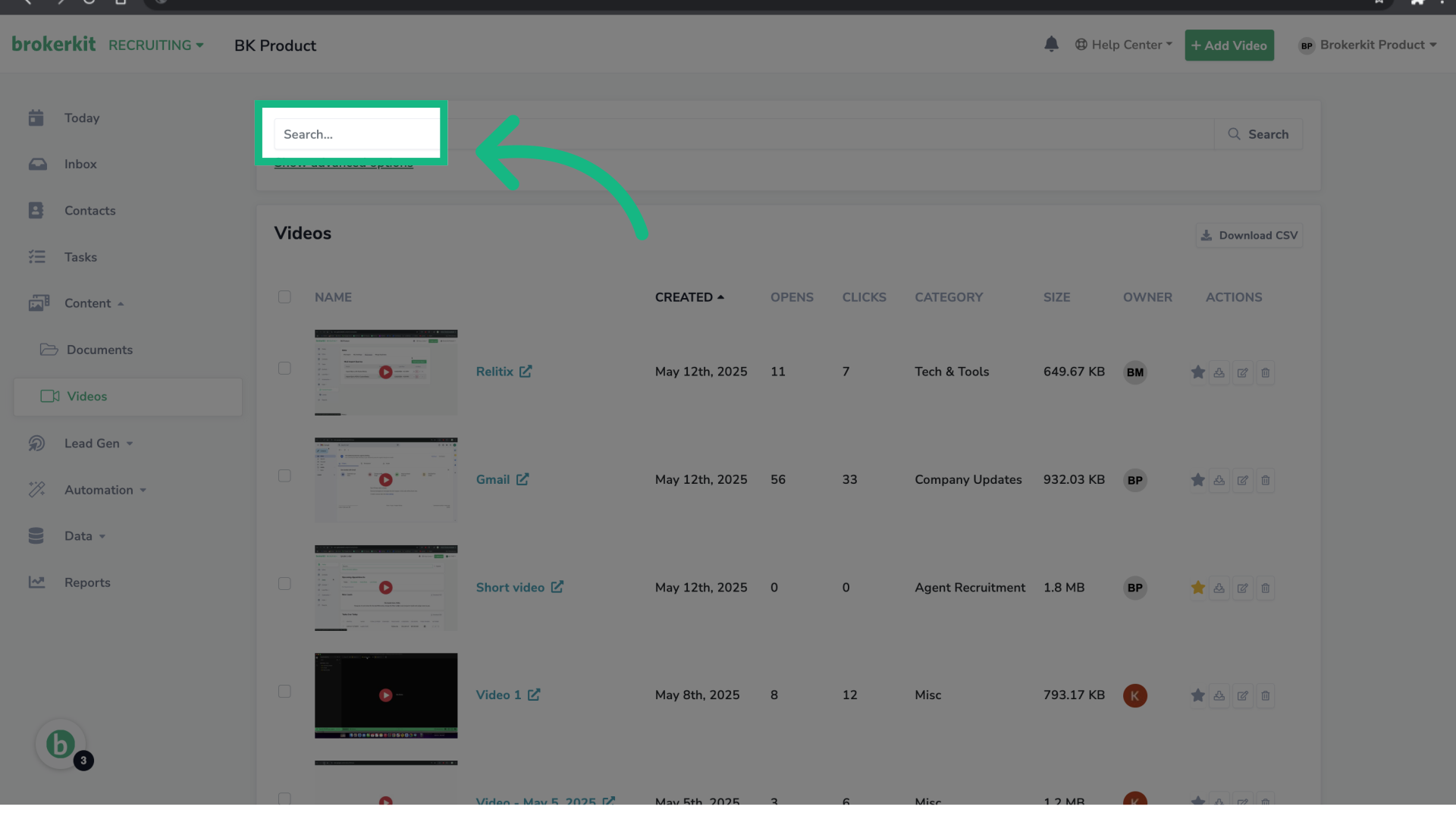
19. Search by video name
To quickly find a video, use the search bar to look it up by name.
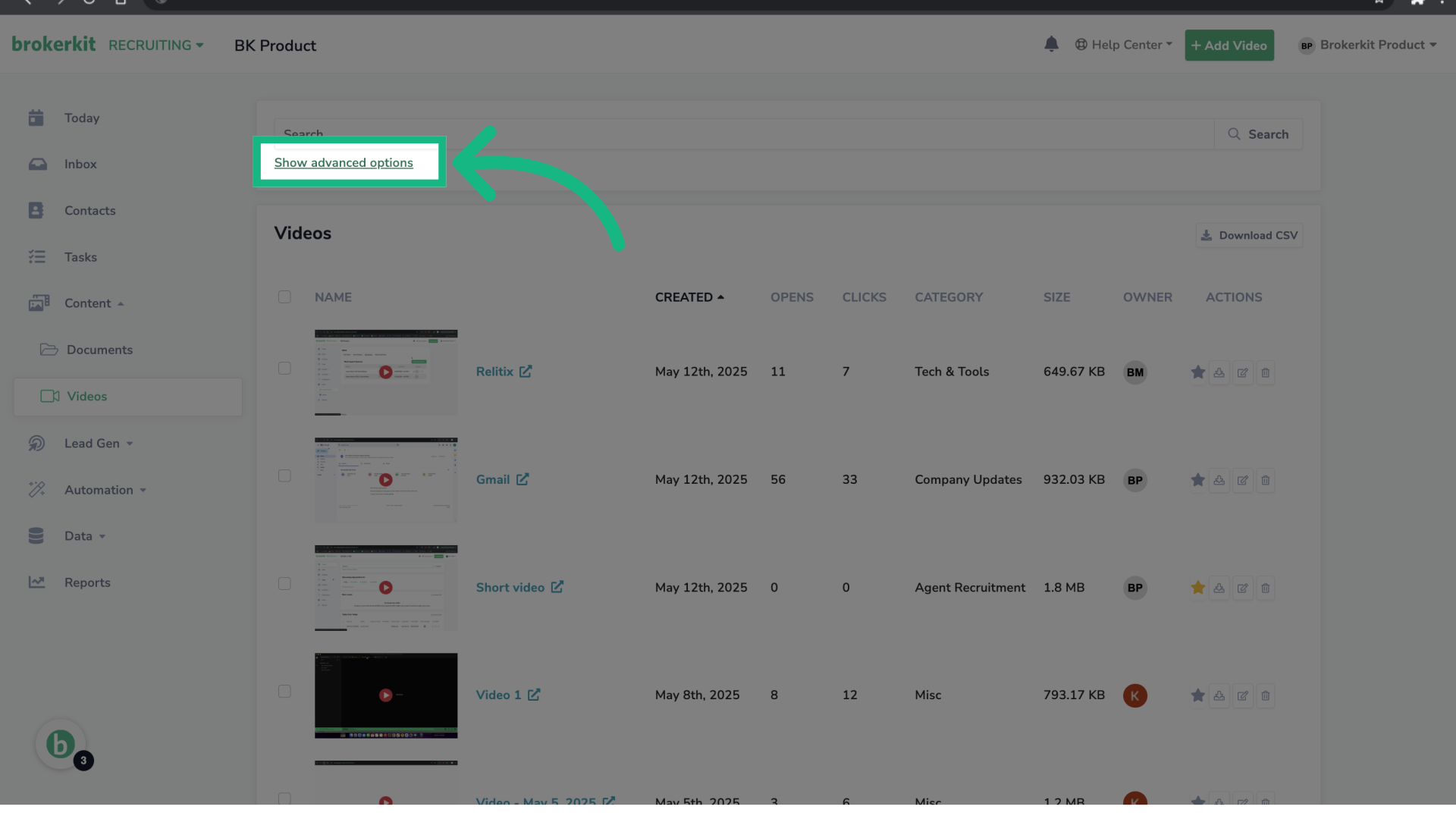
20. Click "Quick Filters"
For a more specific search, click Quick Filters to reveal common options to filter your videos.
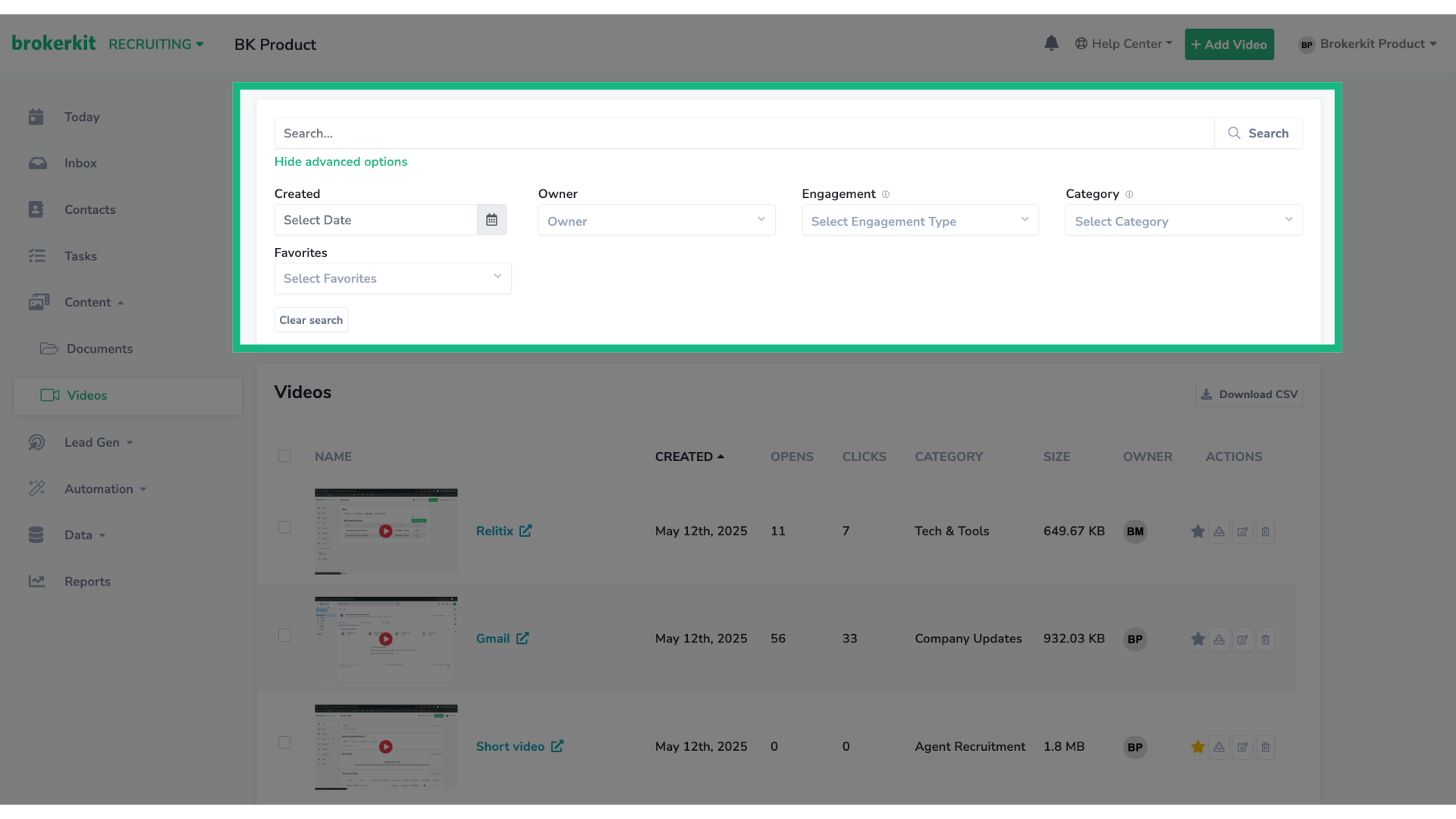
21. Filter options
You can filter by Created Date, Video Owner, Engagement, Category, or Favorite status.
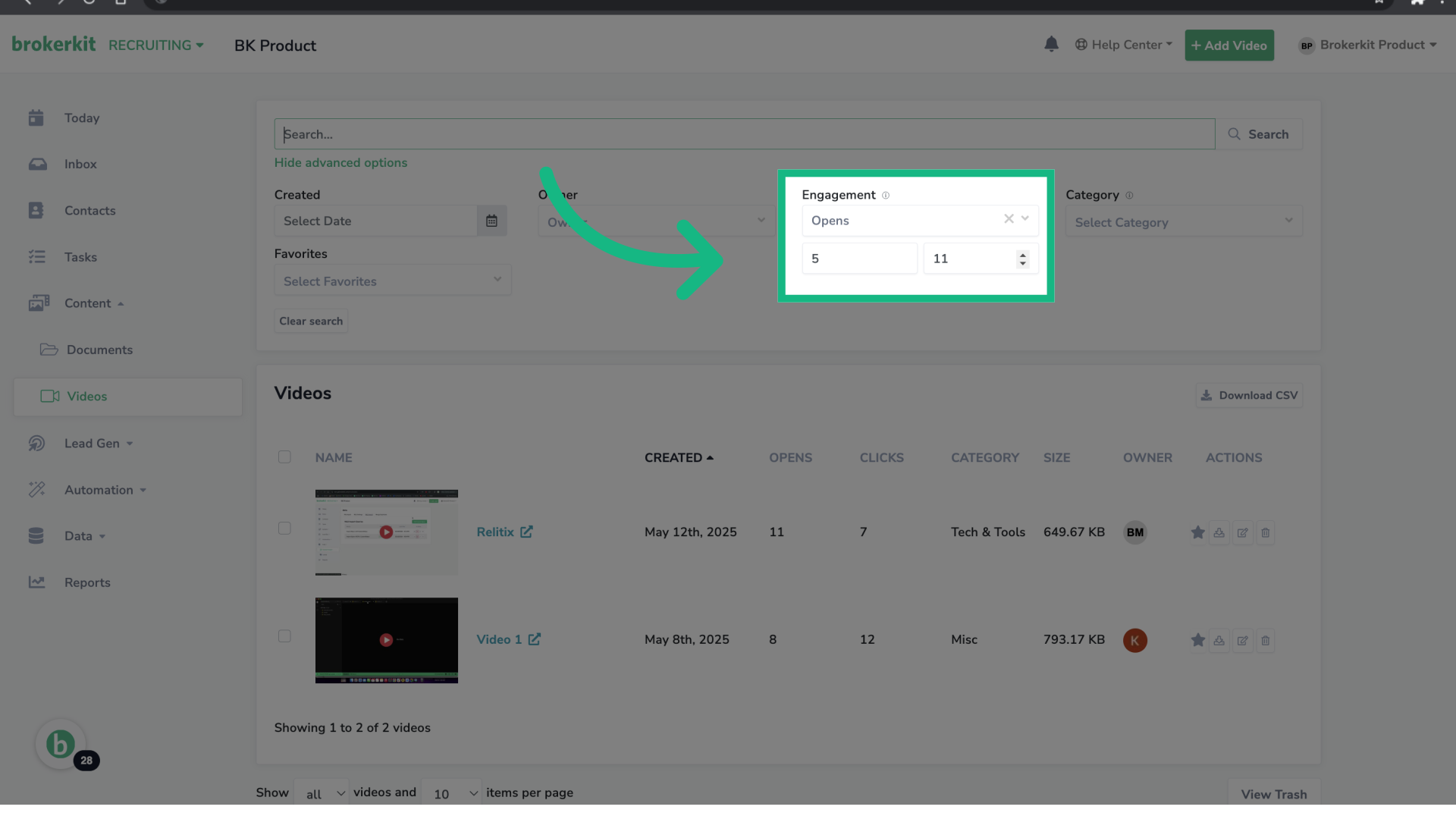
22. Filter by Engagement
For example, you can filter videos that have had between 5 and 11 opens.
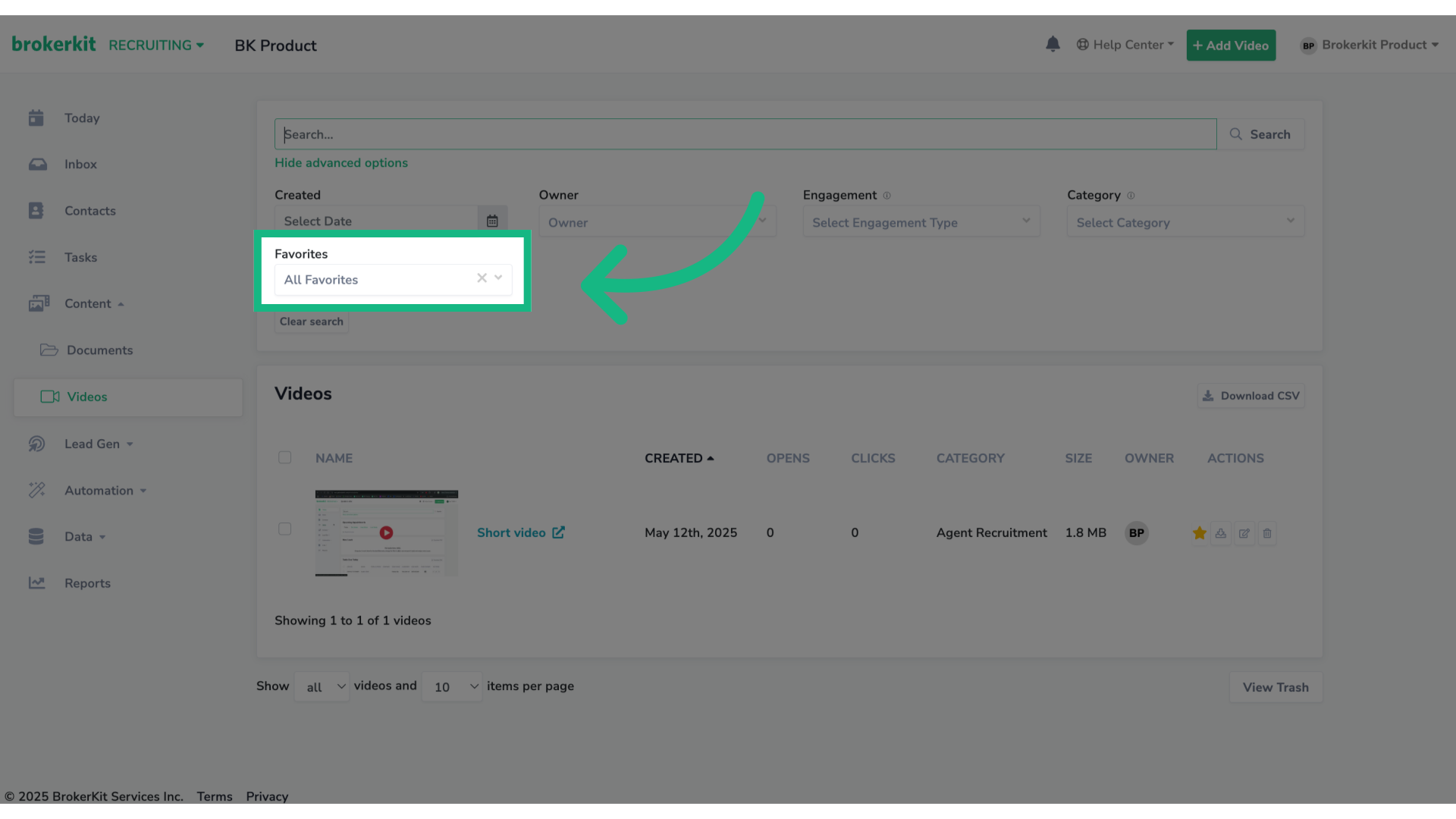
23. Filter by Favorites
Or you can filter only favorite videos.
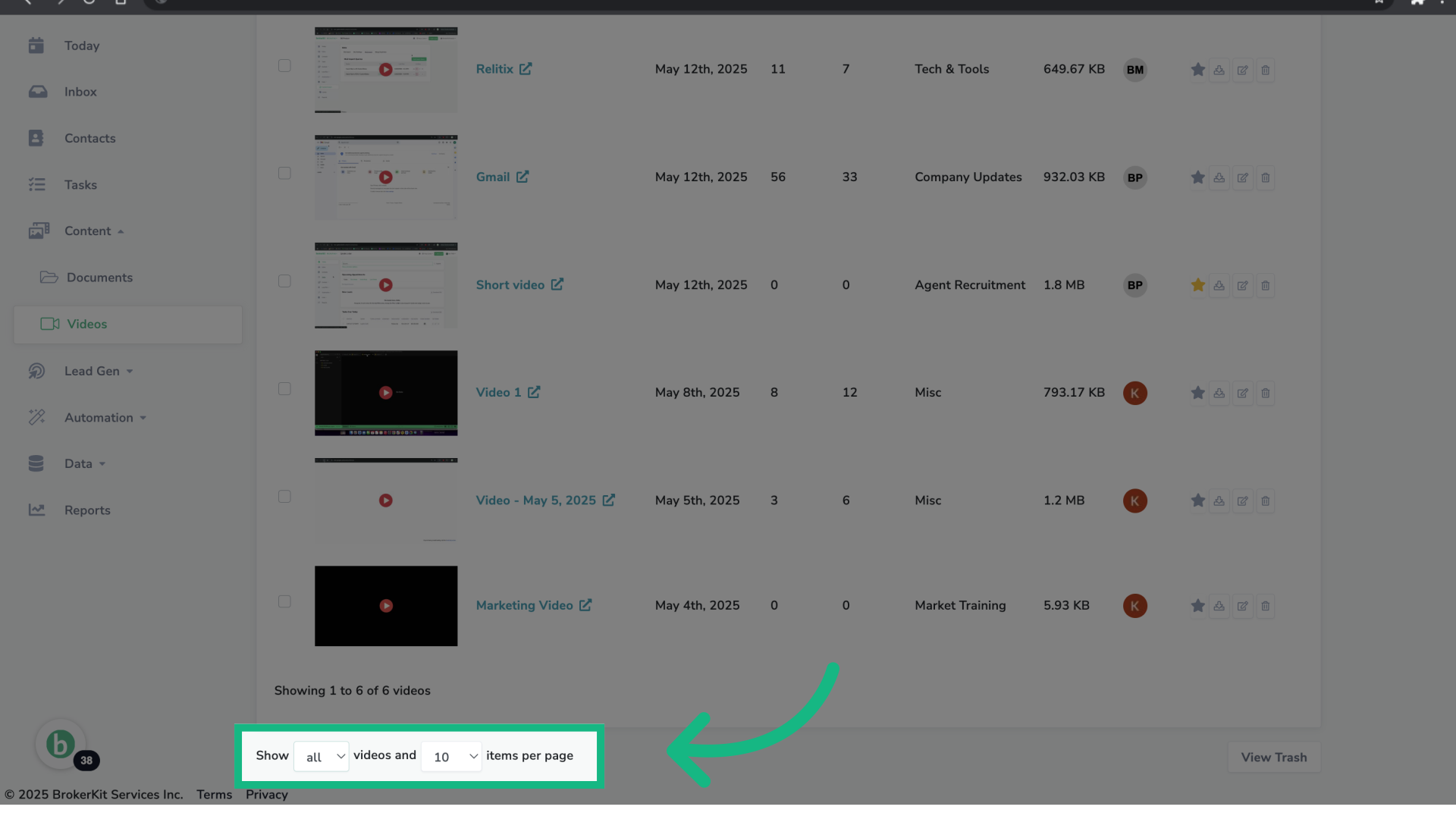
24. Generic filter
At the bottom of the page, you'll find a filter that lets you choose between viewing all videos or only your videos.
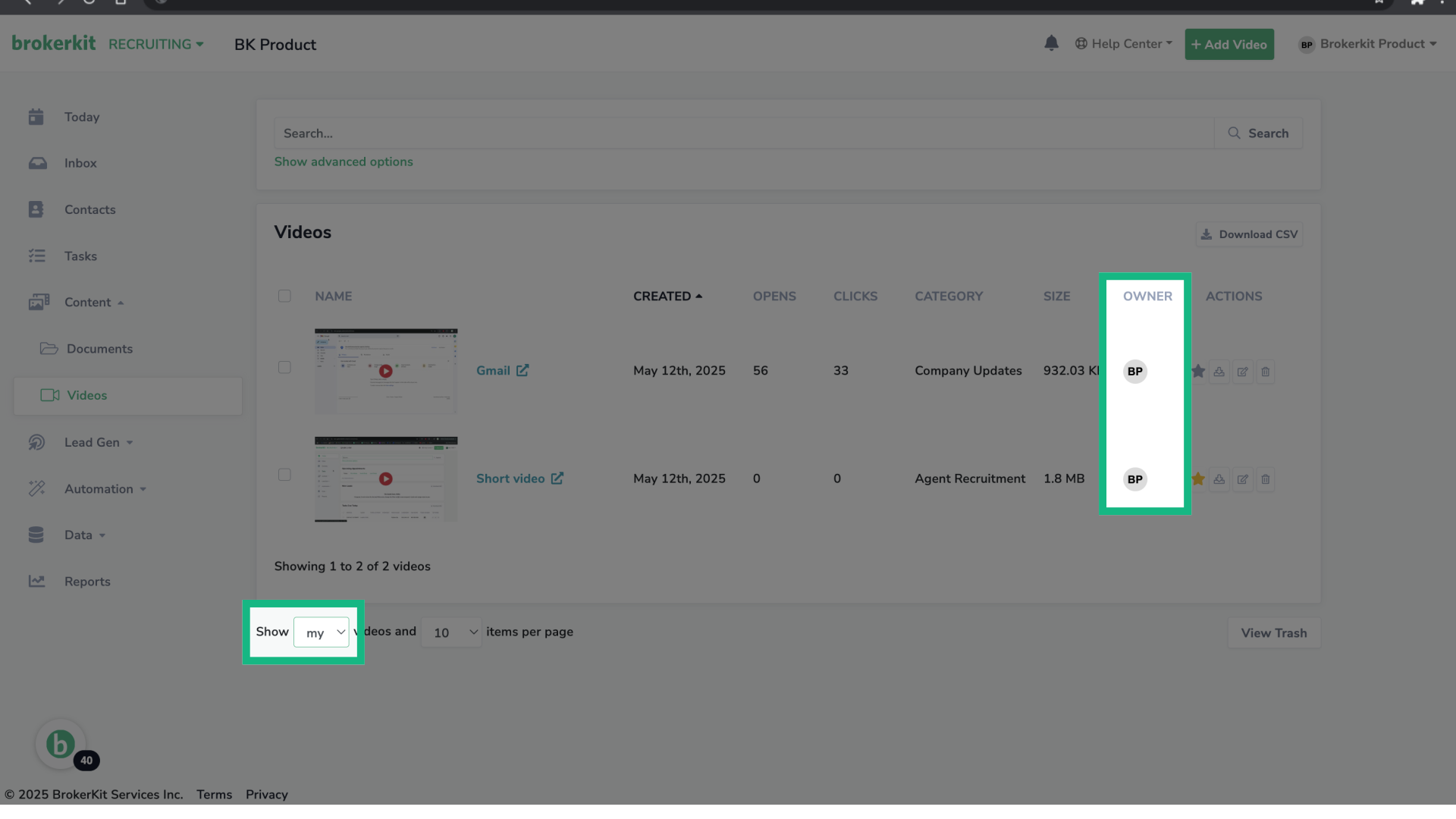
25. Example: Only show my videos
For example, if you set it as Show my videos, only the videos where you are the owner will be shown.
26. How to access the Trash Page?
Now, let's take a look at the Trash Page.
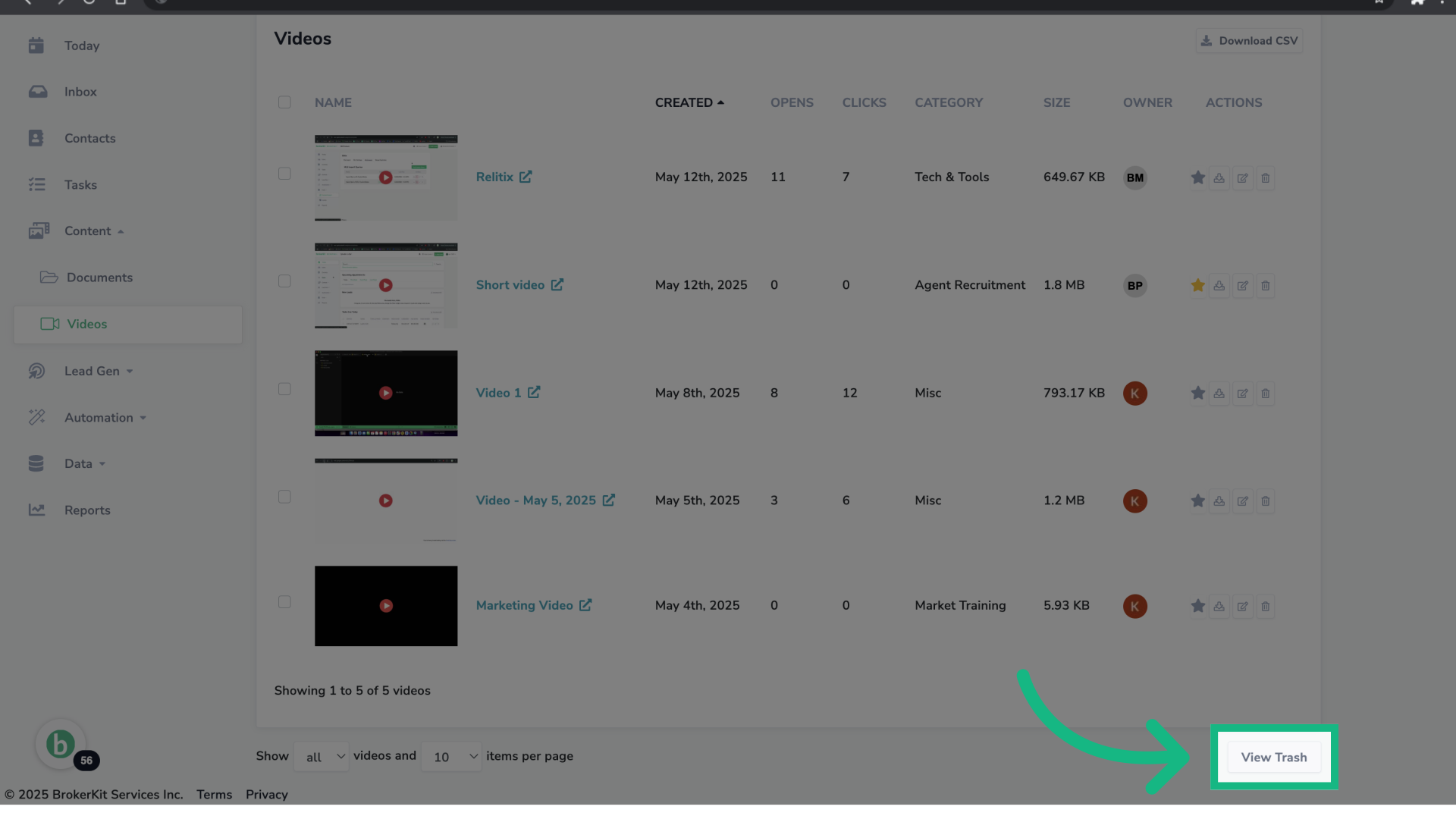
27. Click "View Trash"
Access the Trash page by clicking the button View Trash that is located at the bottom of the page.
28. Trash Page
The Trash page will show the videos that were deleted from the Video Library. They remain here for 30 days before being permanently deleted. Here, you will be able to see who deleted the video, when it was deleted, and perform 2 actions: restore or permanent delete the video.
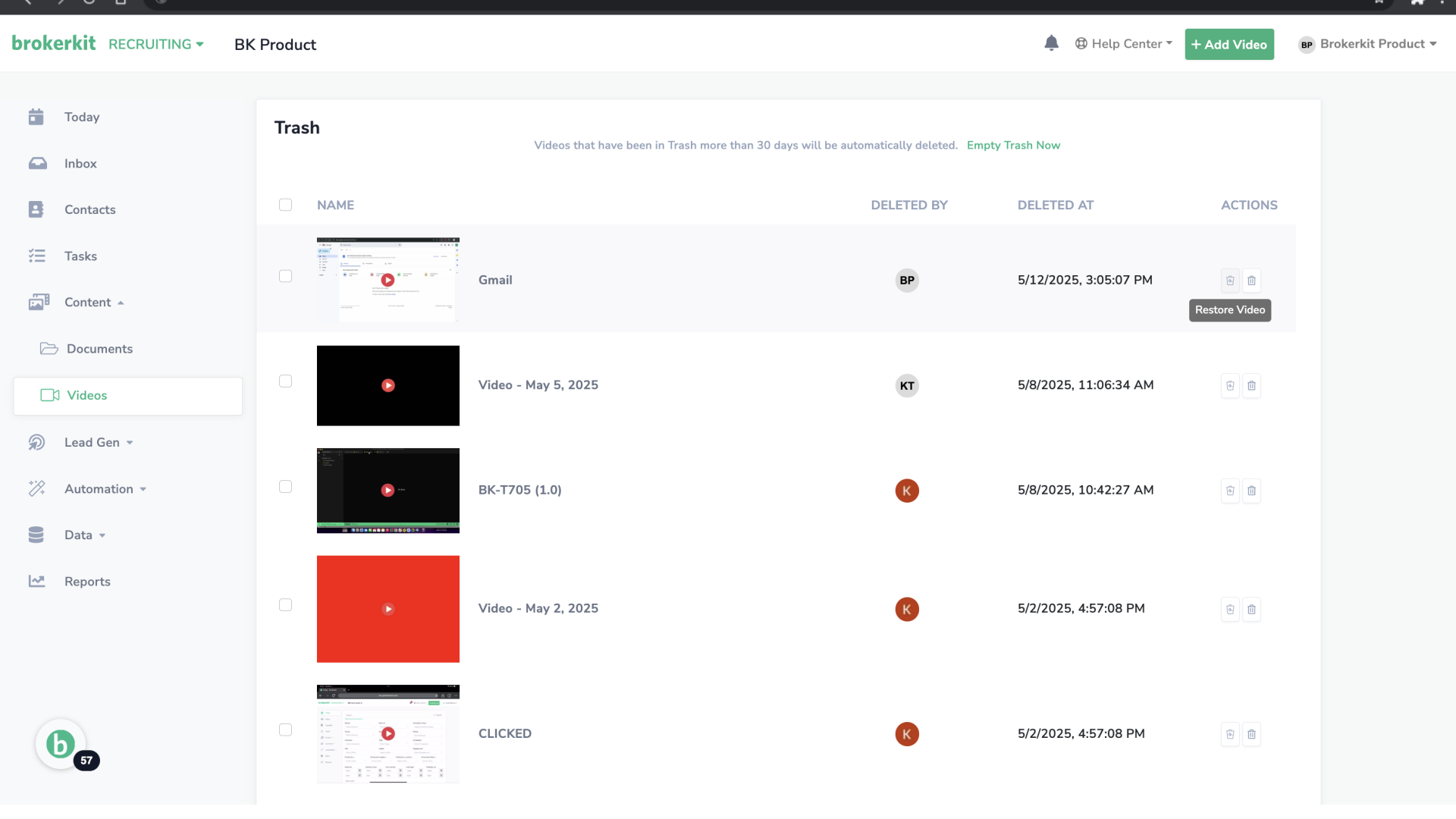
29. Restore a Single Video
To restore a video, click on the first icon. Remember, you have 30 days to restore it before it's permanently deleted.
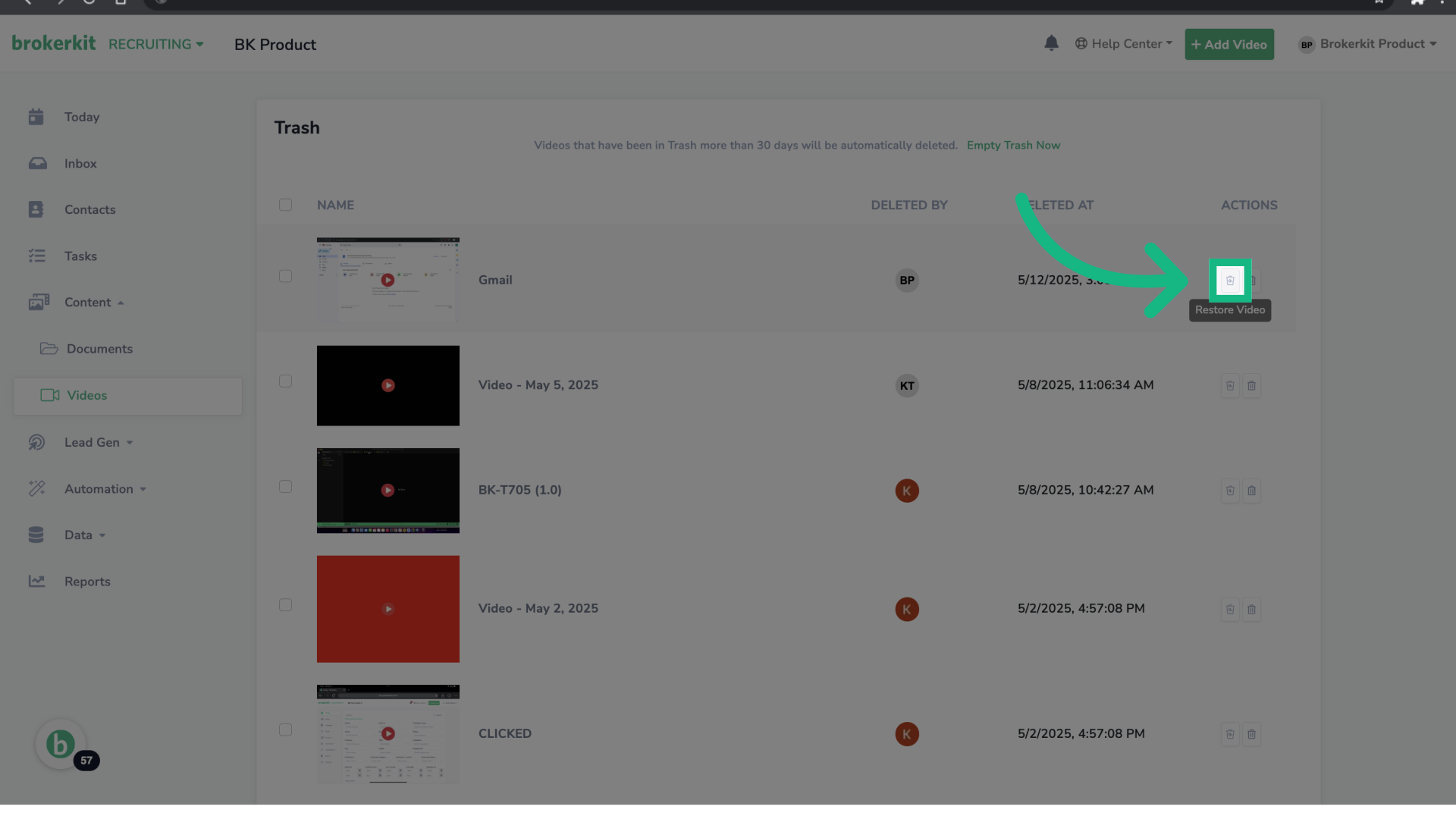
30. Bulk Restore Videos
To bulk restore videos, select the videos you want to restore and click the button Restore.
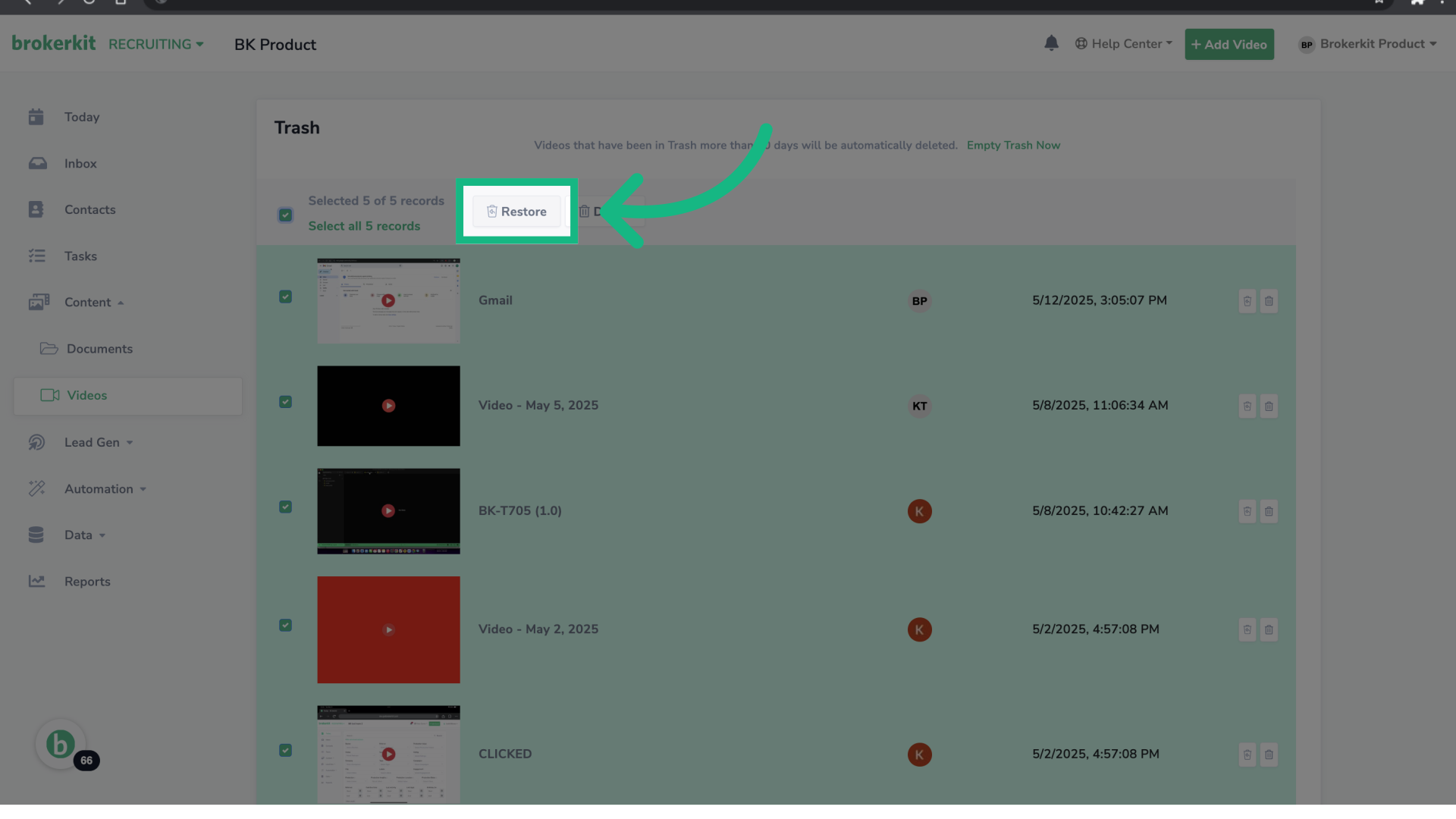
31. Permanently Delete a Single Video
To permanent delete a video, click on the trash icon. Remember, 30 days after a video is moved to the Trash, it will be permanently deleted automatically.
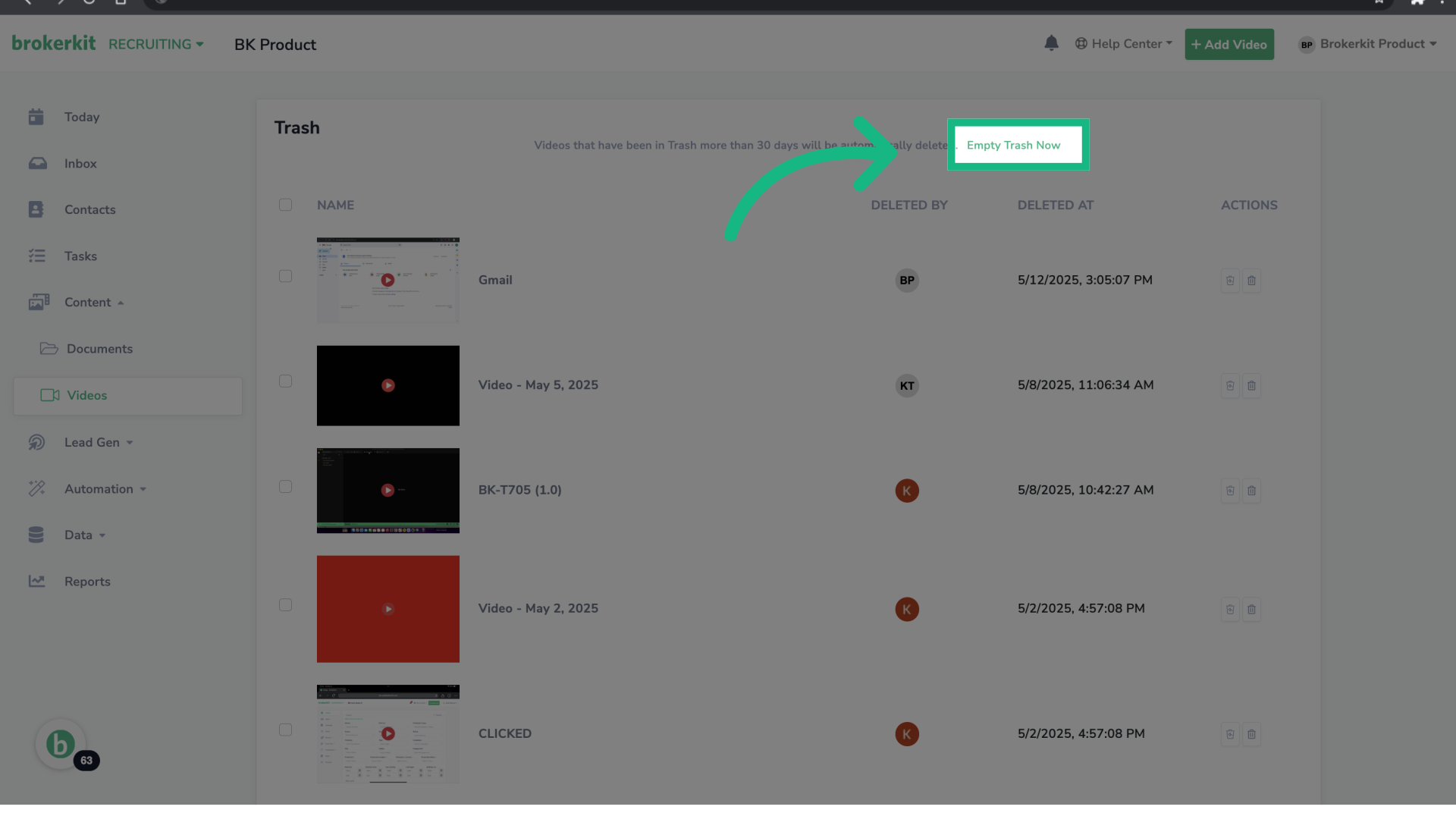
32. Bulk Permanently Delete Videos
To permanent delete all videos, click the option Empty Trash Now.
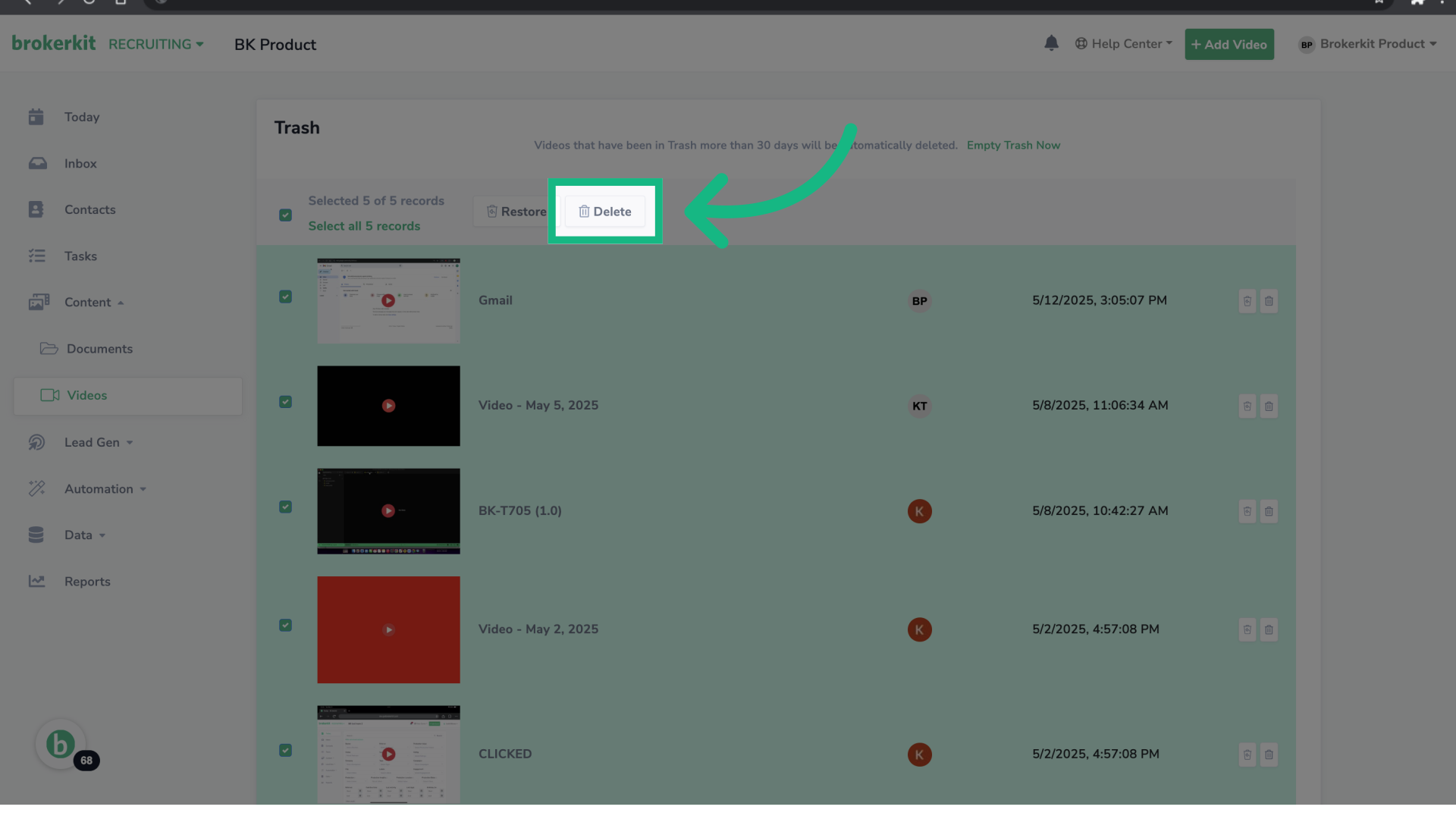
33. Click "Delete"
Alternatively, you can bulk select all videos and click the Delete button.
34. Let's give it a try
Now, for the fun part—let's see how easy it is to use your videos in emails and texts!
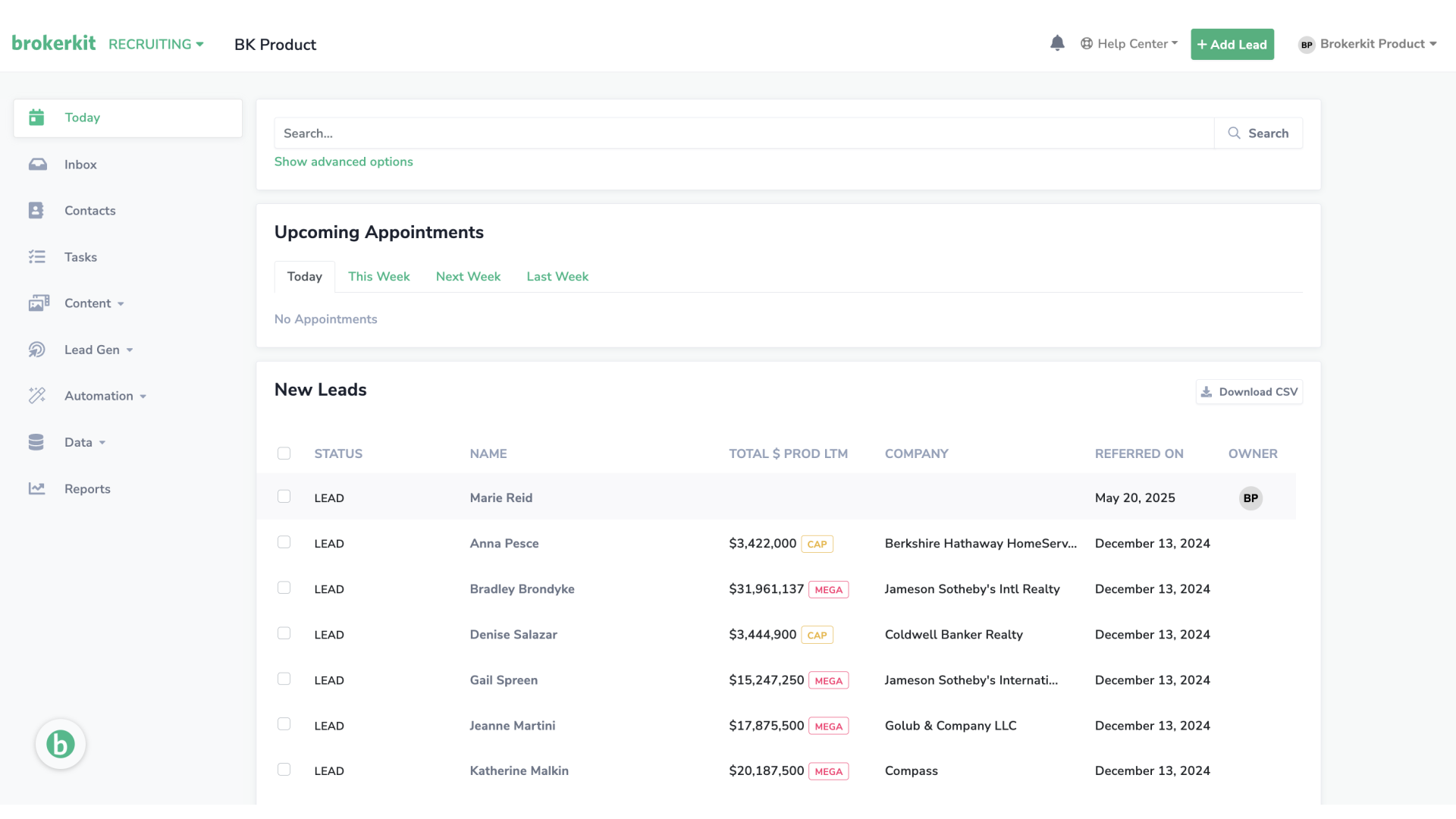
35. Open your Brokerkit
Go to your Brokerkit platform and select a contact.
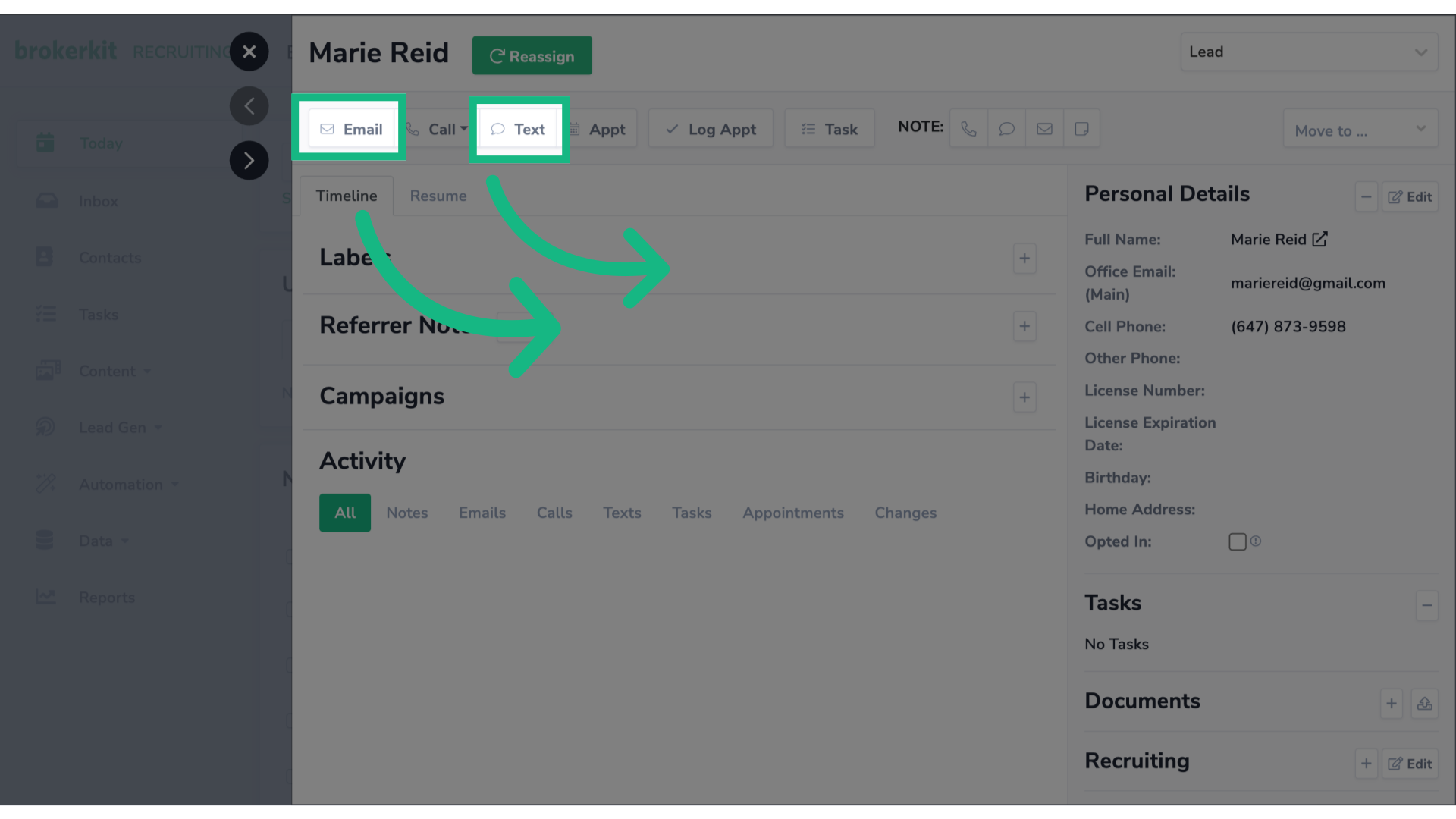
36. You can send videos in emails or texts
In the contact profile, select email or text.
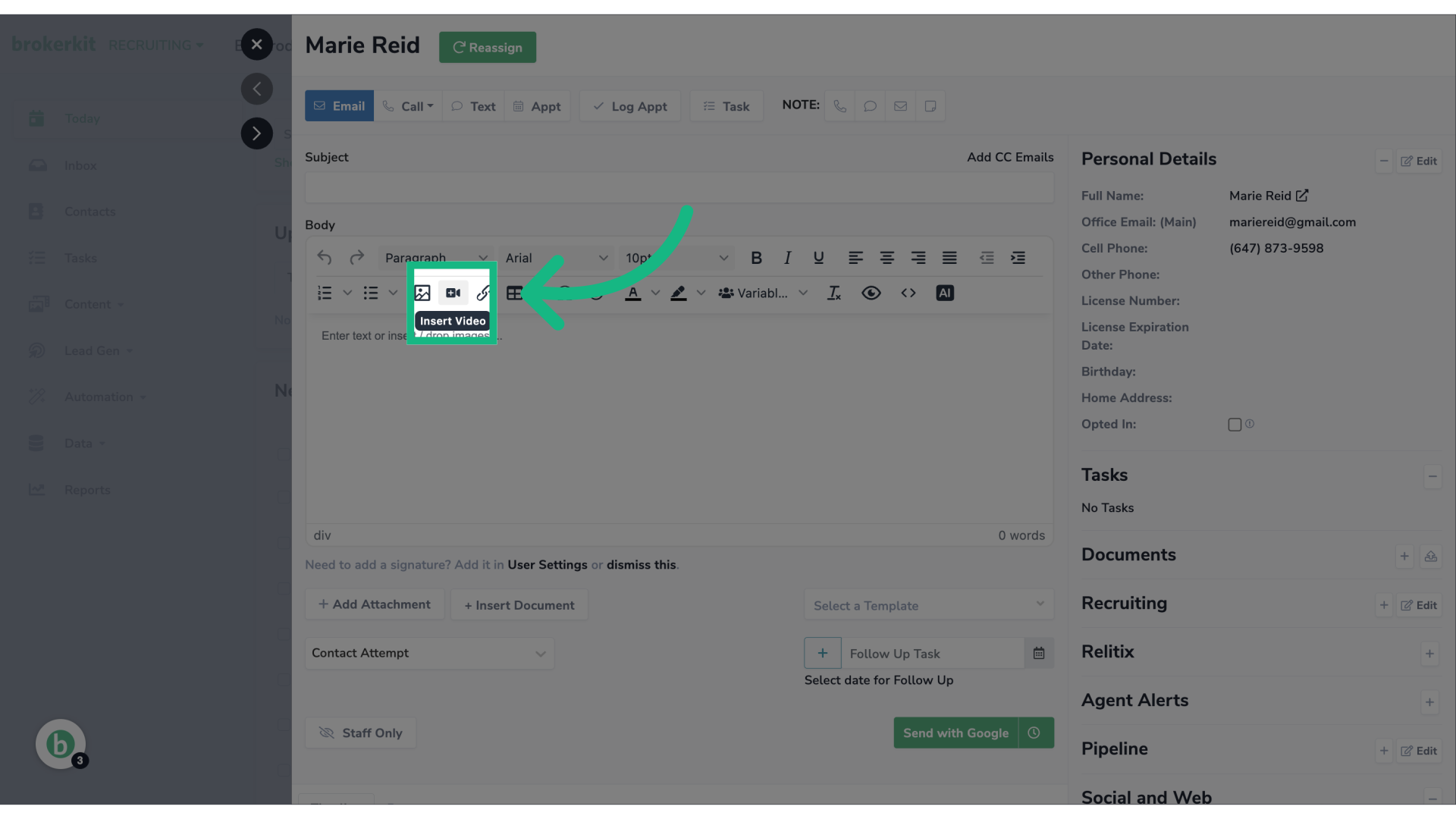
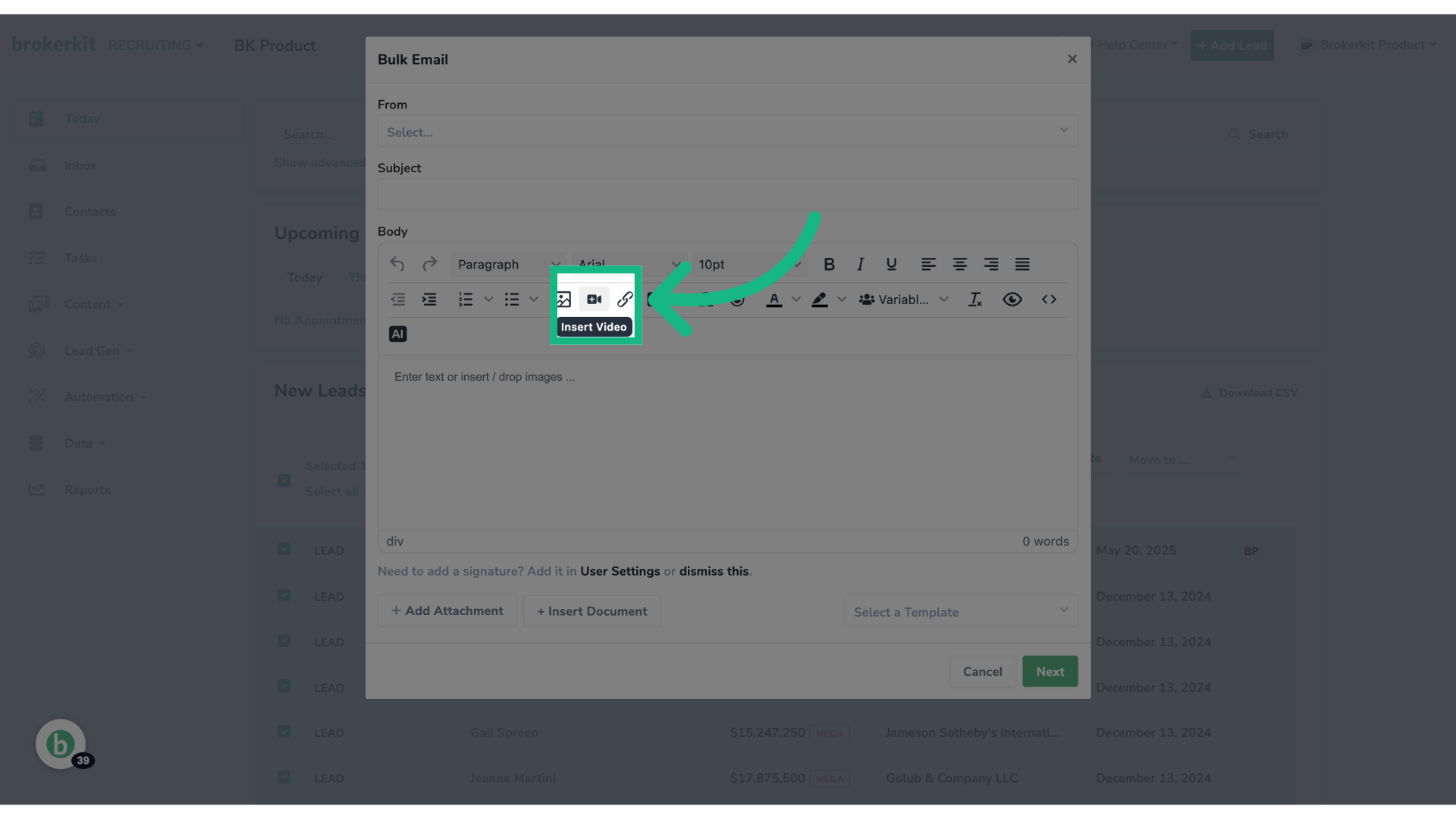
37. Click the video icon
Click the video icon.
38. Record a new online video
There's 3 different options you can add a video to your email or text. The first is by recording a video on the spot.
39. Upload a new video
The second is by uploading a new video from your computer.
40. Choose from video library
The thrid is by choosing a video from your library.
41. Clean the filter
To see all videos and not only the ones you own, be sure to clean the filter.
42. Click "Insert video"
Once you select the video you want, click Insert video.
43. Video will be inserted in your email or text
Be sure to add a call to action so the recipient knows to click the image to watch the video.
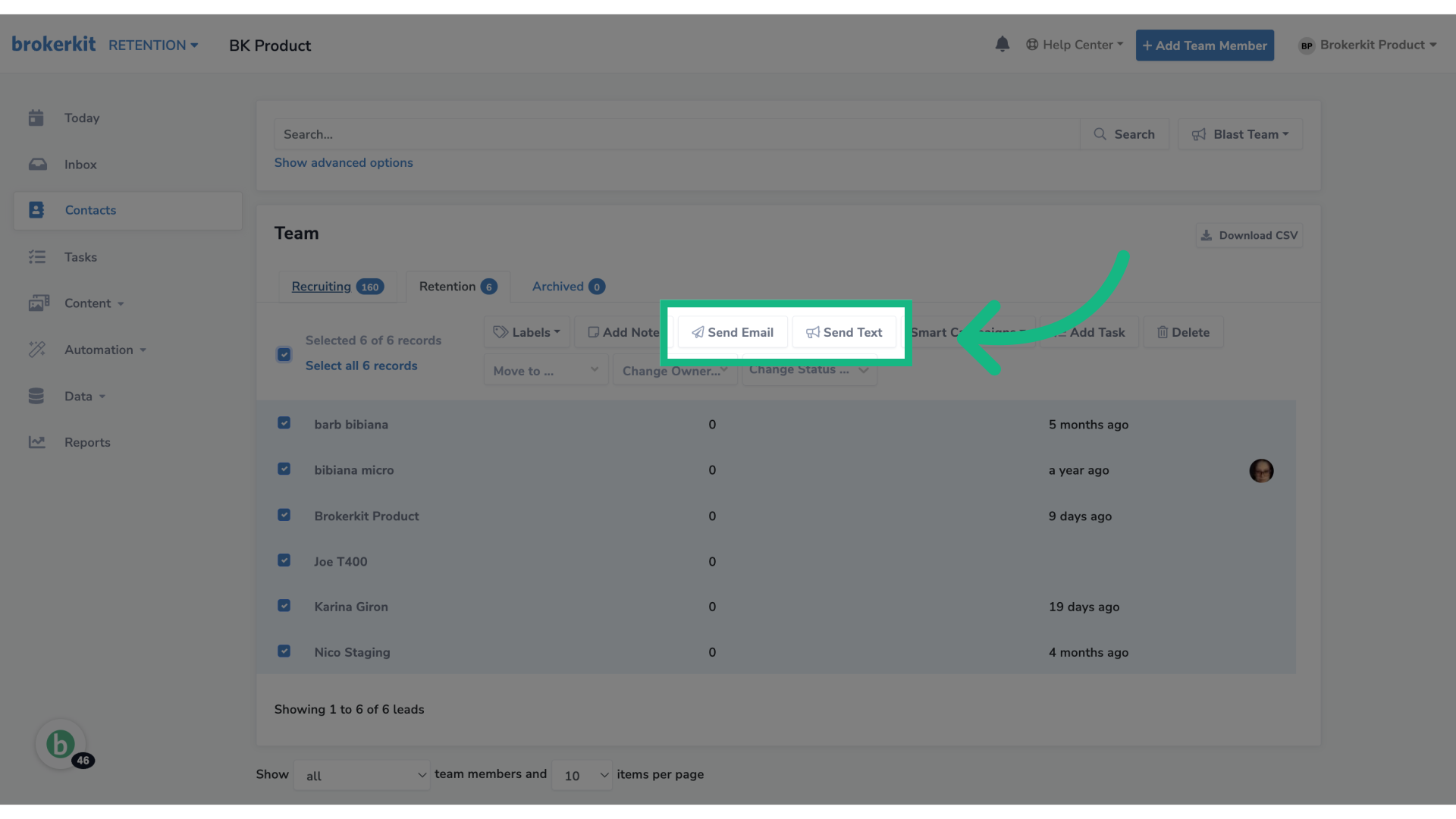
44. Send videos in Bulk emails or texts
Keep in mind that you can also send videos in bulk emails or texts. Just select the contacts, then choose the bulk action.
45. Click the video icon
And finally click the video icon to insert your video.
To know more about videos, please watch this tutorial ➡️Learn How To Send Email/Texts with your Videos. If you have any questions, please reach out to our support team at support@brokerkit.com.